
What is WP-CLI (and do you need SSH?)
WP-CLI is the command-line tool for WordPress. It lets you manage core files, plugins, themes, users, and the database from a terminal, with no browser and no wp-admin login. Tasks that take a dozen clicks in the dashboard often collapse into one line, and jobs that would be tedious across many sites become a single loop. Developers reach for it to script deploys and migrations, but beginners can use it for everyday chores like updating plugins or resetting a lost password. If you like the point-and-click reference for the admin side, keep our WordPress Cheat Sheet open in another tab as the sibling to this one.
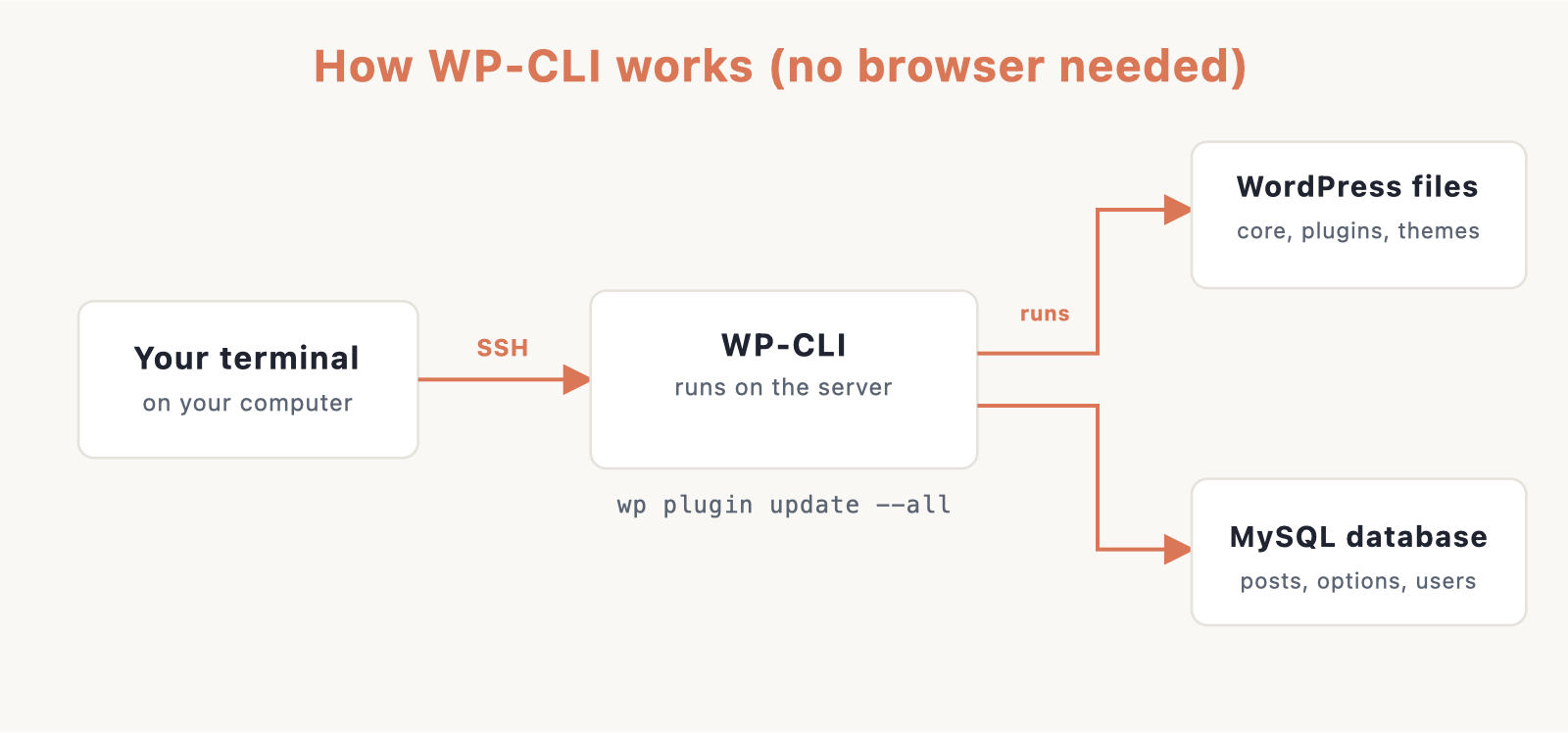
To run WP-CLI you need shell access, usually over SSH, on the server where WordPress lives. The cheapest shared plans often lock this down, but most managed WordPress and VPS hosts hand you SSH out of the box. Two solid picks with SSH included are Hostinger and, if you want a US-based option, Bluehost.
No site yet? Start with our step-by-step guide on how to create a website, then come back once WordPress is installed. WP-CLI does not replace the dashboard. It talks to the same database and the same files, so anything you change on the command line shows up in wp-admin, and the other way around.
Install and verify WP-CLI
Download the WP-CLI phar archive, make it executable, then move it into your path so you can call it as wp from anywhere.
curl -O https://raw.githubusercontent.com/wp-cli/builds/gh-pages/phar/wp-cli.phar
chmod +x wp-cli.phar
sudo mv wp-cli.phar /usr/local/bin/wp
Confirm the install and read your environment details (PHP version, MySQL, config path). Then check the version number on its own.
wp --info
wp cli version
Keep the tool current with a single update command.
wp cli update
Install and setup (core)
Download the latest WordPress core files into the current folder.
wp core download
Generate the wp-config.php file with your database credentials. Use wp config create. The old wp core config command is deprecated and removed from current WP-CLI, so do not reach for it.
wp config create --dbname=NAME --dbuser=USER --dbpass=PASS
Run the actual installation, which creates the tables and your first admin account.
wp core install --url=example.com --title="Site" --admin_user=admin --admin_password=STRONGPASS --admin_email=you@example.com
Check which WordPress version is running, update core to the newest release, then run any pending database migrations that a new version needs.
wp core version
wp core update
wp core update-db
Compare your core files against the official checksums. This is a fast way to spot files that were altered by malware.
wp core verify-checksums
Plugins
List every installed plugin with its status, or search the plugin directory by keyword.
wp plugin list
wp plugin search woocommerce
Install a plugin, or install and activate it in one step.
wp plugin install akismet
wp plugin install akismet --activate
Turn a plugin on or off without removing it.
wp plugin activate akismet
wp plugin deactivate akismet
Update every plugin at once, or delete one you no longer need.
wp plugin update --all
wp plugin delete hello
Themes
List installed themes, or search the theme directory by name.
wp theme list
wp theme search astra
Install a theme and switch to it immediately, or activate one you already have.
wp theme install twentytwentyfour --activate
wp theme activate twentytwentyfour
Update all themes, or delete an old one. You cannot delete the active theme, so switch first.
wp theme update --all
wp theme delete twentytwentythree
Users
List all users with their roles and emails.
wp user list
Create a new user, passing a login name, an email, and a role.
wp user create bob bob@example.com --role=editor
Reset a user’s password from the command line. Handy when someone is locked out.
wp user update bob --user_pass=NEWPASS
Delete a user and reassign their posts to another user by ID, so no content is orphaned.
wp user delete bob --reassign=1
Posts and content
List content of a given type. Here we list pages instead of posts.
wp post list --post_type=page
Create a published post with a title, then flip an existing post back to draft by its ID.
wp post create --post_status=publish --post_title="Hello"
wp post update 42 --post_status=draft
Permanently delete a post. With --force it skips the trash and cannot be undone.
wp post delete 42 --force
Generate dummy posts. This is great for testing a theme or layout with realistic volume.
wp post generate --count=20
Database
Always back up first. Export the whole database to a SQL file, and import one back when you need to restore.
wp db export backup.sql
wp db import backup.sql
Optimize the tables to reclaim space, or repair tables that report corruption.
wp db optimize
wp db repair
Wipe the database clean. This drops and recreates every table, so it is destructive. There is no undo.
wp db reset --yes
Run a raw SQL query, check the total database size, or drop into an interactive MySQL shell.
wp db query "SELECT COUNT(*) FROM wp_posts;"
wp db size --human-readable
wp db cli
Search and replace (the migration killer feature)
This is the command that makes site migrations painless. When you move a site to a new domain, URLs are baked all over the database, including inside serialized data that a plain SQL find-and-replace would corrupt. WP-CLI handles serialized data correctly. Always run a dry run first so you can see the count of changes before touching anything.
wp search-replace 'https://old.com' 'https://new.com' --dry-run
Once the dry run looks right, run it for real. Skip the guid column, walk into serialized objects, and use precise mode for exact matching. Note there is no wp db search-replace: it is the top-level wp search-replace.
wp search-replace 'https://old.com' 'https://new.com' --skip-columns=guid --recurse-objects --precise
You skip the guid column because guids are permanent identifiers for feed readers, not live links. Rewriting them can make feed items look brand new and break syndication, so leave them alone.
Maintenance and performance
Flush the object cache, then clear all transients (cached temporary data) that can go stale.
wp cache flush
wp transient delete --all
Rebuild the rewrite rules. This fixes broken permalinks and stubborn 404 errors after changing settings.
wp rewrite flush
Inspect scheduled cron events, or force everything that is due to run right now instead of waiting on traffic.
wp cron event list
wp cron event run --due-now
Toggle maintenance mode on and off around a risky change.
wp maintenance-mode activate
wp maintenance-mode deactivate
Regenerate thumbnail sizes, doing only the ones that are missing so the job stays quick. For more ways to trim load times, see our guide on how to speed up your website.
wp media regenerate --yes --only-missing
Options
Read a single option value, such as the site URL.
wp option get siteurl
Update an option, like changing the site title.
wp option update blogname "New Site Name"
List options matching a pattern, useful for auditing theme settings.
wp option list --search="theme_*"
Remote and handy
Run commands against a remote server. With an alias defined in your wp-cli.yml file, @production targets that environment over SSH.
wp @production plugin list
No alias? Pass the connection inline with --ssh and the path to WordPress.
wp plugin list --ssh=user@host:/var/www/html
Print your full environment, then run a health scan. The doctor command needs the doctor package installed first with wp package install wp-cli/doctor-command.
wp --info
wp doctor check --all
Safety tips
A few habits keep WP-CLI from ruining your day. You need SSH or shell access to use any of this, so confirm your host provides it before you start. Before any search-replace, run wp db export for a backup and use --dry-run to preview. Always quote URLs and multi-word values so the shell does not split them. On a multisite network, most commands need --url=<site> to target one site or --network to hit all of them. Remember that db reset and post delete --force are irreversible, with no trash to fall back on. One more thing: a password typed directly on the command line usually lands in your shell history, so rotate it or clear the history afterward.
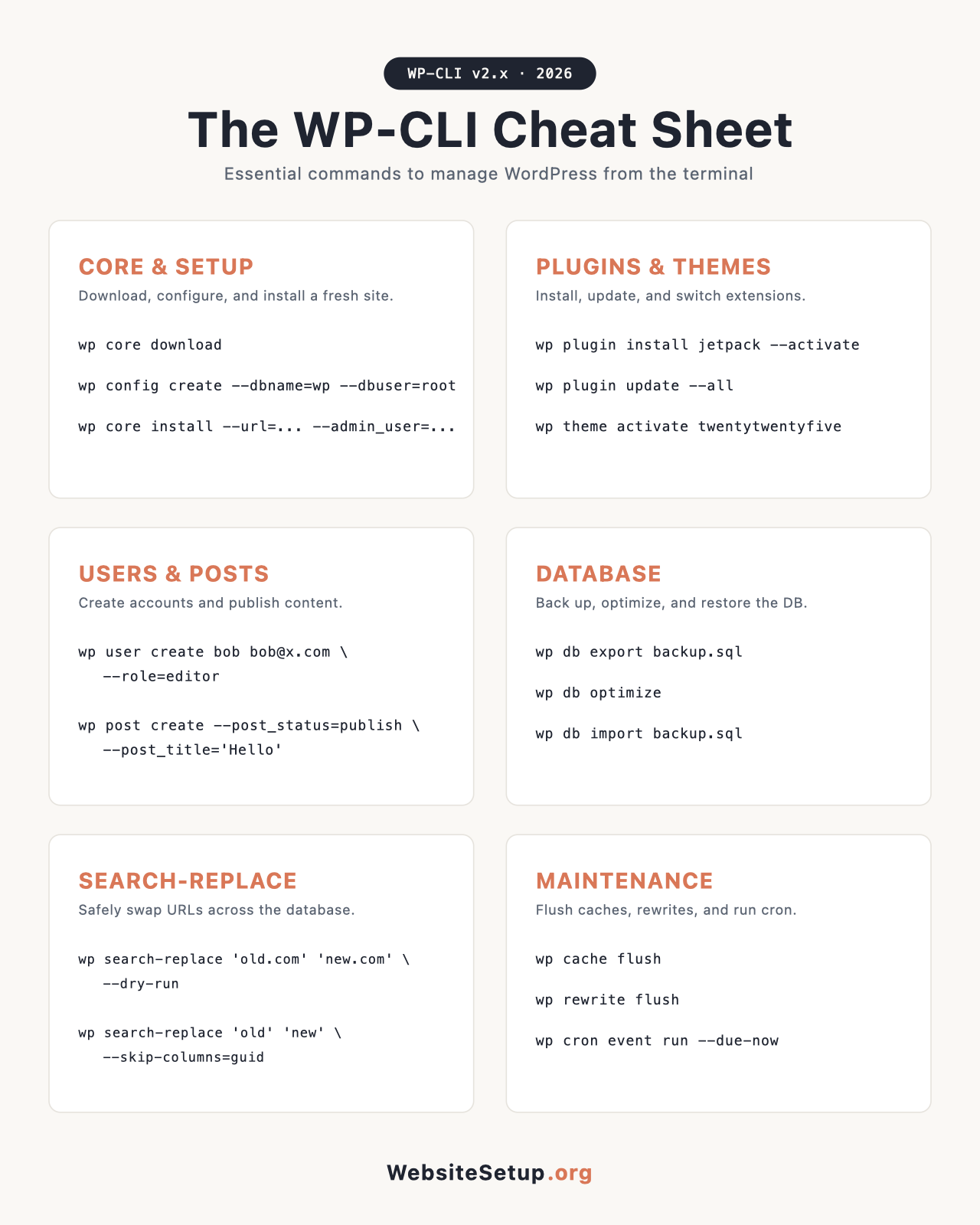
Download the WP-CLI Cheat Sheet (PDF)
Want every command in one printable page? Grab the branded PDF version below. It groups all of these commands by category with a one-line note for each, so you can pin it next to your terminal.
Download the WP-CLI Cheat Sheet (PDF)
FAQ
How do I install WP-CLI?
Download the wp-cli.phar file, make it executable with chmod +x, and move it to /usr/local/bin/wp. Then run wp --info to confirm it works.
Do I need SSH to use WP-CLI?
Yes. WP-CLI runs on the server, so you need shell or SSH access. Cheap shared plans often block it, but managed WordPress and VPS hosts include it.
What is the most useful WP-CLI command?
For most people it is wp search-replace. It handles domain and URL changes during migrations, including serialized data that a plain SQL query would break.
Is WP-CLI safe to run on a live site?
Yes, with care. Export a database backup first, use --dry-run before any search-replace, and avoid the irreversible commands unless you mean them.