When it comes to building your website, your branding strategy is crucial to converting visitors into customers. No small detail should be overlooked. This includes the need to create favicon icons, and a free favicon generator can help you make these.
Favicons are the small image icons that appear next to a website’s title in the tab of a browser window. They also show up in bookmarks, search results, and on mobile home screens when someone saves your site as a shortcut.
Because favicons are used across browsers, devices, and operating systems, you need multiple sizes and formats. A favicon ICO file can bundle several sizes together, while PNG and SVG files are also widely supported in modern browsers.
Favicons are essential because users constantly have multiple tabs open. A recognizable favicon helps visitors identify your site at a glance, improving both brand recognition and user experience.
Here are **11 free favicon generator online tools** as well as details on favicon best practices, how to create them, and how to install them.
- Favicon.io
- Real Favicon Generator
- Favicon.cc
- Favicon-Generator.org
- FaviconGenerator.com
- Favicomatic
- Ionos Favicon Generator
- Favvy (Figma Plugin)
- Formito
- Genfavicon
- ConvertiICO
Let’s dig in.
Best Practices for Favicon Files
When you want to create favicon icons, the first step is learning more about them, including their requirements and best practices.
The term “favicon” is a portmanteau for “favorite icon.” Originally, these icons were displayed when a user added a website to their browser’s “favorites” folder – what modern browsers now call bookmarks. Today, favicons appear in browser tabs, address bars, search results, and on mobile home screens.
A favicon icon has to meet certain size requirements. Otherwise, browsers and devices won’t display them correctly.
The minimum sizes you need are:
- 16×16 pixels for browser tabs
- 32×32 pixels for desktop taskbars and browser shortcuts
- 96×96 pixels for desktop app icons
- 180×180 pixels for Apple Touch Icons (iOS and iPadOS)
- 192×192 pixels for Android devices and Progressive Web Apps
- 512×512 pixels for PWA splash screens and high-resolution displays
If your site is a simple blog and you’re not too worried about cross-device branding, a 32×32 pixel favicon may be sufficient. But for full compatibility, generate multiple sizes.
When you make a favicon icon, it’s also a good idea to follow these best practices:
- Keep it simple and not overly stylized – your favicon needs to be recognizable even at 16×16 pixels.
- Pick one or two colors for the color scheme. At the very most, no more than three colors.
- Avoid fine details, lots of lines, or tiny letters – these disappear at small sizes.
- While you can have a transparent background, Apple devices don’t support transparency for home screen icons (they’ll fill it with black).
- Your favicon should correspond to your existing branding and logo design.
- Test your favicon at actual size before committing – zoom in on your design tool, then view it at 16×16 to make sure it reads clearly.
SVG Favicons and Modern Formats
Traditionally, favicons used the ICO format (which bundles multiple sizes into one file) or individual PNG files. In 2026, SVG (Scalable Vector Graphics) favicons are supported by all major modern browsers and offer significant advantages:
- Infinite scalability – SVGs are defined by mathematical paths, not pixels. They look perfectly crisp on any screen, from a smartwatch to a 4K monitor.
- Tiny file sizes – A simple SVG favicon can be under 1KB, faster to load than equivalent PNG files.
- Dark mode support – SVG files can include CSS media queries that automatically adjust colors based on the user’s light or dark theme preference.
To add an SVG favicon, you can use:
<link rel="icon" type="image/svg+xml" href="/favicon.svg">
It’s still recommended to include a traditional ICO or PNG fallback for older browsers:
<link rel="icon" type="image/svg+xml" href="/favicon.svg">
<link rel="icon" type="image/png" sizes="32x32" href="/favicon-32x32.png">
<link rel="icon" type="image/x-icon" href="/favicon.ico">
Most of the favicon generators listed below can produce PNG and ICO files. If you need SVG output, you’ll want to create the SVG in a design tool (like Figma) and then run it through a generator like Real Favicon Generator for cross-platform optimization.
Dark Mode Considerations
A large share of users in 2026 browse with dark mode enabled. This means your favicon needs to maintain contrast against both light and dark tab bar backgrounds.
A favicon with a dark icon on a transparent background may become invisible in dark mode. To handle this:
- Test your favicon against both light and dark backgrounds before finalizing.
- Consider adding a subtle light-colored stroke or outline around dark elements.
- If using SVG, you can embed a CSS media query to swap colors automatically:
<svg xmlns="http://www.w3.org/2000/svg" viewBox="0 0 32 32">
  <style>
    path { fill: #333333; }
    @media (prefers-color-scheme: dark) {
      path { fill: #ffffff; }
    }
  </style>
  <path d="..."/>
</svg>
PWA and Web Manifest Support
If users can “Add to Home Screen” on your site – or if you’re building a Progressive Web App (PWA) – you need a web manifest file (site.webmanifest). This JSON file tells the device what icon to use, what name to display, and what theme color to apply.
A basic manifest looks like this:
{
  "name": "Your Site Name",
  "short_name": "Site",
  "icons": [
    { "src": "/android-chrome-192x192.png", "sizes": "192x192", "type": "image/png" },
    { "src": "/android-chrome-512x512.png", "sizes": "512x512", "type": "image/png" }
  ],
  "theme_color": "#ffffff",
  "background_color": "#ffffff",
  "display": "standalone"
}
Link it in your HTML head:
<link rel="manifest" href="/site.webmanifest">
Several of the generators listed below (especially Real Favicon Generator) create this manifest file automatically along with all the required icon sizes.
11 Best Free Favicon Generators
Here are several free favicon generators to help you create favicon icons, convert images to the right sizes and formats, or design one from scratch. They’re ordered with the most versatile and actively maintained tools first.
After you make a favicon with any of these online tools, the files are free to download and use.
1) Favicon.io
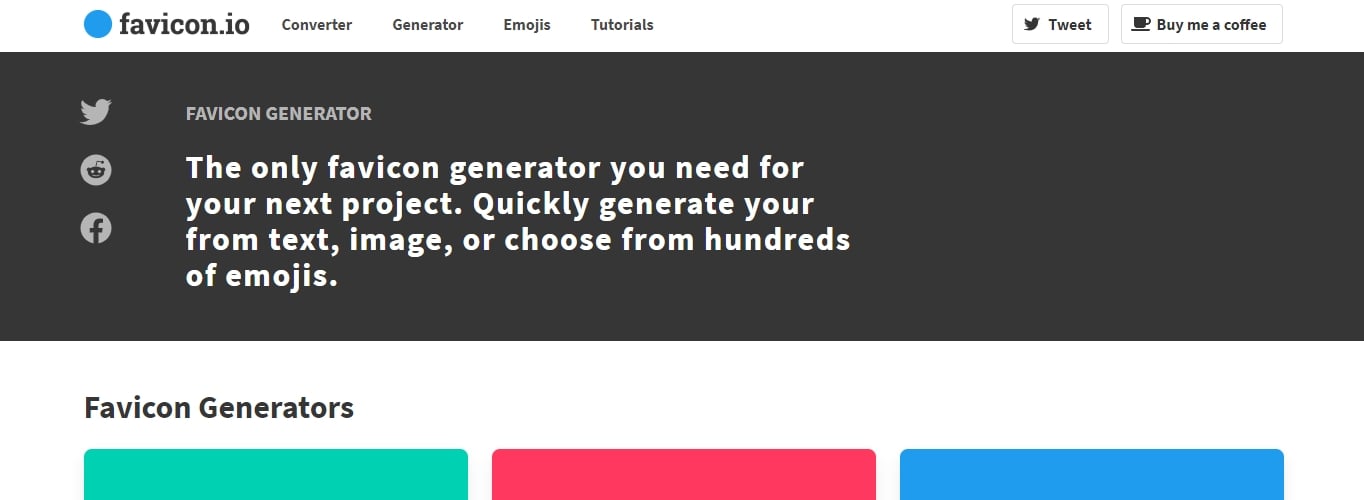
With this free favicon generator, you can create favicon icons from text, an image, or an emoji.
With the text-based option, you can choose the background color and shape, the font family and size, as well as the font color. The generator uses Google Fonts, giving you access to hundreds of font options.
Alternatively, you can upload an image file and the generator will convert it into the appropriate sizes. Or, you can pick an emoji from a large selection and download it as a favicon.
The generated favicon package includes ICO, PNG, and Apple Touch Icon files that work across all browsers and multiple platforms.
One note: Favicon.io is ad-supported, so be careful not to click on ad buttons that may look similar to download buttons.
Best for: Quick text-based or emoji favicons without needing any design skills.
2) Real Favicon Generator
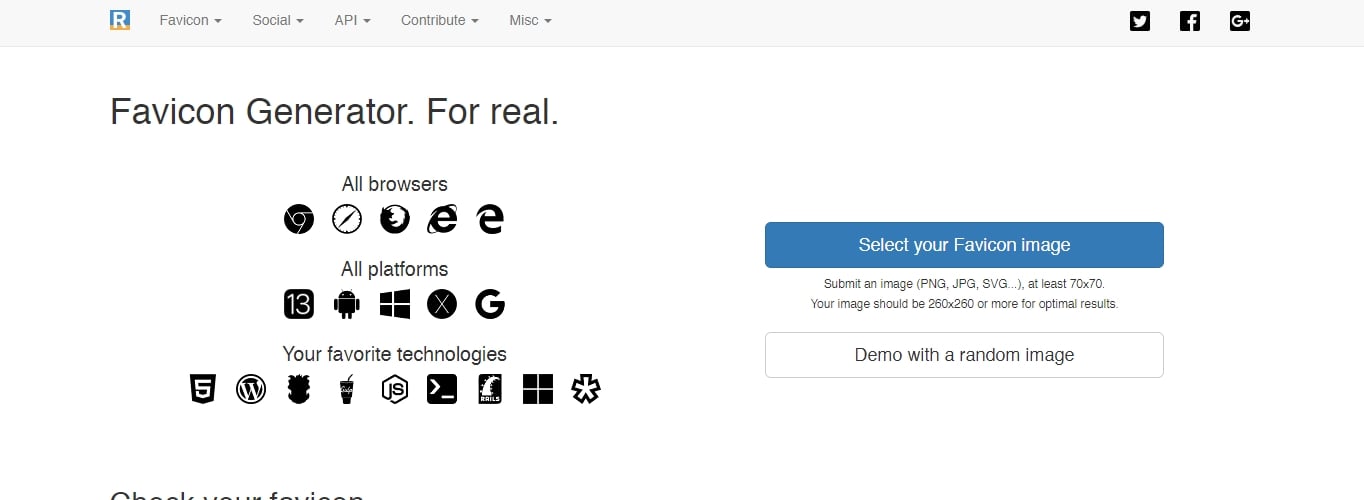
Real Favicon Generator is one of the most comprehensive favicon tools available. Upload a source image (ideally at least 260×260 pixels, or an SVG) and it generates every size you need for all browsers, platforms, and devices – including iOS, Android, Windows tiles, and PWAs.
What makes this generator stand out:
- A browser simulator preview so you can see how your favicon looks across platforms before downloading.
- Automatic generation of the
site.webmanifestandbrowserconfig.xmlfiles. - Platform-specific adjustments (background colors for iOS, safe zones for Android adaptive icons, Windows tile customization).
- Complete HTML code output that you can paste directly into your site’s
<head>section. - A built-in favicon checker to validate your existing site’s favicon implementation.
This generator only converts from an existing image – it doesn’t have text-based or drawing tools. But for going from a logo or design file to a production-ready favicon package, it’s the best option.
Best for: Comprehensive cross-platform favicon generation, especially if you need PWA support.
3) Favicon.cc
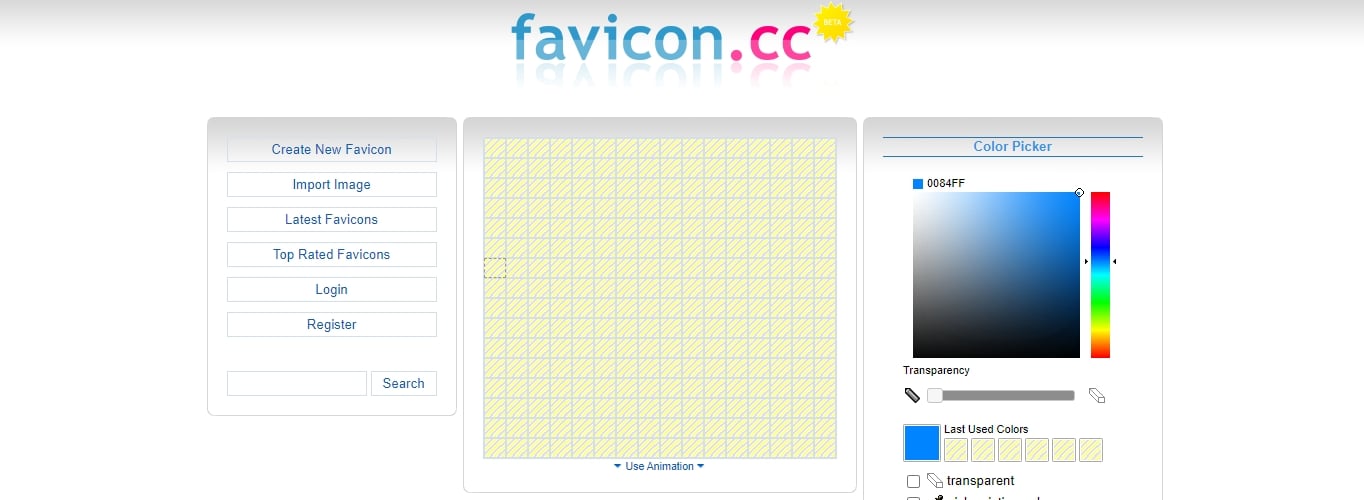
With this free favicon generator, you can either upload an image to make a favicon, or create one from scratch by drawing pixel-by-pixel on a 16×16 grid.
You can choose colors with a color picker and toggle pixel transparency. There’s also an option to create animated favicons with settings for looping, editing frames, and deleting frames.
The generator includes a preview mode so you can see how your favicon looks in a browser tab. There’s also a community gallery of user-created favicons for inspiration.
Best for: Pixel-art enthusiasts or anyone who wants full creative control over every pixel.
4) Favicon-Generator.org
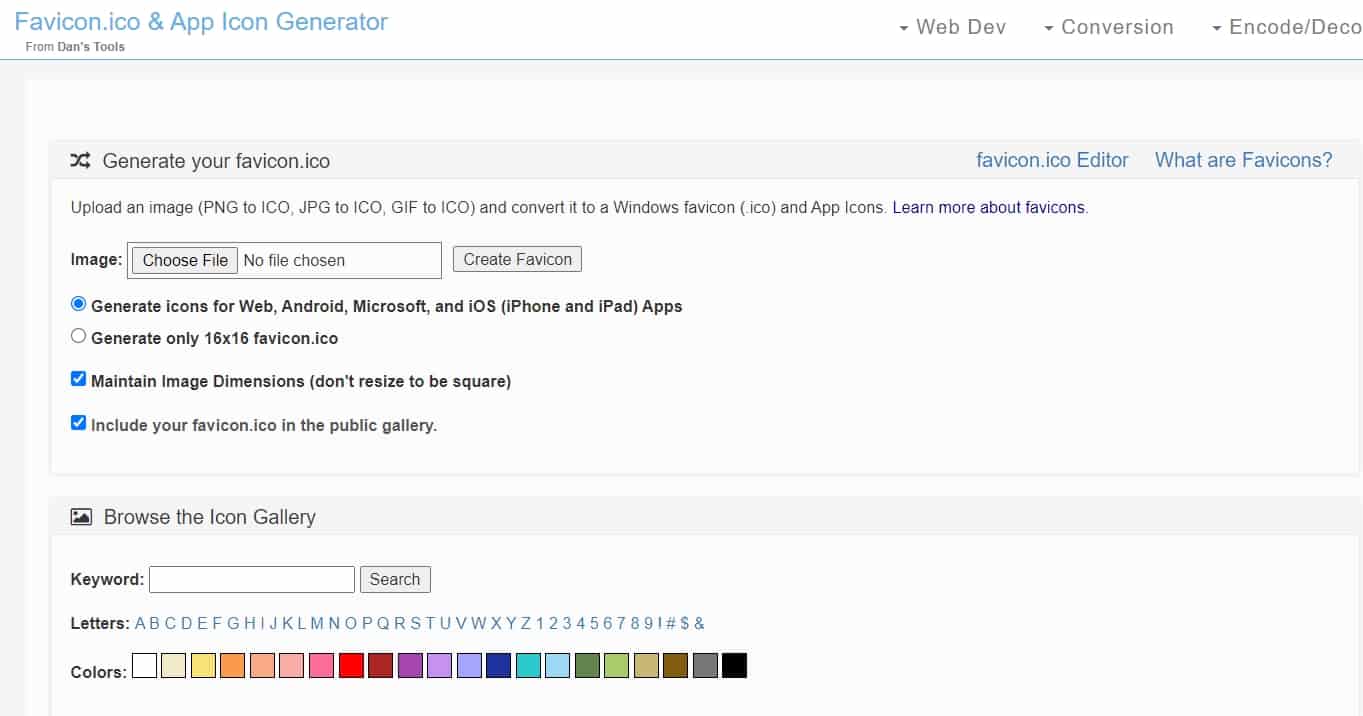
This free favicon generator lets you upload an image file and choose between the standard 16×16 pixel size for web browsers, or larger sizes suitable for Android, Microsoft, and iOS.
You have the option to retain the current image dimensions instead of resizing to a square. Just keep in mind that keeping this option checked or unchecked may skew the result of your favicon, so it’s best to make sure your image is already close to square before uploading.
Best for: A straightforward image-to-favicon conversion with multiple platform sizes.
5) FaviconGenerator.com
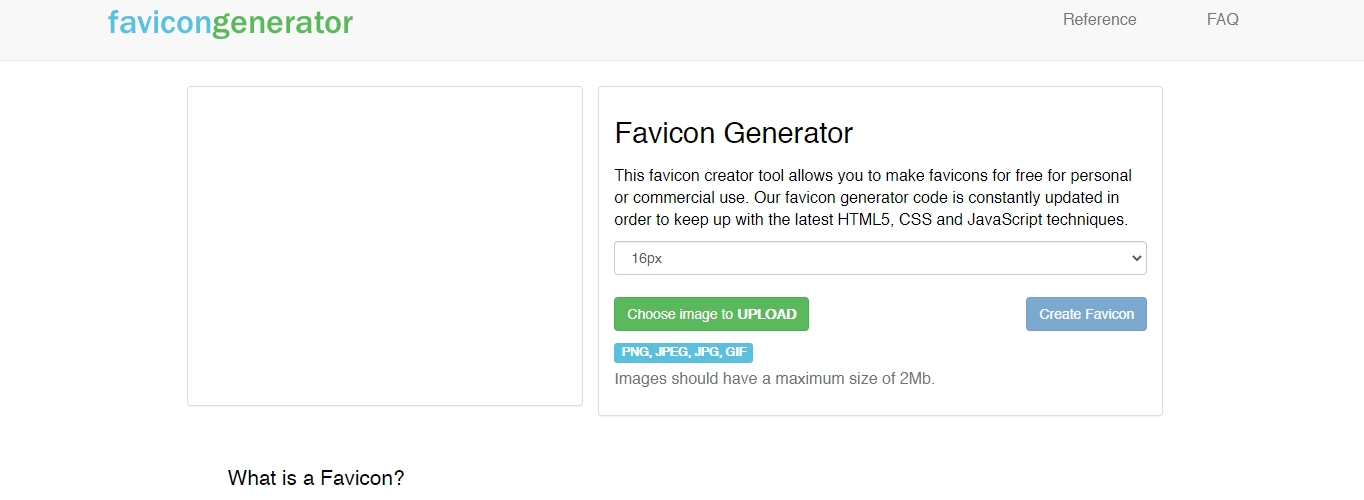
This is a simple free favicon generator where you upload an image and choose the size you want. It’s very basic, but a good option when you want to make a favicon quickly without fussing with settings.
You can also generate retina favicons for Apple touch devices. It requires a bit of extra work, but instructions are detailed on their page.
Best for: Quick, no-frills image conversion to a specific favicon size.
6) Favicomatic
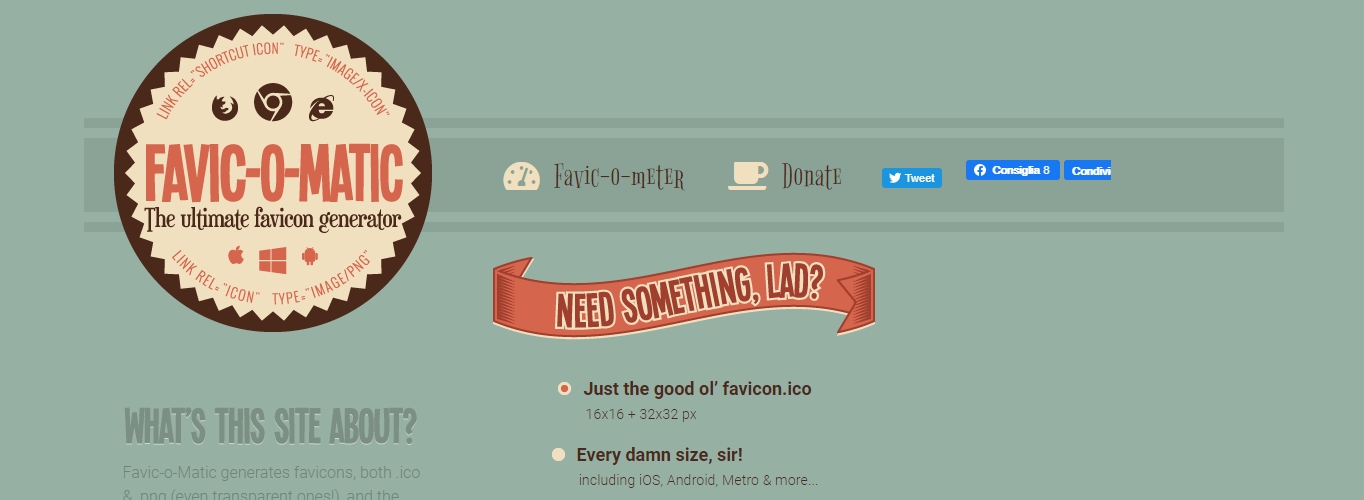
Favic-o-Matic generates favicons in both ICO and PNG formats (including transparent ones).
Upload an image and choose between two options: a basic 16×16 and 32×32 pixel ICO file, or a comprehensive package with every size compatible with all devices – including Apple Touch Icons and Windows tiles.
There are also advanced settings for editing the background color and compatibility options.
Best for: Getting a complete set of every favicon size you might need in one download.
7) Ionos Favicon Generator
The Ionos Favicon Generator lets you draw a favicon icon, use initials, or upload an image to create a favicon.
The result works across all browsers and devices. It also has a preview area where you can quickly see what your favicon will look like live in a browser tab.
Best for: Creating a favicon from initials or a simple drawing without uploading any image.
8) Favvy (Figma Plugin)
If you already use Figma for your design workflow, Favvy is a plugin that lets you export a complete favicon package directly from your Figma file. Select your icon frame, run the plugin, and it generates a ZIP file with all the sizes you need – plus the HTML code snippets for your site’s head section. This is especially convenient if you’re designing your logo or brand identity in Figma, since you won’t need to leave the app or re-upload files to a separate generator.
Note that Favvy is freemium: it includes 10 free Pro trial exports, after which it reverts to a limited free tier that only exports the 16×16 icon. Full icon sets and PWA support require a paid Pro license.
Best for: Designers who work in Figma and want a seamless favicon export workflow, and who are comfortable with a freemium tool.
9) Formito
Formito is a simple tool for creating clean, minimalist favicons. It focuses on letter-based and symbol-based designs with a modern, Stripe-inspired aesthetic.
You can choose a letter or symbol, adjust the font, background shape, and colors, then download the result. It’s less versatile than some other generators but does one thing well – creating legible, modern-looking letter favicons.
Best for: Clean, minimalist text-based favicons with a modern design style.
10) Genfavicon
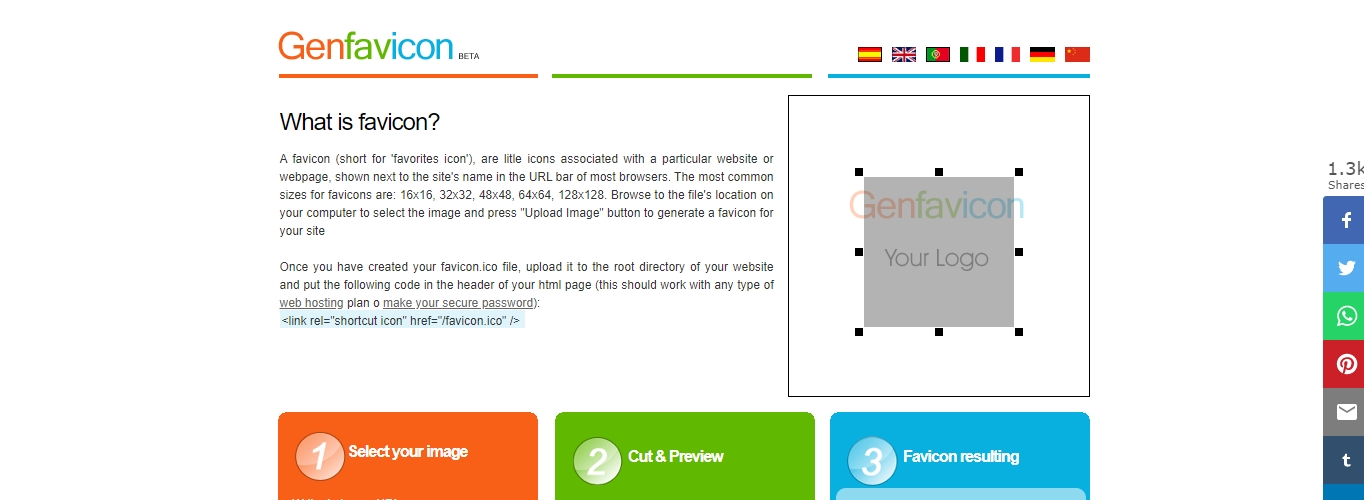
Genfavicon lets you upload an image and crop it before converting. There’s a preview window, and you can select between sizes: 16×16, 32×32, 48×48, 64×64, and 128×128 pixels.
Best for: Cropping an image to the exact area you want before generating.
11) ConvertICO
ConvertICO is a free, fully-featured favicon generator that has been running since 2006. Upload a PNG, JPG, WebP, or SVG image and it will generate a complete favicon package – including a multi-size favicon.ico (16×16, 32×32, 48×48), PNG icons up to 512×512, and Apple Touch Icons – all downloadable as a ZIP with ready-to-paste HTML code.
Best for: Getting a complete, production-ready favicon package from a single image upload, with no account required.
Which Favicon Generator Should You Use?
With 11 options on this list, here’s a quick guide to help you choose:
- You have a logo or image and need full cross-platform support: Use Real Favicon Generator. It’s the most thorough and handles PWA manifests automatically.
- You want a quick text-based or emoji favicon: Use Favicon.io, or Formito for a cleaner, more minimalist style.
- You want to draw a favicon from scratch pixel by pixel: Use Favicon.cc.
- You use Figma for design: Install Favvy and export directly from your design file.
- You need a complete favicon package from an image with no account required: Use ConvertICO or Favicomatic.
- You want to crop your image before converting: Use Genfavicon.
- You need the simplest possible upload-and-convert experience: Use FaviconGenerator.com or Favicon-Generator.org.
How to Install a Favicon Icon
Once you’ve used one of the free favicon generators above to make a favicon, you need to install it so it displays on your website.
Installing a Favicon for Regular (Non-WordPress) Sites
First, upload the favicon files to the root directory of your server.
Then, add the following code inside the <head> tag of your HTML file. This example covers modern browsers, Apple devices, and PWA support:
<head>
  <!-- Standard favicon -->
  <link rel="icon" type="image/x-icon" href="/favicon.ico">

  <!-- PNG favicons for modern browsers -->
  <link rel="icon" type="image/png" sizes="32x32" href="/favicon-32x32.png">
  <link rel="icon" type="image/png" sizes="16x16" href="/favicon-16x16.png">

  <!-- Apple Touch Icon -->
  <link rel="apple-touch-icon" sizes="180x180" href="/apple-touch-icon.png">

  <!-- PWA manifest -->
  <link rel="manifest" href="/site.webmanifest">
  <meta name="theme-color" content="#ffffff">
</head>
Replace the file paths with the actual paths to your favicon files.
Here are the image types compatible with favicons:
- PNG image file – image/png
- GIF image file – image/gif
- ICO image file – image/x-icon
- SVG image file – image/svg+xml
Don’t forget to save the file.
In most cases, the favicon generators listed above also generate the exact HTML code you need based on the settings and sizes you chose. So, if the code above doesn’t fit your setup, refer to the output from the generator you used.
Installing a Favicon Automatically in WordPress
For WordPress sites, you can set a favicon (called a “Site Icon”) without needing a separate generator or any code.
You can use any image as long as it’s at least 512 pixels wide and square.
For classic themes (using the Customizer):
Log into your WordPress admin dashboard, go to Appearance > Customize. After the Customizer loads, click on Site Identity in the menu on the left. Then, under Site Icon, click Select Image.
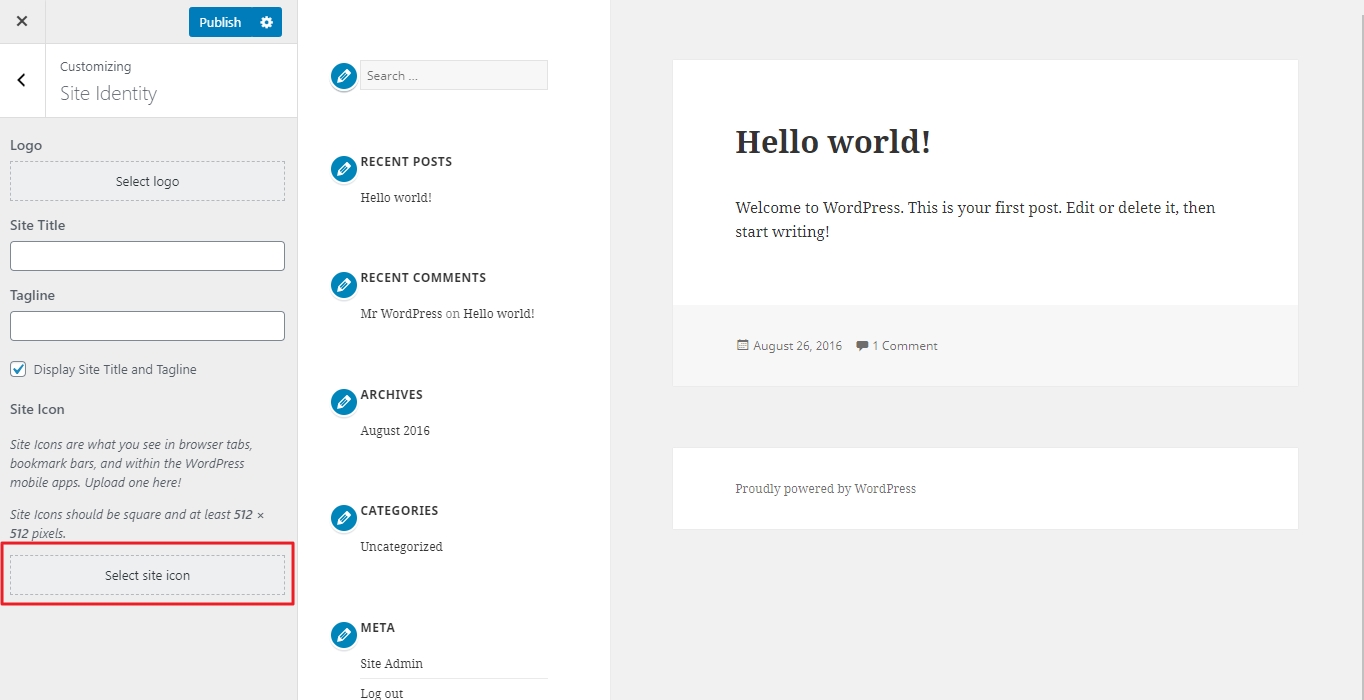
In the pop-over window, click on the Upload Files tab, then Select Files. Choose an image from your computer. Click Select, then crop the image if needed, and click Crop Image. Or leave it as-is and click Skip Cropping.
Save your changes by clicking the Publish button.
For block themes (using the Site Editor):
If your WordPress site uses a block theme (which is increasingly common in 2026), the Customizer may not be available. The easiest path that works for both classic and block themes is Settings → General → Site Icon – scroll down until you see the Site Icon section, click Choose a Site Icon, upload a square image at least 512×512 pixels, and save. If you don’t see this option under Settings → General, go to Appearance → Editor, open your header template, and add or edit the Site Logo block – you’ll find a “Use as site icon” toggle in the block settings panel on the right.
Manually Installing a Favicon for WordPress Sites
To manually install a favicon ICO file on WordPress, upload the file to the root of your website and the root of your current theme directory.
Be sure that the file is named “favicon.ico” or else the favicon won’t be displayed.
This should work, but some older browsers may not detect your favicon automatically. For additional compatibility, find your header.php file through SFTP or your hosting provider’s file manager.
Open it and look for a line of code similar to:
...
<link rel="shortcut icon" ... /favicon.ico" />
...
Then, replace it with the code below or add it if it isn’t there:
...
<link rel="shortcut icon" href="<?php echo get_stylesheet_directory_uri(); ?>/favicon.ico" />
...
Save the file and you’re done.
Frequently Asked Questions
What’s the difference between ICO, PNG, and SVG favicons?
ICO is the traditional favicon format. It’s a container that can hold multiple image sizes (16×16, 32×32, 48×48) in a single file, which is useful for broad compatibility. PNG is a standard image format that modern browsers support as favicons – you just need separate files for each size. SVG is a vector format that scales to any size without losing quality, making it ideal for modern, high-resolution displays. For the best compatibility, use ICO as a fallback alongside PNG or SVG.
Why does my favicon look blurry on mobile devices?
This usually happens when you only have a 16×16 or 32×32 pixel favicon. Mobile devices (especially iOS) look for larger icon files like apple-touch-icon.png at 180×180 pixels. If that file is missing, the device tries to scale up the tiny favicon, which causes blurriness. Use a generator like Real Favicon Generator to create all the sizes you need.
Do I need a site.webmanifest file?
If you want your site to work well when users “Add to Home Screen” on Android or use it as a Progressive Web App, yes. The manifest file tells the device which icon to display, what your app name is, and what theme color to use. Several favicon generators create this file for you automatically.
Can I just rename a .png file to .ico?
While some browsers might display it, this isn’t recommended. A true ICO file is a container that holds multiple image sizes in one file. Simply renaming a PNG doesn’t create those multiple layers, and some browsers or operating systems may not display it correctly. Use a favicon generator to create a proper ICO file.
How do I check if my favicon is working correctly?
After installing your favicon, open your site in a browser and check the tab. Also test in an incognito/private window (browsers cache favicons aggressively). Real Favicon Generator offers a favicon checker tool that tests your live site and reports any missing files or incorrect configurations.