
A QR code is one of the cheapest ways to connect the physical world to your website. Someone points a phone camera at a little square on your flyer, menu, or shop window, and they land on your site, your booking page, or your Google reviews. Creating one takes about two minutes and should cost nothing.
The catch is that a lot of “free” QR code generators only look free. This guide shows you the traps to avoid, then walks you through making a proper QR code, step by step, using a free tool called QRSurge that does not spring any of them. No account, no credit card, and the code does not stop working later.
The catch with most “free” QR code generators
Search for a QR code generator and you will find dozens of sites that promise free codes. Many of them are built around a bait and switch. It helps to understand the trick before you print anything, because a QR code on a printed menu or a thousand business cards is expensive to fix once it fails.
Here are the three patterns to watch for:
- The expiring code. Some generators only make dynamic QR codes, which are just short redirect links the site controls. The code is free to create, but the redirect quietly stops working unless you keep paying a monthly subscription. Miss a payment and every printed code goes dead.
- The forced sign-up. You design your code, then hit a wall: enter an email, create an account, or start a “free trial” that asks for a card before you can download anything.
- The download tax. The preview looks great, but a clean, high-resolution or print-ready file (usually SVG) is locked behind a paid plan, or the free file arrives with a watermark.
None of this is necessary for a basic QR code. A static QR code stores the destination directly inside the pattern, so it works forever with no account and no server in the middle. That is the kind you want for most jobs, and it is what we will make below.
Static vs dynamic: which one do you need?
This is the one decision that matters, so here is the short version.
| Static QR code | The destination is baked into the code. Free, no account, and it never expires. You cannot edit it after printing, and you cannot track scans. Best for a fixed link: your homepage, a WiFi password, contact details, a menu that lives at a stable URL. |
| Dynamic QR code | The code points to a redirect you can change later, and you get scan analytics. Handy if you expect to update the destination or want to measure a campaign. The trade-off is that it depends on the provider staying online and, usually, on a paid plan. |
For a business card, a product label, a poster, or a link to your site, go static. Pick dynamic only if you need to edit the target or count scans, and know that this is where the recurring fees live.
How to create a free QR code, step by step
We will use QRSurge because it makes unlimited static codes for free, needs no sign-up, lets you download a print-ready SVG, and its codes do not expire. The steps are the same idea on any decent tool, so you can follow along elsewhere too.
Step 1: Choose your QR code type
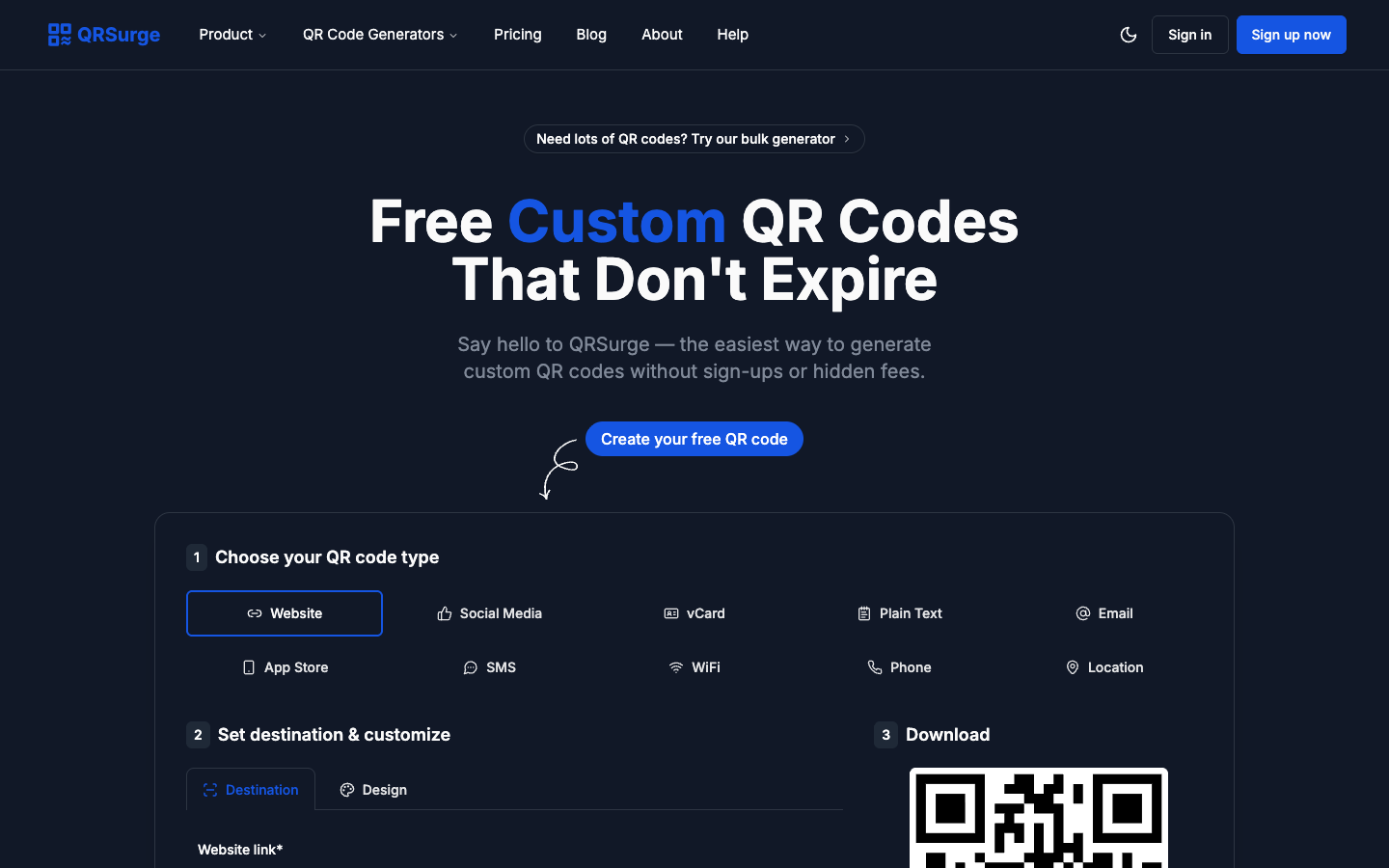
Open the QRSurge generator and pick what the code should do. There are ten types to choose from: Website, Social Media, vCard (contact card), Plain Text, Email, App Store, SMS, WiFi, Phone, and Location. For a business or website, Website is the usual choice, because it sends people straight to a page you control.
Step 2: Enter your destination
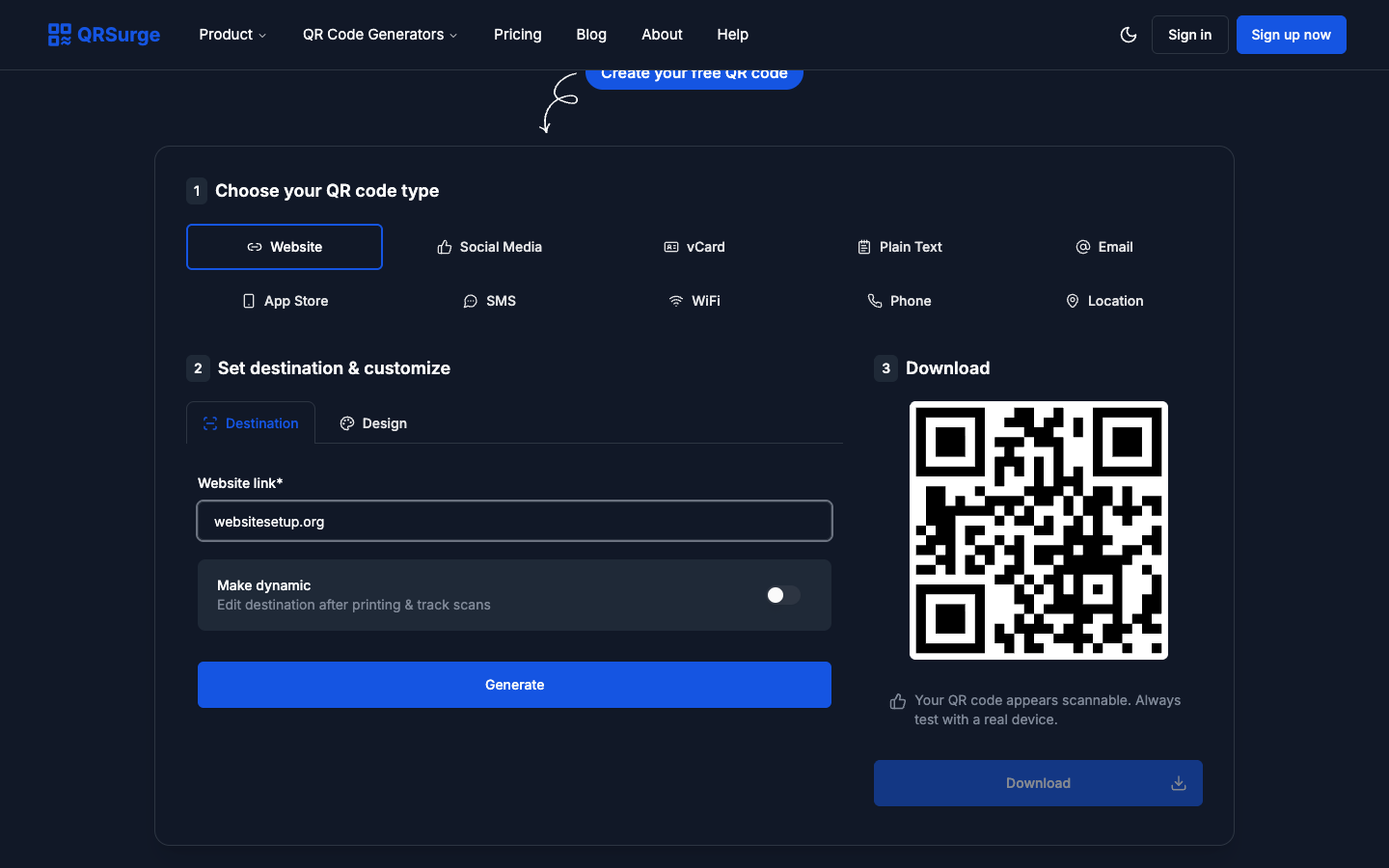
Paste the address you want the code to open, for example your homepage or a specific landing page. Leave the Make dynamic toggle switched off. Off means a free, permanent static code with no account required. Turning it on is what pulls you toward tracking and a paid plan, so only flip it if you need to edit the link later.
Step 3: Customize the design
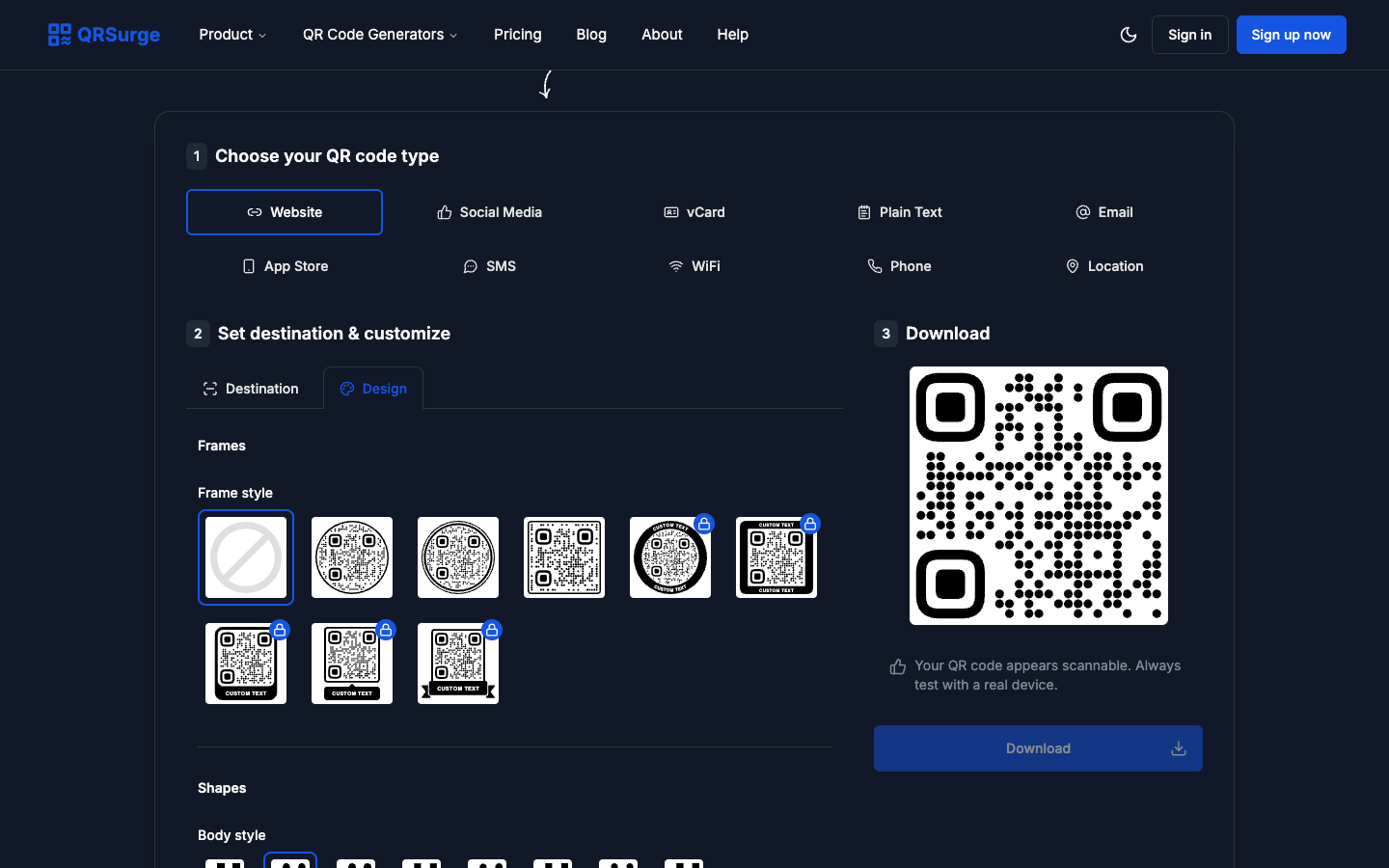
A plain black-and-white code works, but a little styling helps it match your brand and get noticed. On the Design tab you can change the dot shape, round off the three corner squares, set your own colors, add a frame, and drop a logo in the middle. QRSurge shows a live preview and a small note telling you whether the code still looks scannable.
Two rules keep a styled code readable: keep strong contrast between the pattern and the background (dark pattern on a light background is safest), and do not shrink the logo so large that it covers too much of the code. If the preview warns that it may not scan, dial the styling back.
Step 4: Generate and download
Click Generate, then Download and choose a format. QRSurge offers PNG, JPG, SVG, and WEBP. For anything you will print, from a business card to a banner, choose SVG. It is a vector file, so it stays razor sharp at any size. Use PNG for screens, slides, and social posts.
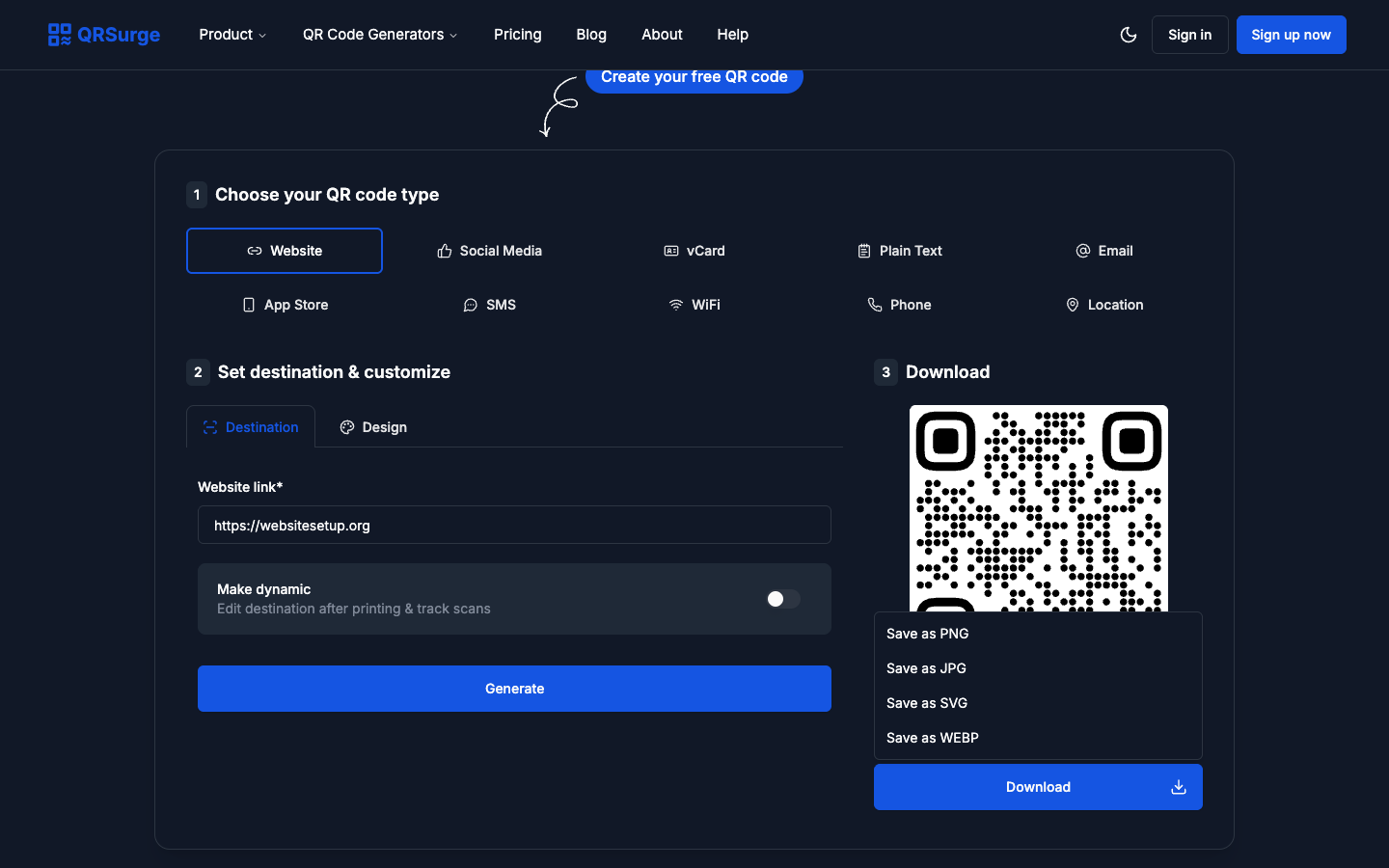
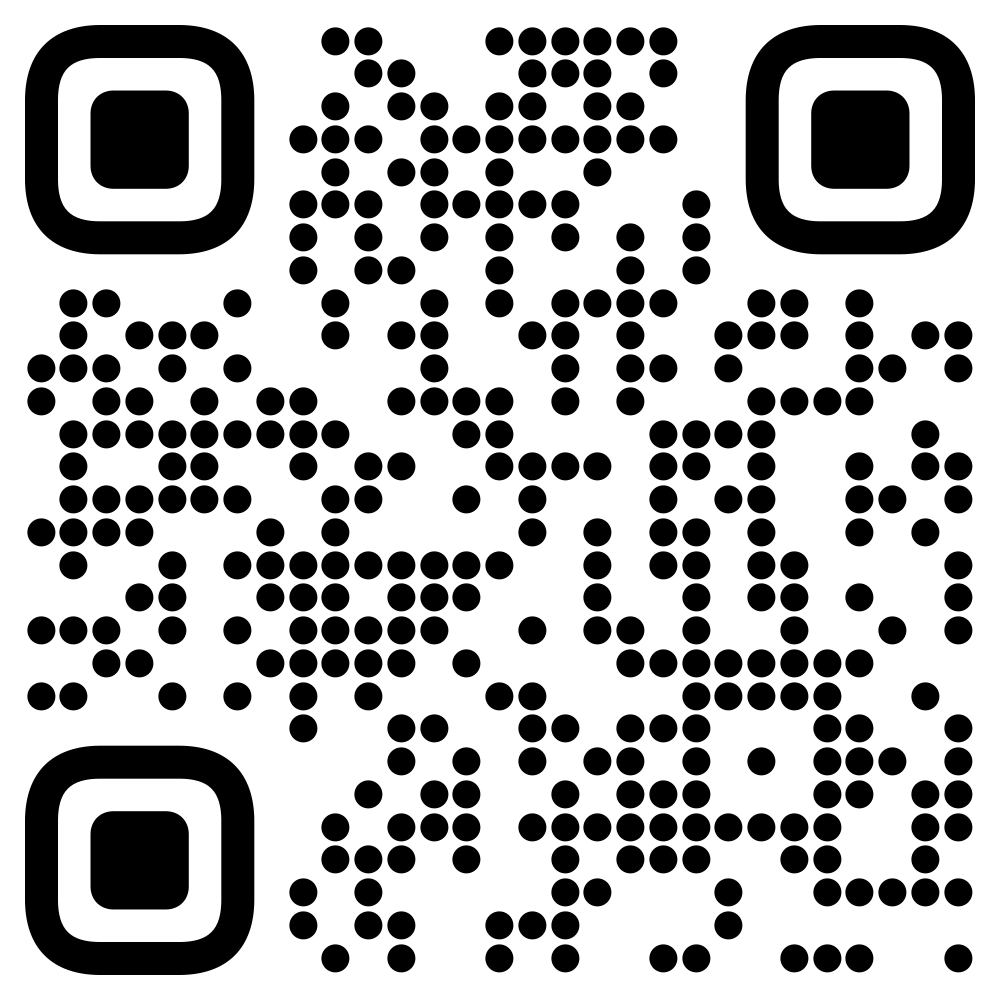
That is the whole process. Here is the finished code from this walkthrough, styled with rounded corners and dot shapes, pointing at a website:
Make sure your QR code actually works
Most failed QR codes fail for boring, avoidable reasons. Run through this quick checklist before you send anything to print:
- Test it on a real phone. Scan the final file with more than one device before printing. This is the single most important step.
- Keep the quiet zone. Leave clear space around the code. Do not crop it tight or place text right up against the edges.
- Mind the contrast. Dark code on a light background scans best. Avoid low-contrast color pairs and busy background images behind the code.
- Size it for the distance. A rough rule is that the code should be about a tenth as wide as the scanning distance. A poster read from across a room needs a much bigger code than a business card.
- Print from the SVG. Scaling up a small PNG makes the edges fuzzy, which hurts scanning. Vector files do not have this problem.
- Add a short prompt. A simple “Scan for the menu” or “Scan to book” tells people what they get, which lifts the number of scans.
Smart ways to use a QR code in your business
Once you can make codes for free, they are worth sprinkling anywhere the offline world meets your website:
- Restaurant and cafe menus on table tents, so guests view the menu or reorder without an app.
- Business cards that open a vCard or your homepage, so contacts save your details in one tap.
- Product packaging and labels linking to setup guides, warranties, or how-to videos.
- Google review requests at the counter or on the receipt.
- WiFi access so guests connect without typing a long password.
- Posters, flyers, and event signage that link to tickets, sign-ups, or your latest offer.
If you do not have a website for these codes to point to yet, that is the natural next step. Our guide on how to create a website walks you through it from scratch, and if you would rather use a drag-and-drop tool, see our roundup of the best website builders. It also helps to know what the whole thing runs to, which we break down in how much a website costs.
Frequently asked questions
Do free QR codes expire?
Static QR codes do not expire, because the destination is stored inside the code itself. They keep working with no account and no ongoing fee. Dynamic codes are different: they rely on a provider’s redirect and usually a paid plan, so they can stop working if the subscription lapses. QRSurge’s static codes do not expire.
Do I need to create an account?
Not for a static code. On QRSurge you can create and download unlimited static QR codes without signing up. A free account is only needed if you want trackable dynamic codes, which are capped at three on the free tier.
Is it free, even for commercial use?
Yes. QRSurge is free for both personal and commercial use, with no credit card required. Paid plans exist for extras like removing branding from dynamic codes, bulk creation, and team features, but a standard static code costs nothing.
Which file format should I use for printing?
SVG. It is a vector format that scales to any size without going blurry, from a business card up to a large banner. Use PNG for screens and social media.
Can I add my logo to a QR code?
Yes. You can drop a logo in the center and adjust its size, along with the colors, dot shape, and corner style. Just keep the logo modest and the contrast strong so the code still scans, and always test it before printing.
Can I track how many people scan my code?
Only with a dynamic code, which records scans. Static codes carry no tracking because there is no server in the middle. If measuring a campaign matters more than avoiding a subscription, a dynamic code is the trade-off you make.