
What is .htaccess (and how to edit it)
The .htaccess file is a plain-text configuration file for the Apache web server. The name stands for “hypertext access.” When Apache serves a request, it reads any .htaccess file it finds and applies the rules inside, folder by folder. That lets you set redirects, control access, turn on caching, and harden security without touching the main server config.
You can edit it two ways. Most beginners use the File Manager inside their hosting control panel. If your host uses cPanel, open File Manager, turn on “show hidden files,” then find .htaccess in your site root and edit it in place. Our beginner’s guide to cPanel walks through that panel step by step. The other option is SFTP: connect with a client like FileZilla, download the file, edit it locally, then upload it back. If you do not have a site yet, start with our how to create a website guide first, then come back here.
Before you start
Back up the file before every change. Copy .htaccess to something like htaccess-backup.txt so you can restore it in one step. A single typo can take a whole site offline with a 500 error, and there is no undo button.
Two more facts save a lot of confusion. First, .htaccess is Apache only. It does not work on Nginx, which uses server block config files instead, so none of these rules apply there. Second, the file must sit in your site root (usually public_html or www) for site-wide rules, and Apache only reads it when the server config sets AllowOverride All for that directory. If overrides are off, Apache ignores the file completely and your rules do nothing.
Redirects
A 301 is a permanent redirect and passes ranking signals to the new URL. A 302 is temporary and tells search engines the old URL will return, so use 302 only for short-lived changes like a sale page.
Send one old page to a new permanent URL:
Redirect 301 /old.html https://example.com/new/
Temporarily point a promo path somewhere else:
Redirect 302 /promo https://example.com/offer/
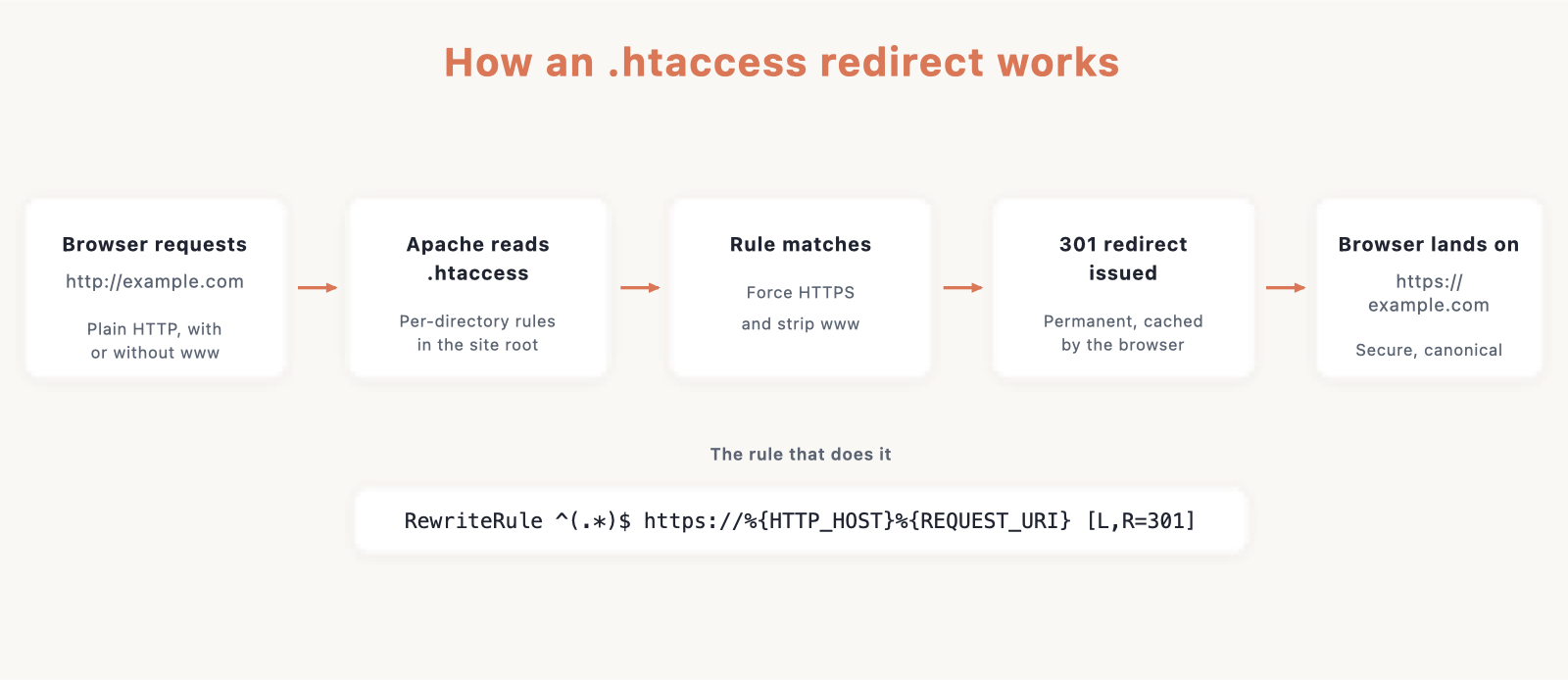
Force every visitor onto HTTPS:
RewriteEngine On
RewriteCond %{HTTPS} off
RewriteRule ^(.*)$ https://%{HTTP_HOST}%{REQUEST_URI} [L,R=301]
That rule checks whether the connection is not secure, then redirects to the same address over HTTPS. Managed hosts like Hostinger force HTTPS for you, so you may not need this at all.
Add www to a bare domain (non-www to www):
RewriteCond %{HTTP_HOST} ^example\.com [NC]
RewriteRule ^(.*)$ https://www.example.com/$1 [L,R=301]
Or drop www instead (www to non-www):
RewriteCond %{HTTP_HOST} ^www\.example\.com [NC]
RewriteRule ^(.*)$ https://example.com/$1 [L,R=301]
Pick one direction and stick with it, since running both cancels itself out in a loop. Force a trailing slash on URLs that are not real files:
RewriteCond %{REQUEST_FILENAME} !-f
RewriteRule ^(.*[^/])$ /$1/ [L,R=301]
Rewrite rules basics
Rewrites need the rewrite engine switched on, then run in order. The core pieces:
RewriteEngine On
RewriteBase /
RewriteCond %{QUERY_STRING} ^id=10$
RewriteRule ^page$ /new-page [L]
Here is what each line does. RewriteEngine On is required before any rewrite works. RewriteBase / sets the base path for relative rewrites and matters mainly in subdirectory installs. RewriteCond adds a condition that must match, in this case a query string of id=10. RewriteRule matches the requested path and points it somewhere new.
The flags in brackets control behavior. [L] means last, so Apache stops processing rules if this one matches. [R=301] turns the rewrite into a permanent redirect. [NC] makes the match case-insensitive. [F] returns a 403 Forbidden.
Custom error pages
Point Apache at your own pages instead of the plain default errors:
ErrorDocument 404 /404.html
ErrorDocument 500 /500.html
The first line shows your 404 page when a URL is not found, and the second shows a friendly page when the server hits a 500 error.
Access control
Block a single problem IP while everyone else stays allowed:
<RequireAll>
    Require all granted
    Require not ip 203.0.113.5
</RequireAll>
Or lock a folder like wp-admin down to only your own IP:
Require ip 203.0.113.5
Password-protect a directory with a login prompt:
AuthType Basic
AuthName "Restricted Area"
AuthUserFile /home/user/.htpasswd
Require valid-user
That asks for a username and password, checked against a separate .htpasswd file that stores the encrypted credentials. Use the full server path to that file, not a web URL.
Directory options
Stop Apache from listing folder contents when there is no index file:
Options -Indexes
Set which file loads as the default for a directory:
DirectoryIndex index.html index.php
Apache tries index.html first, then falls back to index.php.
MIME types and charset
Tell browsers to treat text as UTF-8 and serve modern file types correctly:
AddDefaultCharset UTF-8
AddType application/javascript .js
AddType image/webp .webp
The first line sets UTF-8 as the default character set. The two AddType lines make sure .js and .webp files are sent with the right content type so browsers handle them properly.
Caching and GZIP
Caching tells browsers to keep static files locally, and GZIP shrinks text files before sending them. Both make pages load faster. See our guide to speeding up your website for the full picture. Set cache lifetimes:
<IfModule mod_expires.c>
    ExpiresActive On
    ExpiresByType image/webp "access plus 1 year"
    ExpiresByType text/css "access plus 1 month"
    ExpiresByType application/javascript "access plus 1 month"
</IfModule>
That caches images for a year and CSS and JavaScript for a month. Turn on GZIP compression for text-based files:
<IfModule mod_deflate.c>
    AddOutputFilterByType DEFLATE text/html text/css application/javascript text/plain image/svg+xml
</IfModule>
Then tell caches to store compressed and uncompressed versions separately:
<IfModule mod_headers.c>
    Header append Vary Accept-Encoding
</IfModule>
Wrapping each block in <IfModule> means Apache skips it quietly if the module is not loaded, instead of crashing with a 500.
Security hardening
Block direct access to your WordPress config file, which holds your database password:
<Files wp-config.php>
    Require all denied
</Files>
Block xmlrpc.php, a common target for brute-force and DDoS attacks:
<Files xmlrpc.php>
    Require all denied
</Files>
Turn off directory browsing so visitors cannot list your files:
Options -Indexes
Block a few aggressive crawlers by their user-agent:
RewriteCond %{HTTP_USER_AGENT} (AhrefsBot|MJ12bot|SemrushBot) [NC]
RewriteRule .* - [F,L]
Stop other sites from embedding your images and using your bandwidth:
RewriteCond %{HTTP_REFERER} !^$
RewriteCond %{HTTP_REFERER} !^https?://(www\.)?example\.com [NC]
RewriteRule \.(jpe?g|png|gif|webp)$ - [F,NC,L]
That allows empty referrers and requests from your own domain, then forbids image requests from anywhere else. Managed hosts like Bluehost handle much of this hardening at the server level, so check what yours already covers.
The default WordPress .htaccess block
WordPress writes and manages this block for permalinks. Leave it exactly as is:
# BEGIN WordPress
<IfModule mod_rewrite.c>
RewriteEngine On
RewriteRule .* - [E=HTTP_AUTHORIZATION:%{HTTP:Authorization}]
RewriteBase /
RewriteRule ^index\.php$ - [L]
RewriteCond %{REQUEST_FILENAME} !-f
RewriteCond %{REQUEST_FILENAME} !-d
RewriteRule . /index.php [L]
</IfModule>
# END WordPress
Never put your own rules between the # BEGIN WordPress and # END WordPress markers. WordPress rewrites everything inside them whenever you save permalinks, so your changes get wiped. Add custom rules above or below the block instead.
Accuracy caveats and gotchas
A few things trip people up. Nginx does not read .htaccess at all, so if your host runs Nginx you configure this in server blocks instead. On Apache 2.4, use the Require family shown throughout this page. The old 2.2 Order, Deny from, and Allow from directives are deprecated, and mixing the two styles causes errors, so pick 2.4 syntax and keep it consistent.
Rules run top to bottom, and the [L] flag stops processing, so order matters. Put redirects before rewrites, or a redirect may never fire. RewriteBase only matters for installs in a subdirectory. And remember: if AllowOverride is not set to All for your directory, Apache ignores the whole file no matter how correct your rules are.
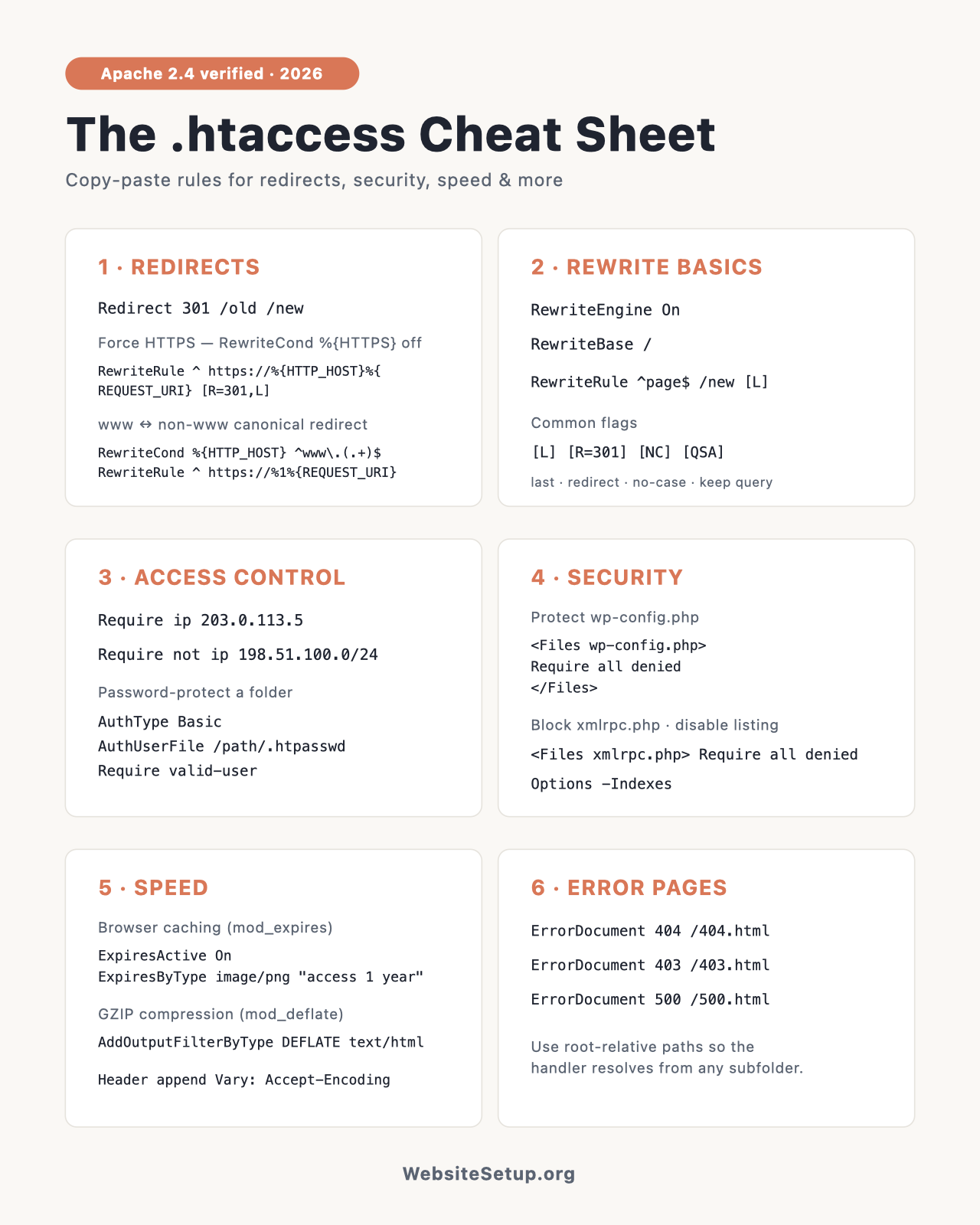
Download the .htaccess Cheat Sheet (PDF)
Want every snippet on this page in one printable file? Grab the PDF version below. It groups all the code by task, gives each block a one-line explanation, and is checked against Apache 2.4 syntax. Keep it next to your keyboard or print it for the team.
Download the .htaccess Cheat Sheet (PDF)
FAQ
Where is my .htaccess file? In your site root, usually the public_html or www folder. It is a hidden file, so turn on “show hidden files” in your File Manager or SFTP client to see it. If it is missing, you can create a new plain-text file named .htaccess.
Why isn’t my .htaccess working? The most common cause is that AllowOverride is not set to All, so Apache ignores the file. Other causes: your host runs Nginx instead of Apache, the file is in the wrong folder, or a syntax error is throwing a silent 500. Check your server error log.
Is .htaccess only for WordPress? No. It works for any site on an Apache server. WordPress just happens to use it for permalinks. You can use it on plain HTML sites, other CMS platforms, or custom apps, as long as the host runs Apache.
Does .htaccess slow down my site? A little, because Apache checks for the file in every directory on each request. For most sites the effect is tiny. Caching and GZIP rules inside it usually make pages faster overall, which more than covers the small lookup cost.