
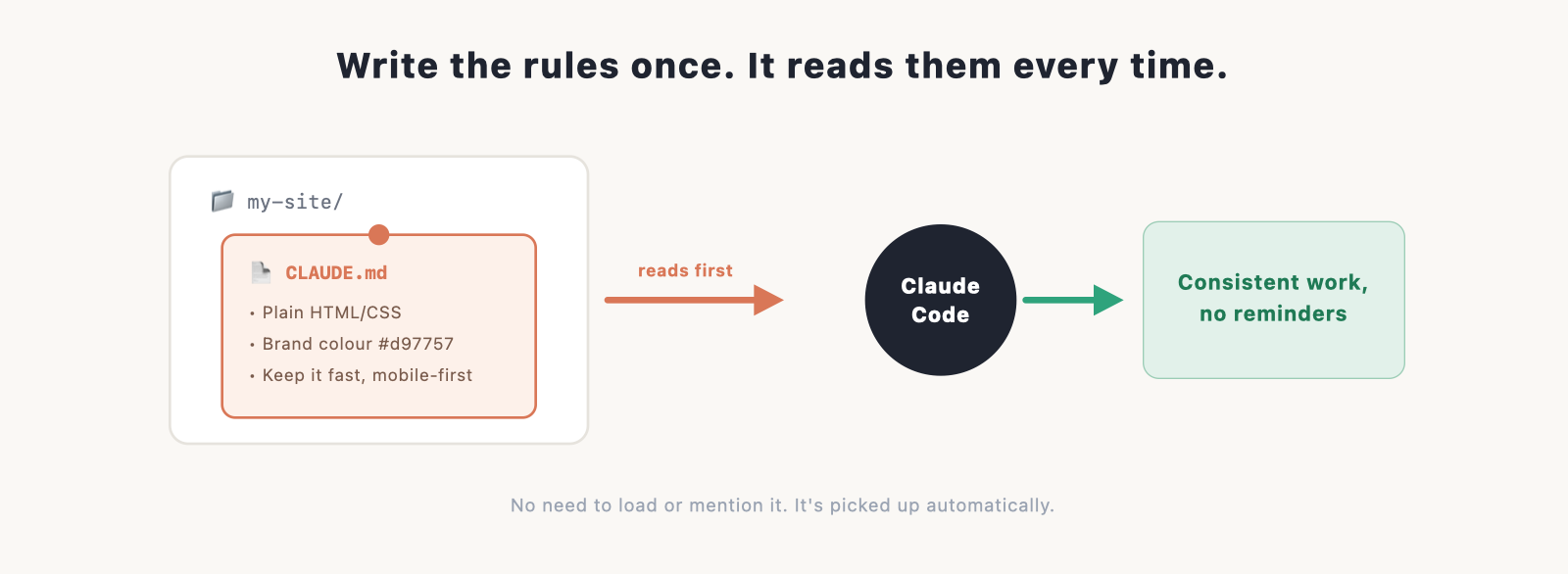
If you’ve ever found yourself telling Claude Code the same thing every session, “use plain HTML, keep it simple, don’t add frameworks”, CLAUDE.md is the fix. It’s a small file where you write your project’s rules once, and Claude Code reads it automatically every time, so it stays consistent without being reminded. Think of it as the house rules for your project.
New to Claude Code? Start with the main guide. This page is about giving it memory.
What CLAUDE.md is
CLAUDE.md is a plain text file (written in simple Markdown) that lives with your project. Claude Code looks for it and treats whatever’s inside as standing instructions for that project. You don’t have to point to it or load it; it’s read on its own. Anything you’d otherwise repeat, your stack, your preferences, your do’s and don’ts, goes in here once.
Why it’s worth two minutes of setup
Without it, every session starts from scratch, and Claude Code guesses at things you have an opinion about. With it, you get:
- Consistency. The same conventions every time, instead of drifting between sessions.
- Less repetition. You stop re-explaining the basics.
- Fewer wrong turns. Clear rules mean fewer changes you have to undo.
For a small site it’s optional, but the moment you’re working across more than one session, it pays for itself.
Where it lives: project versus global
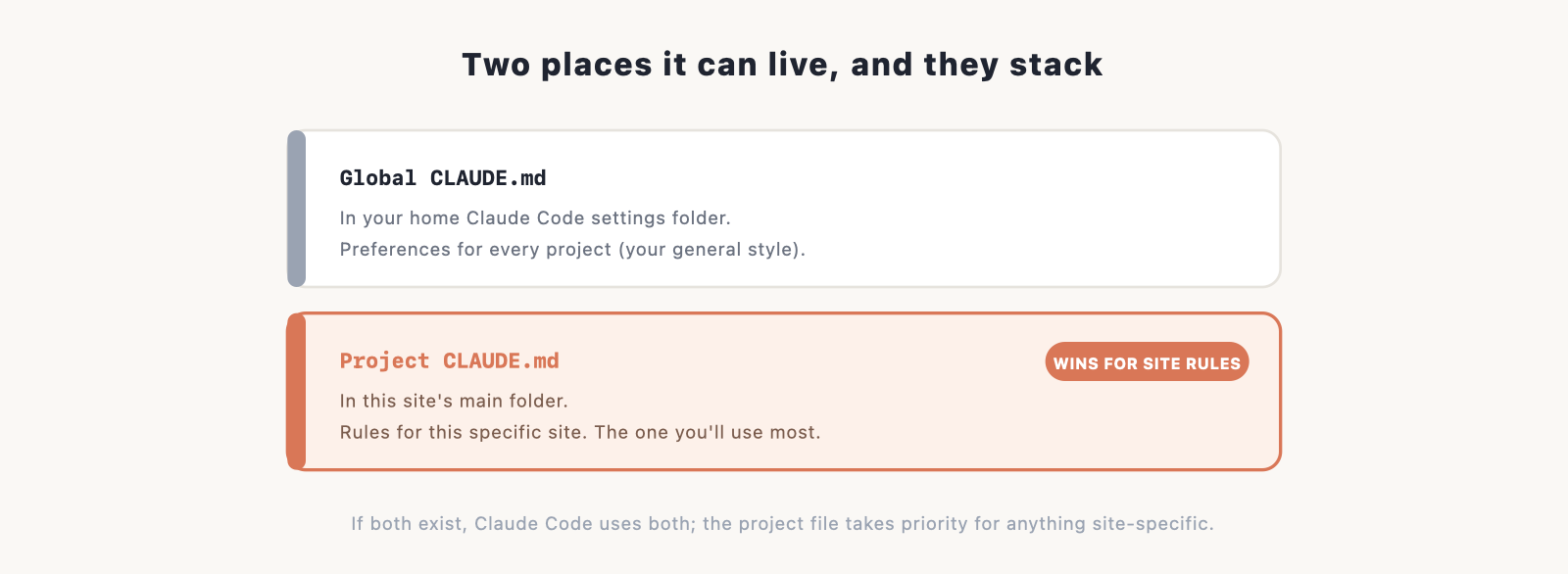
There are two places it can sit, and they stack.
- Project CLAUDE.md, in your project’s main folder. This holds rules for that specific site, and it’s the one you’ll use most.
- Global CLAUDE.md, in your home Claude Code settings folder. This holds preferences that apply to every project, like your general style. (Verify the exact locations at publish.)
If both exist, Claude Code uses both, with the project file taking priority for anything specific to that site.
What to put in it
Keep it short and concrete. The most useful things to include:
- What the project is. One line: “a portfolio site for a photographer.”
- The tech stack. “Plain HTML and CSS, no frameworks,” or “Next.js with Tailwind.”
- Conventions and style. Naming, formatting, the look you want, your brand colour.
- Do’s and don’ts. “Keep it fast,” “don’t add dependencies without asking,” “mobile-first.”
- Useful commands. How to run or build the project, if it’s not obvious.
The test for a good line: would you otherwise have to say it more than once? If yes, it belongs in CLAUDE.md.
An example for a website project
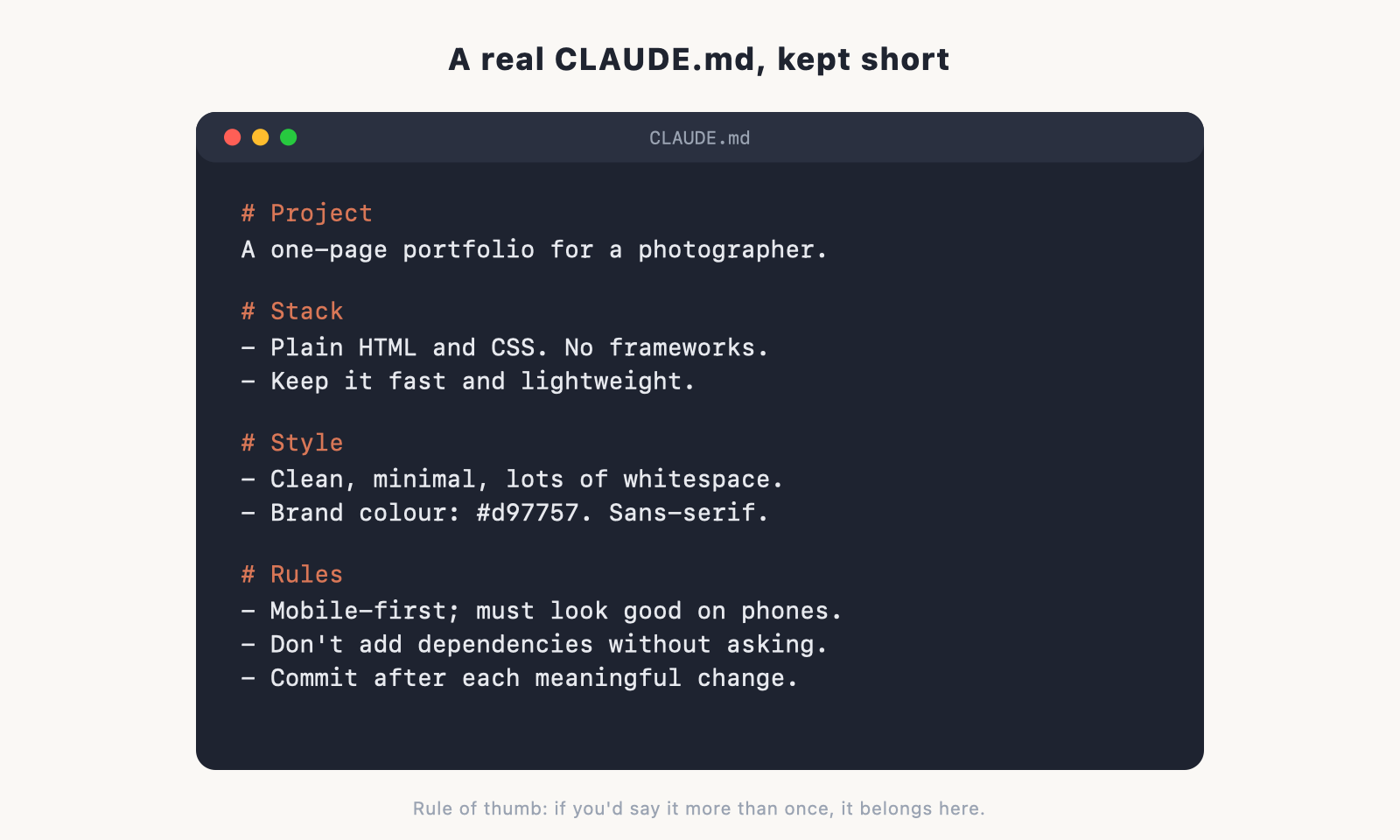
Here’s a short, realistic CLAUDE.md for a simple site. Yours can be even shorter to start.
A one-page portfolio site for a freelance photographer.

- Plain HTML and CSS. No frameworks.
- Keep it fast and lightweight.

- Clean and minimal, lots of whitespace.
- Brand colour: #d97757. Sans-serif headings.

- Mobile-first; must look good on phones.
- Don't add dependencies without asking first.
- Commit after each meaningful change.
That’s it. A file like this changes how every future session behaves.
Tips that actually change the output
- Be specific. “Looks good” does nothing; “lots of whitespace, one accent colour” does.
- Keep it short. A focused file beats a long one nobody follows, including the AI.
- Put hard rules in plainly. “Never do X” is read as a real boundary.
- Update it as you learn. When you catch yourself correcting the same thing, add a line.
Frequently asked questions
What is CLAUDE.md? A small Markdown file that holds your project’s standing instructions. Claude Code reads it automatically and follows it, so you don’t repeat yourself.
Where do I put CLAUDE.md? In your project’s main folder for site-specific rules. There’s also a global location for preferences that apply to every project. (Verify exact locations at publish.)
Do I need a CLAUDE.md for a small site? It’s optional for a one-off, but as soon as you work across multiple sessions it saves time and keeps things consistent.
What should go in it? What the project is, the tech stack, your style and conventions, clear do’s and don’ts, and any commands to run the project. Keep it short and specific.
Does Claude Code read it automatically? Yes. You don’t have to load or mention it; it’s picked up on its own when you work in the project.