
What this cheat sheet is
This is a fast, scannable reference to cPanel’s tools and the tasks you actually do: making an email account, adding a domain, forcing HTTPS, backing up files, spinning up a database. It is built for people who already have a hosting account and want to find the right icon without hunting. It is not a walkthrough. When you want the click-by-click version, read the full beginner’s guide to cPanel. And if you are still deciding what to build, start with the how to create a website guide.
cPanel vs hPanel (read this first)
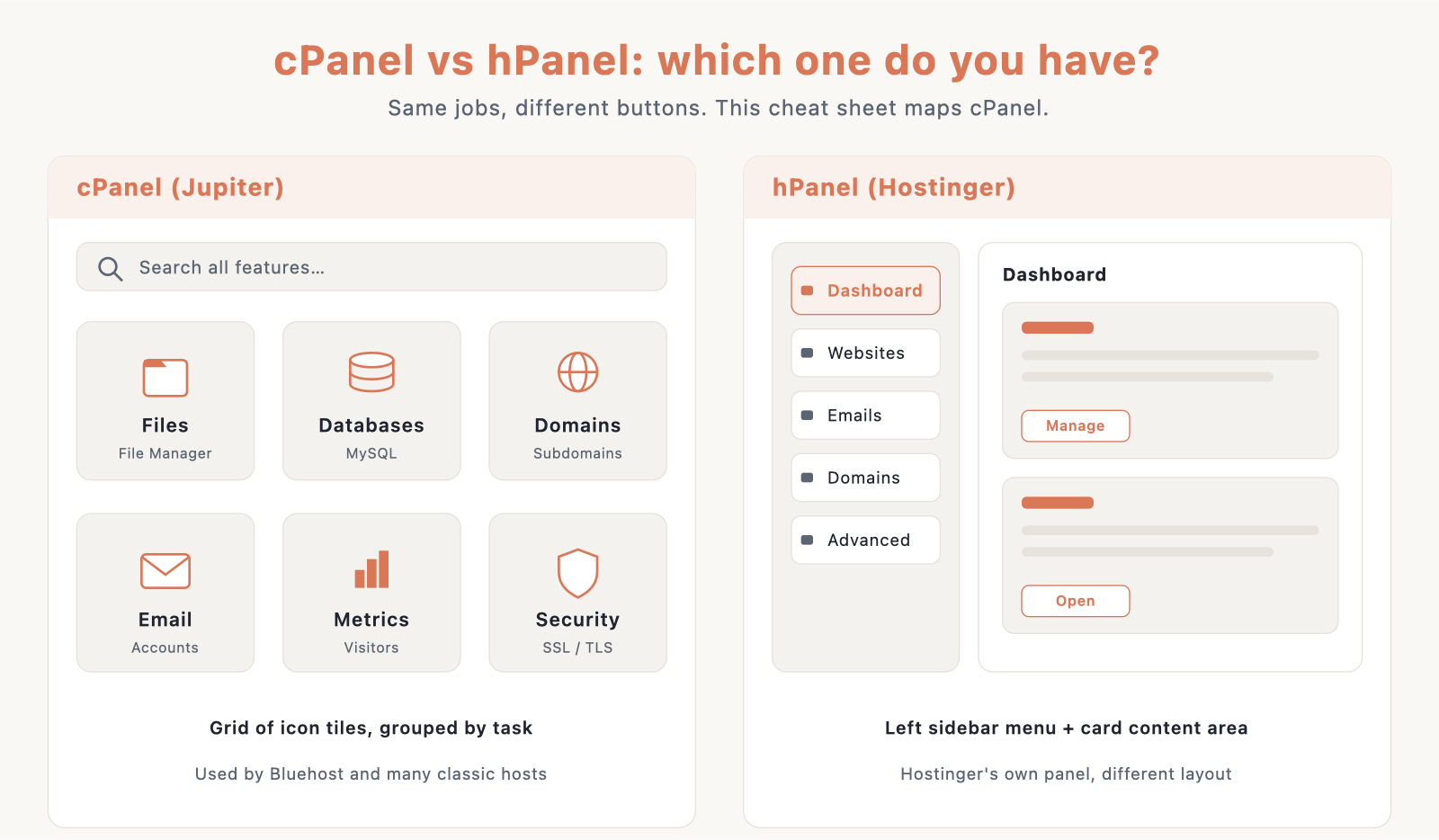
cPanel is the classic control panel that many hosts ship. Jupiter is its current default theme; the old Paper Lantern theme is retired, so screenshots from a few years back will look different from what you see today. If your dashboard shows rows of small icons grouped into sections like Files, Databases, and Domains, you are on cPanel. Hosts such as Bluehost give you real cPanel, so the icons and paths below apply directly.
Here is the catch. Not every host uses cPanel. If you signed up with Hostinger you will see hPanel instead, which is Hostinger’s own panel with different names and layouts. The tasks are the same; the buttons are not. So if your dashboard does not match the map below, you are probably on hPanel or a host-customized panel, and you should look for the equivalent tool rather than the exact icon.
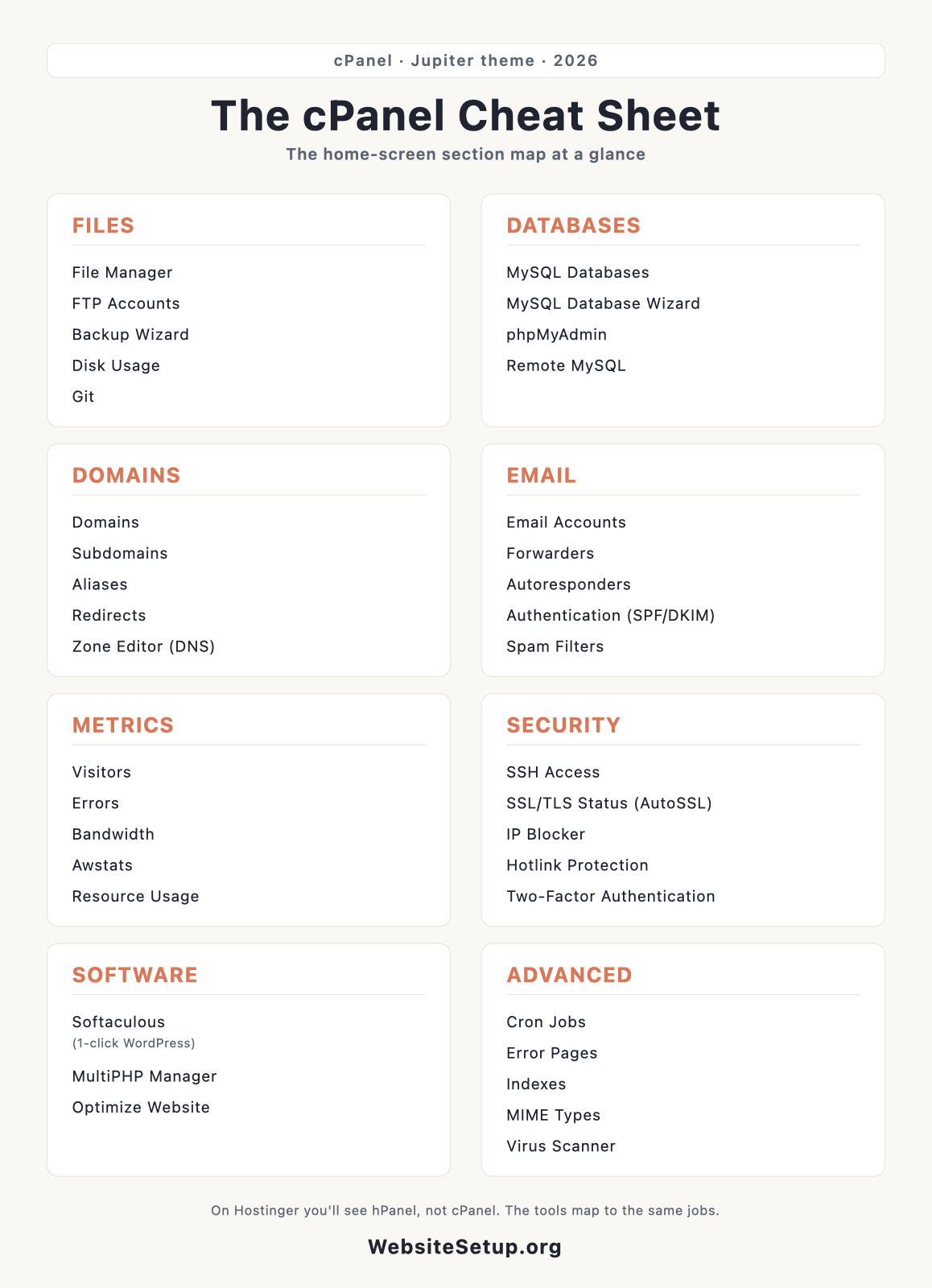
cPanel section map at a glance
cPanel groups its icons into a handful of sections. Here is what lives where, with a one-line note on each tool.
Files. File Manager edits and uploads files in the browser. Directory Privacy password-protects folders. Disk Usage shows what is eating space. Web Disk mounts your account like a network drive. FTP Accounts creates upload logins. FTP Connections shows who is connected now. Backup downloads or restores archives. Backup Wizard walks you through backup and restore. Images resizes and converts images. Git Version Control hosts and deploys Git repos.
| Files tool | What it does |
|---|---|
| File Manager | Edit and upload files in the browser |
| Directory Privacy | Password-protect folders |
| Disk Usage | See what is using storage |
| Web Disk | Mount your account as a network drive |
| FTP Accounts | Create FTP upload logins |
| FTP Connections | See active FTP sessions |
| Backup | Download or restore archives |
| Backup Wizard | Guided backup and restore |
| Images | Resize and convert images |
| Git Version Control | Host and deploy Git repos |
Databases. MySQL Databases creates databases and users by hand. MySQL Database Wizard does the same in guided steps. phpMyAdmin browses, imports, and exports tables. Remote MySQL allows outside servers to connect.
| Databases tool | What it does |
|---|---|
| MySQL Databases | Create databases and users manually |
| MySQL Database Wizard | Guided database + user setup |
| phpMyAdmin | Browse, import, and export tables |
| Remote MySQL | Let outside hosts connect to your DB |
Domains. Domains is the single place that now covers addon, parked, and alias domains. Subdomains creates entries like blog.yoursite.com. Aliases points extra domain names at your site. Redirects sends one URL to another. Zone Editor edits DNS records. Dynamic DNS updates a record when your IP changes.
| Domains tool | What it does |
|---|---|
| Domains | Manage addon, parked, and alias domains in one place |
| Subdomains | Create subdomains like blog.yoursite.com |
| Aliases | Point extra domain names at your site |
| Redirects | Send one URL to another |
| Zone Editor | Edit DNS records |
| Dynamic DNS | Auto-update a record on IP change |
Email. Email Accounts creates mailboxes. Forwarders copies mail to another address. Email Routing controls how mail is delivered. Autoresponders sends automatic replies. Default Address catches mail sent to a name that does not exist. Mailing Lists runs group lists. Track Delivery traces what happened to a message. Email Filters sorts or blocks mail by rule. Authentication sets SPF and DKIM. Spam Filters is Apache SpamAssassin. Encryption manages GnuPG keys. BoxTrapper challenges unknown senders. Calendars and Contacts syncs CalDAV and CardDAV.
| Email tool | What it does |
|---|---|
| Email Accounts | Create and manage mailboxes |
| Forwarders | Copy mail to another address |
| Email Routing | Control how mail is delivered |
| Autoresponders | Send automatic replies |
| Default Address | Catch mail to unknown names |
| Mailing Lists | Run group mailing lists |
| Track Delivery | Trace what happened to a message |
| Email Filters | Sort or block mail by rule |
| Authentication | Set SPF and DKIM records |
| Spam Filters | Apache SpamAssassin controls |
| Encryption | Manage GnuPG keys |
| BoxTrapper | Challenge unknown senders |
| Calendars and Contacts | Sync CalDAV and CardDAV |
Metrics. Visitors shows recent hits. Errors lists server error log entries. Bandwidth tracks data transfer. Raw Access downloads raw log files. Awstats gives graphical traffic reports. Resource Usage shows CPU and memory limits.
| Metrics tool | What it does |
|---|---|
| Visitors | See recent visitor hits |
| Errors | Read server error log entries |
| Bandwidth | Track data transfer |
| Raw Access | Download raw log files |
| Awstats | Graphical traffic reports |
| Resource Usage | CPU and memory limit view |
Security. SSH Access opens terminal access. IP Blocker bans an address or range. SSL/TLS manages certificates and keys. SSL/TLS Status runs AutoSSL. Hotlink Protection stops other sites from embedding your files. Leech Protection limits shared password abuse. ModSecurity is a web application firewall. SSH Keys manages key pairs. Manage API Tokens issues API access. Two-Factor Authentication adds a login code.
| Security tool | What it does |
|---|---|
| SSH Access | Open terminal access |
| IP Blocker | Ban an address or range |
| SSL/TLS | Manage certificates and keys |
| SSL/TLS Status | Run AutoSSL for free certs |
| Hotlink Protection | Block other sites embedding your files |
| Leech Protection | Limit shared password abuse |
| ModSecurity | Web application firewall |
| SSH Keys | Manage SSH key pairs |
| Manage API Tokens | Issue API access tokens |
| Two-Factor Authentication | Add a login code step |
Software. Setup Python, Node.js, or Ruby App deploys those runtimes. MultiPHP Manager and Select PHP Version pick your PHP version. PHP PEAR Packages and Perl Modules install libraries. Softaculous Apps Installer one-click installs apps like WordPress. Optimize Website tunes compression.
| Software tool | What it does |
|---|---|
| Setup Python/Node/Ruby App | Deploy those app runtimes |
| MultiPHP Manager / Select PHP Version | Pick your PHP version |
| PHP PEAR Packages | Install PHP libraries |
| Perl Modules | Install Perl libraries |
| Softaculous Apps Installer | One-click install WordPress and more |
| Optimize Website | Tune output compression |
Advanced. Cron Jobs schedules commands. Track DNS runs lookups and traces. Indexes controls directory listing behavior. Error Pages customizes 404 and other errors. Apache Handlers maps file types to handlers. MIME Types sets how files are served. Virus Scanner scans your account.
| Advanced tool | What it does |
|---|---|
| Cron Jobs | Schedule commands to run |
| Track DNS | Run DNS lookups and traces |
| Indexes | Control directory listing |
| Error Pages | Customize 404 and error pages |
| Apache Handlers | Map file types to handlers |
| MIME Types | Set how files are served |
| Virus Scanner | Scan your account for malware |
Preferences. Change Password resets your login. Contact Information sets alert email. User Manager adds sub-accounts. Change Language switches the interface language.
| Preferences tool | What it does |
|---|---|
| Change Password | Reset your account login |
| Contact Information | Set alert email address |
| User Manager | Add and manage sub-accounts |
| Change Language | Switch interface language |
Common tasks, done fast
Most cPanel work comes down to a dozen jobs. Create an email account: Email > Email Accounts > Create. Set up a forwarder: Email > Forwarders. Add a subdomain: Domains > Create A New Domain, or use Subdomains. Add an extra or addon domain: Domains > Create A New Domain, set the document root, and uncheck “share document root.” Force HTTPS: Security > SSL/TLS Status > run AutoSSL. Back up your site: Files > Backup Wizard, choosing Full for a migration or Home Directory for restorable files. Create a MySQL database and user: Databases > MySQL Database Wizard, then grant All Privileges. Import a database: Databases > phpMyAdmin > Import. Set a cron job: Advanced > Cron Jobs. Block an IP: Security > IP Blocker. Change PHP version: Software > MultiPHP Manager or Select PHP Version. Install WordPress: Software > Softaculous Apps Installer > WordPress. Edit DNS: Domains > Zone Editor > Manage. Enable SSH: Security > SSH Access, though some plans gate this.
| Task | Where to click |
|---|---|
| Create an email account | Email > Email Accounts > Create |
| Set up a forwarder | Email > Forwarders |
| Add a subdomain | Domains > Create A New Domain (or Subdomains) |
| Add an extra/addon domain | Domains > Create A New Domain, set document root, uncheck “share document root” |
| Force HTTPS / SSL | Security > SSL/TLS Status > run AutoSSL |
| Back up your site | Files > Backup Wizard (Full for migration, Home Directory for restorable files) |
| Create a MySQL DB + user | Databases > MySQL Database Wizard > grant All Privileges |
| Import a database | Databases > phpMyAdmin > Import |
| Set a cron job | Advanced > Cron Jobs |
| Block an IP | Security > IP Blocker |
| Change PHP version | Software > MultiPHP Manager or Select PHP Version |
| Install WordPress | Software > Softaculous Apps Installer > WordPress |
| Edit DNS | Domains > Zone Editor > Manage |
| Enable SSH | Security > SSH Access (may be plan-gated) |
Accuracy caveats / commonly gotten wrong
A few things trip people up. hPanel is not cPanel; Hostinger runs its own panel, so tutorials written for cPanel will not match its screens. Jupiter is the current theme, and Paper Lantern is retired, so old screenshots look wrong even on cPanel. “Addon Domains” stopped being its own tool in cPanel version 106 and got folded into Domains, yet plenty of older tutorials still tell you to open Addon Domains. cPanel’s free certificate feature is called AutoSSL, and depending on the host it issues certs from Let’s Encrypt or Sectigo, so do not go looking for a button labeled “Let’s Encrypt.” Hosts also hide, rename, or plan-gate tools like SSH, Remote MySQL, Git, and PHP version selection, so if you cannot find something, your host probably disabled it. One more: the Backup Wizard Full backup is meant for migrating to another server and cannot be restored through the cPanel interface, so use Home Directory when you want a backup you can actually restore yourself.
FAQ
Is hPanel the same as cPanel? No. hPanel is Hostinger’s own control panel. It does the same jobs, but the layout and tool names differ, so a cPanel guide will not line up with it.
Where is Addon Domains? It moved. Since cPanel version 106, addon domains live inside the single Domains tool. Open Domains and use Create A New Domain instead of hunting for a separate Addon Domains icon.
How do I get a free SSL in cPanel? Open SSL/TLS Status and run AutoSSL. cPanel issues a free certificate automatically, from Let’s Encrypt or Sectigo depending on how your host is set up.
Why don’t I see SSH or a certain tool? Your host has probably disabled or plan-gated it. Tools like SSH Access, Remote MySQL, and Git are commonly restricted on shared or entry-level plans. Check your plan or ask support.
Related quick references and the full guide
When you want the click-by-click version of any task here, read the full cPanel guide. For rules and redirects at the server level, keep the .htaccess cheat sheet nearby. And since editing records in Zone Editor is easier when you know what each record does, the DNS records cheat sheet pairs well with the Domains section above.
Download the cPanel Cheat Sheet (PDF)
Want this map on one printable page? Grab the PDF version below, keep it open in a tab, or pin it above your desk for the next time you go looking for the right icon.