
What is the Linux command line
The terminal is how you manage a Linux web server directly: files, permissions, logs, and transfers. Instead of clicking through a control panel, you type a command and the server does it. A handful of commands cover almost everything a site owner needs day to day.
You reach the command line by opening a terminal on your own machine and connecting to your server over SSH. On macOS, that program is called Terminal. On Windows, use WSL or Git Bash. One note about macOS: it defaults to the zsh shell rather than Bash, but every command in this cheat sheet works the same in both. If you are still choosing a host and want the full picture first, our guide on how to create a website walks through the basics.
Most managed WordPress and VPS plans include SSH access. Both Hostinger and Bluehost give you terminal access on their higher-tier plans, so you can run these commands against a real server.
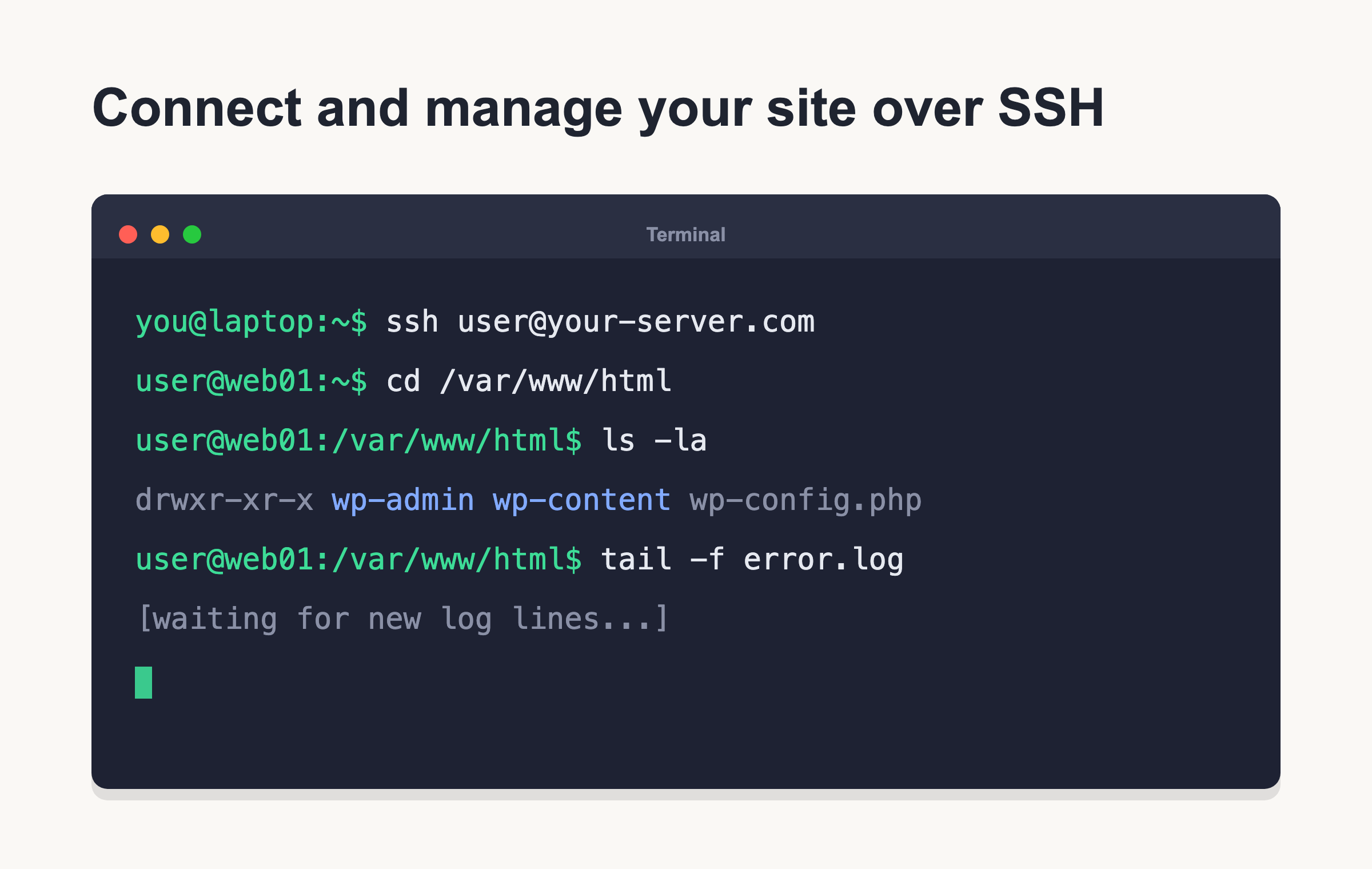
Quick start: connect over SSH
SSH (Secure Shell) is the tool that opens an encrypted connection to your server. The pattern is your username, an @ sign, then the host address.
ssh user@host
If your host uses a custom SSH port instead of the default 22, add the -p flag:
ssh -p 2222 user@host
Once you are in, you have a shell running on the server itself. Anything you type now runs there, not on your laptop. SSH and WP-CLI go together, so once you are connected our WP-CLI cheat sheet shows how to manage WordPress from the same prompt. If you prefer to open a shell from inside your control panel, the Terminal or SSH Access feature is covered in our cPanel cheat sheet.
Navigation
Before you touch anything, you need to know where you are and what is around you. These commands move you through the directory tree.
| Command | What it does | Example |
|---|---|---|
pwd |
Prints the working directory (where you are now) | pwd |
ls |
Lists files in the current folder | ls -la |
ls -lh |
Long listing with human-readable file sizes | ls -lh |
cd |
Changes into a directory | cd public_html |
cd .. |
Moves up one level | cd .. |
cd ~ |
Goes to your home directory | cd ~ |
cd - |
Jumps back to the previous directory | cd - |
tree |
Shows the folder structure as a tree | tree |
Files and directories
This group creates, copies, moves, and deletes things. Read the delete commands carefully, because Linux has no recycle bin.
| Command | What it does | Example |
|---|---|---|
touch |
Creates an empty file (or updates its timestamp) | touch index.html |
mkdir -p |
Makes a directory, including parent folders | mkdir -p wp/uploads |
cp -r |
Copies files or folders (r = recursive) | cp -r site backup |
mv |
Moves or renames a file | mv old.txt new.txt |
rm |
Deletes a file | rm cache.log |
rm -r |
Deletes a folder and its contents | rm -r old_theme |
rm -rf |
Force-deletes with no prompt. Danger: this is irreversible. There is no recycle bin. One wrong path erases everything under it. | rm -rf temp |
ln -s |
Creates a symbolic link (a pointer) | ln -s /var/www app |
file |
Reports what type a file is | file logo.png |
stat |
Shows detailed file info and timestamps | stat wp-config.php |
Viewing and editing files
You will read config files and logs constantly. These let you look at a file without opening a heavy editor, and edit one when you need to.
| Command | What it does | Example |
|---|---|---|
cat |
Prints a whole file to the screen | cat .htaccess |
less |
Scrolls through a file one page at a time (press q to quit) | less error.log |
head -n 20 |
Shows the first 20 lines | head -n 20 access.log |
tail -f |
Follows a file live as new lines arrive | tail -f error.log |
wc -l |
Counts the number of lines | wc -l users.csv |
nano |
Simple editor (Ctrl+X to save and exit) | nano wp-config.php |
vim |
Powerful editor (:wq saves and quits, :q! discards) | vim .htaccess |
Search
When something breaks, you need to find a string in a file or find a file by name. Grep searches inside files. Find locates files on disk.
| Command | What it does | Example |
|---|---|---|
grep -r |
Searches recursively through a folder | grep -r "text" . |
grep -i |
Case-insensitive search | grep -i "error" log.txt |
grep -rn |
Recursive search that shows line numbers | grep -rn "TODO" . |
find |
Finds files by name or pattern | find . -name "*.php" |
locate |
Finds files fast using an index | locate nginx.conf |
which |
Shows the path of a command | which php |
whereis |
Locates the binary and its docs | whereis php |
Permissions and ownership
Every file has an owner and a set of permissions: read, write, and execute (rwx). Linux uses a numeric shorthand where read is 4, write is 2, and execute is 1. You add those numbers per group of users, so 6 means read plus write, and 7 means all three. A permission like 644 sets the owner, the group, and everyone else in that order.
| Command | What it does | Example |
|---|---|---|
chmod 644 |
Standard permission for files (owner writes, others read) | chmod 644 index.php |
chmod 755 |
Standard permission for directories | chmod 755 wp-content |
chmod +x |
Makes a file executable | chmod +x deploy.sh |
chown |
Changes the owner and group of a file | chown user:group site |
sudo |
Runs a command as the root (admin) user | sudo systemctl restart nginx |
Danger: chmod 777 gives every user full read, write, and execute access. It is a security hole, not a fix. If something is not working, 777 is almost never the right answer. For related server configuration, permissions rules often sit alongside rewrite rules in your .htaccess cheat sheet.
Users and system info
These answer the two questions you ask most: who am I logged in as, and is the server healthy?
| Command | What it does | Example |
|---|---|---|
whoami |
Prints your current username | whoami |
id |
Shows your user and group IDs | id |
who |
Lists who is logged in | who |
passwd |
Changes your password | passwd |
df -h |
Shows free disk space, human-readable | df -h |
du -sh |
Shows the total size of a folder | du -sh wp-content |
free -h |
Shows RAM usage | free -h |
top |
Live view of running processes (htop is nicer if installed) | htop |
uname -a |
Prints kernel and system details | uname -a |
uptime |
Shows how long the server has been running | uptime |
Processes
A process is any running program. Sometimes one hangs or eats memory, and you need to see it and stop it.
| Command | What it does | Example |
|---|---|---|
ps aux |
Lists all running processes | ps aux |
top |
Live, sorted process view | top |
kill |
Stops a process by its ID | kill 4821 |
kill -9 |
Force-stops a process that ignores a normal kill | kill -9 4821 |
killall |
Stops all processes with a given name | killall php |
jobs |
Lists jobs running in this shell | jobs |
bg / fg |
Sends a job to the background or foreground | fg 1 |
nohup |
Runs a command that survives logout | nohup ./import.sh & |
Adding a single & to the end of a command runs it in the background so your prompt returns right away.
Networking and remote
Beyond SSH, you will move files between machines and check whether a service is reachable. These are the tools for that.
| Command | What it does | Example |
|---|---|---|
ssh |
Connects to a remote server | ssh user@host |
scp |
Copies a file to or from a server | scp file user@host:/path |
rsync -avz |
Syncs folders efficiently over the network | rsync -avz src/ user@host:/dst/ |
wget |
Downloads a file from a URL | wget https://example.com/file.zip |
curl -I |
Fetches just the HTTP response headers | curl -I https://example.com |
ping |
Tests whether a host responds | ping example.com |
ss -tulpn |
Lists listening ports and services | ss -tulpn |
dig |
Looks up DNS records (nslookup is similar) | dig example.com |
Archives and transfer
Backups and site migrations usually mean bundling a folder into one compressed file, then unpacking it on the other side.
| Command | What it does | Example |
|---|---|---|
tar -czf |
Creates a compressed .tar.gz archive | tar -czf a.tar.gz dir |
tar -xzf |
Extracts a .tar.gz archive | tar -xzf a.tar.gz |
zip -r |
Creates a .zip of a folder | zip -r site.zip site |
unzip |
Extracts a .zip file | unzip site.zip |
gzip |
Compresses a single file | gzip access.log |
Package management
Servers install software through a package manager. Which one you use depends on the Linux distribution. On Debian and Ubuntu it is apt:
sudo apt update
sudo apt install nginx
On RHEL, CentOS, and their relatives it is dnf (older systems used yum, which works the same way):
sudo dnf install nginx
Pipes, redirects, and text tools
This is where the command line becomes powerful. You chain small tools together, and you steer their output into files or other commands. The pipe | sends the output of one command into the next.
| Command | What it does | Example |
|---|---|---|
| |
Pipes output into the next command | ls | wc -l |
> |
Redirects output to a file (overwrites it) | ls > files.txt |
>> |
Appends output to a file | echo done >> log.txt |
< |
Feeds a file in as input | sort < names.txt |
&& |
Runs the next command only if the first succeeds | cd site && ls |
|| |
Runs the next command only if the first fails | ping -c1 host || echo down |
xargs |
Builds a command from piped input | ls | xargs rm |
sort |
Sorts lines of text | sort names.txt |
uniq |
Removes adjacent duplicate lines | sort log | uniq |
cut |
Extracts columns from each line | cut -d, -f1 data.csv |
sed |
Finds and replaces text in a stream | sed 's/a/b/g' file |
awk |
Processes columns of text | awk '{print $1}' log |
echo |
Prints text or a variable | echo $PATH |
history |
Shows the commands you ran | history |
clear |
Clears the screen | clear |
Keyboard shortcuts and handy tricks
A few habits make the terminal far less tiring. When you forget how a command works, ask it.
| Command | What it does | Example |
|---|---|---|
man |
Opens the manual for a command | man grep |
--help |
Prints quick usage for most commands | tar --help |
| Tab | Autocompletes file and command names | type cd pub then Tab |
| Ctrl+C | Cancels the running command | Ctrl+C |
| Ctrl+R | Searches your command history | Ctrl+R then type |
| Ctrl+L | Clears the screen (like clear) | Ctrl+L |
!! |
Repeats your last command | !! |
sudo !! |
Repeats the last command as root | sudo !! |
Site-owner recipes
Here is where these commands earn their keep. Each of these solves a real problem you will hit while running a website.
Watch the live error log as it happens (Apache uses a different path):
tail -f /var/log/nginx/error.log
tail -f /var/log/apache2/error.log
Find what is filling up your disk, largest items first:
du -ah . | sort -rh | head -20
Fix WordPress file and folder permissions the correct way. Directories get 755, files get 644:
find . -type d -exec chmod 755 {} \;
find . -type f -exec chmod 644 {} \;
Upload a backup from your machine to the server:
scp backup.zip user@host:/var/www/html/
Search your code for a setting, with line numbers:
grep -rn "DB_NAME" wp-config.php
And the habit that saves you most: always list a folder before you delete anything in it. Run ls, confirm you are where you think you are, then run rm.
Dangerous commands and gotchas
The command line does exactly what you tell it, instantly, with no undo. A short list of rules keeps you out of trouble.
- rm -rf is irreversible. Never run
rm -rf /orrm -rf ~. The first tries to wipe the whole system, the second wipes your home folder. - sudo runs as root. A mistake made with sudo has no guard rails. Read the command twice before you press Enter.
- Linux paths are case-sensitive and use forward slashes.
Index.phpandindex.phpare two different files. - chmod 777 is a security risk. It lets anyone read and change the file. Use 644 for files and 755 for folders instead.
- macOS uses zsh, and Windows needs WSL or Git Bash, but the Bash commands here still work the same.
- Quote any path that contains spaces, like
cd "My Files". - Use Tab completion and the up arrow to recall past commands. They cut down typos, which is the most common cause of a bad command.
FAQ and download
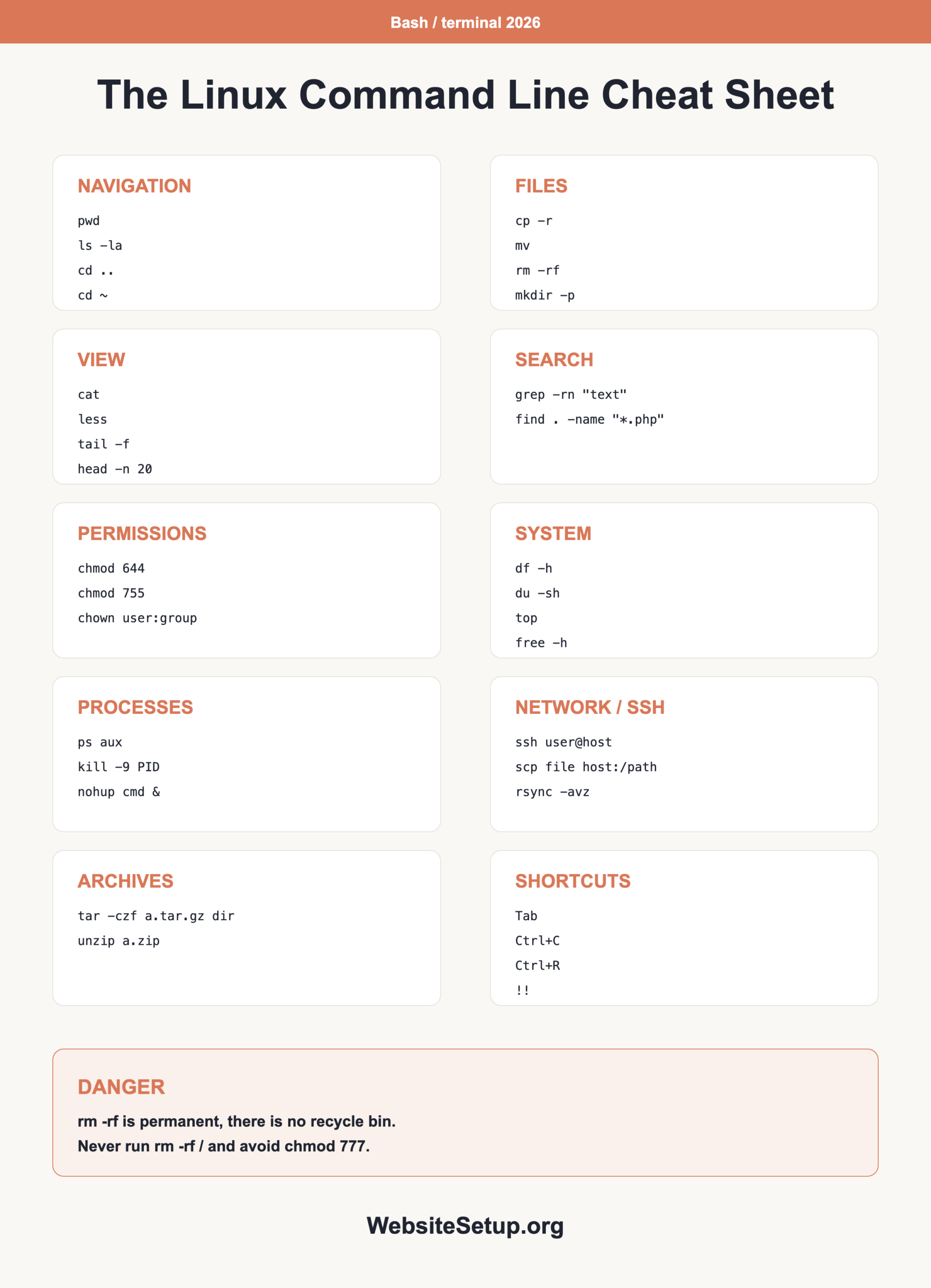
Keep this reference nearby while you learn. You can download the full cheat sheet as a printable PDF below.
Download the Linux Command Line Cheat Sheet (PDF)
How do I open the terminal? On macOS, open the Terminal app. On Windows, install WSL or Git Bash and open that. Then run ssh user@host to connect to your server.
What is the difference between the terminal and SSH? The terminal is the program on your computer where you type commands. SSH is the command you run inside it to connect securely to a remote server. You use the terminal to run SSH.
Is the command line safe? Yes, for everyday work it is safe. The risk is in a few commands. rm -rf and sudo can do real damage with no undo, so read a command before you run it, especially anything copied from the internet.
Do these work on macOS? Yes. macOS uses the zsh shell by default rather than Bash, but every command in this cheat sheet behaves the same way in both.