Whether you’re new to HTML or a seasoned professional, a good HTML editor can help you code faster thanks to its many helpful features. For example, syntax highlighting and other capabilities help you visually scan over code faster and reduce errors.
There are different types of software when it comes to editing HTML. These include basic text editors, WYSIWYG editors, and full IDEs.
In this guide, we explain what an HTML editor is, break down the different types, and list the 10 best HTML editors to help you write cleaner code more efficiently.
Let’s dig in.
What is an HTML Editor?
An HTML editor is a program that’s specially designed for coding HTML and possibly CSS, or a variety of other programming languages. It includes features that streamline your coding workflow, making it easier to write, debug, and manage your code compared to a basic text editor like Notepad or TextEdit.
Features of an HTML Text Editor
HTML text editors can include many potential features such as:
- Syntax highlighting – A feature that emphasizes key elements in different colors so it’s easier to keep track of your code. You’re able to visually differentiate between the elements so you can quickly determine what you need to write next.
- Auto-completion – Components such as closing tags are automatically inserted when they’re logically supposed to appear. It saves you time by automating a good chunk of your code.
- Debugging – An HTML text editor sometimes includes a debugging feature. It checks your code for errors and reports them back to you. It saves you from having to comb through line after line of code trying to see and fix tiny errors that are easy to miss.
- Code validation – Some editors include built-in code validation. This is a feature that checks to make sure your code’s syntax is error-free. While it won’t check for more complex errors like a debugging tool would, it’s still a useful feature that saves you time.
- Insert common HTML elements – With one click, you can quickly add HTML elements without having to constantly type them in every time you want to use them.
- Quick search – Instead of looking through hundreds of lines of code for one component, this feature lets you search for it. Each instance of the keyword you typed gets highlighted in your code so you can quickly find what you need.
- Search and replace – This feature lets you not only search your code, but change all instances of your searched keywords to something else. You only have to type the replacement code once instead of multiple times.
Differences Between Different Text Editors
It’s important to note that there are different types of HTML editor software. There are typical HTML text editors, WYSIWYG editors, and full IDEs.
Text Editor for HTML vs HTML WYSIWYG Editor
An HTML text editor is a code-focused tool where you write and edit raw HTML directly. An HTML WYSIWYG editor adds a visual editing layer on top of that.
The “WYSIWYG” part stands for “What You See Is What You Get.” The visual editor works a lot like a typical word processor where you can add text and images, then format them with different styles, fonts, sizes, and other similar settings. Whatever is displayed in the WYSIWYG editor is how it will appear when published to the web.
With a WYSIWYG editor, you can create content visually and then generate or view the underlying HTML code without touching any code yourself. This makes WYSIWYG editors a great option for beginners who want to produce HTML without learning syntax first.
HTML Editor vs an IDE
Besides the above-mentioned options, there’s also an Integrated Development Environment (IDE). It’s like a professional-level HTML editor but in its own category, because an IDE includes extra features that even the best HTML editors don’t have — such as integrated compilers, advanced project management, and built-in terminal access.
For details, check out 10 Best IDE Software.
When Do You Need an HTML Editor?
Sometimes you may need an HTML editor or an HTML WYSIWYG editor, and other times you need a different option such as a word processor or an IDE. Here are general guidelines that can help you determine which type of software you need.
An HTML editor is helpful when:
- You’re learning to code HTML.
- You need to edit an HTML or CSS file.
- It’s essential to efficiently write HTML or other design-based code like CSS.
- You need a professional tool that helps you reduce errors in your code.
- A basic word processor or text editor just isn’t cutting it for you anymore.
If you need to quickly generate HTML without touching code, an HTML WYSIWYG editor is the best option.
Keep in mind that HTML editors are best suited for front-end web development. If you need a tool for back-end development, you’re better off using an IDE in most cases.
How to Choose the Right HTML Editor
With so many options available, it helps to evaluate editors against a few key criteria before committing to one:
- Interface and usability – A clean, uncluttered interface makes a big difference, especially during long coding sessions. Look for an editor that feels comfortable and doesn’t overwhelm you with options you don’t need yet.
- Language support – While you may only need HTML and CSS right now, choosing an editor that also supports JavaScript, PHP, Python, or other languages gives you room to grow without switching tools later.
- Performance – Some editors are lightweight and launch instantly, while others are more resource-heavy. If you’re working on a less powerful machine, a compact editor like Notepad++ will feel much snappier than a feature-packed IDE.
- Platform compatibility – Make sure the editor runs on your operating system. Most popular editors support Windows, macOS, and Linux, but some are limited to one platform.
- Extensions and customization – The ability to add plugins, change themes, and configure settings means you can tailor the editor to your exact workflow as your skills develop.
- Price – Many excellent HTML editors are completely free. Others offer free tiers with optional paid upgrades. Consider what you actually need before paying for premium features.
The 10 Best HTML Editors
Now that you know what to look for in an HTML editor, here’s a list of the best ones available.
1) Visual Studio Code
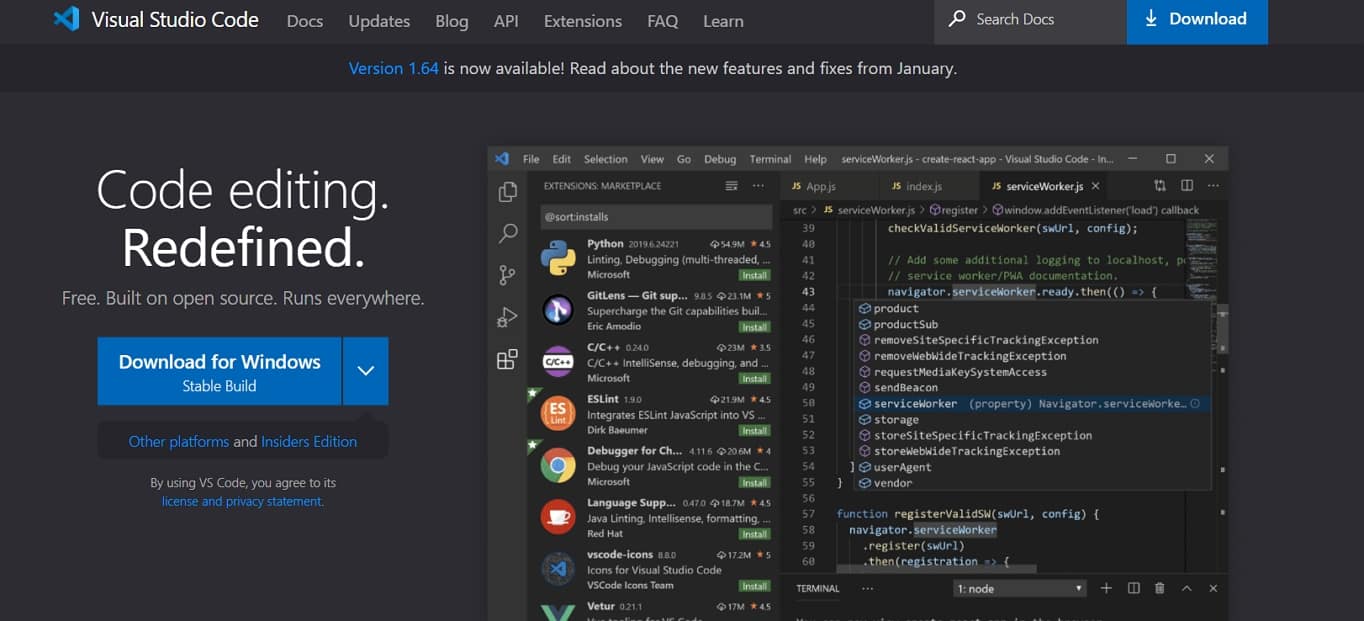
Visual Studio Code (VS Code) is a free, open-source HTML editor maintained by Microsoft and a massive open-source community. It has become the most widely used code editor among developers, and for good reason.
It includes syntax highlighting, and its IntelliSense feature provides smart auto-completions based on variable types, function definitions, and imported modules. There are also advanced features like built-in debugging, integrated Git commands, and a built-in terminal.
VS Code supports HTML, CSS, Sass, Less, JavaScript, PHP, C#, C++, Ruby, Python, and many more languages. Its extension marketplace has thousands of free add-ons for virtually any workflow.
Despite its many features, the user interface is clean and well-organized. It’s powerful enough for professionals yet intuitive enough for beginners.
Platform: Windows, macOS, Linux
Price: Free
2) Sublime Text
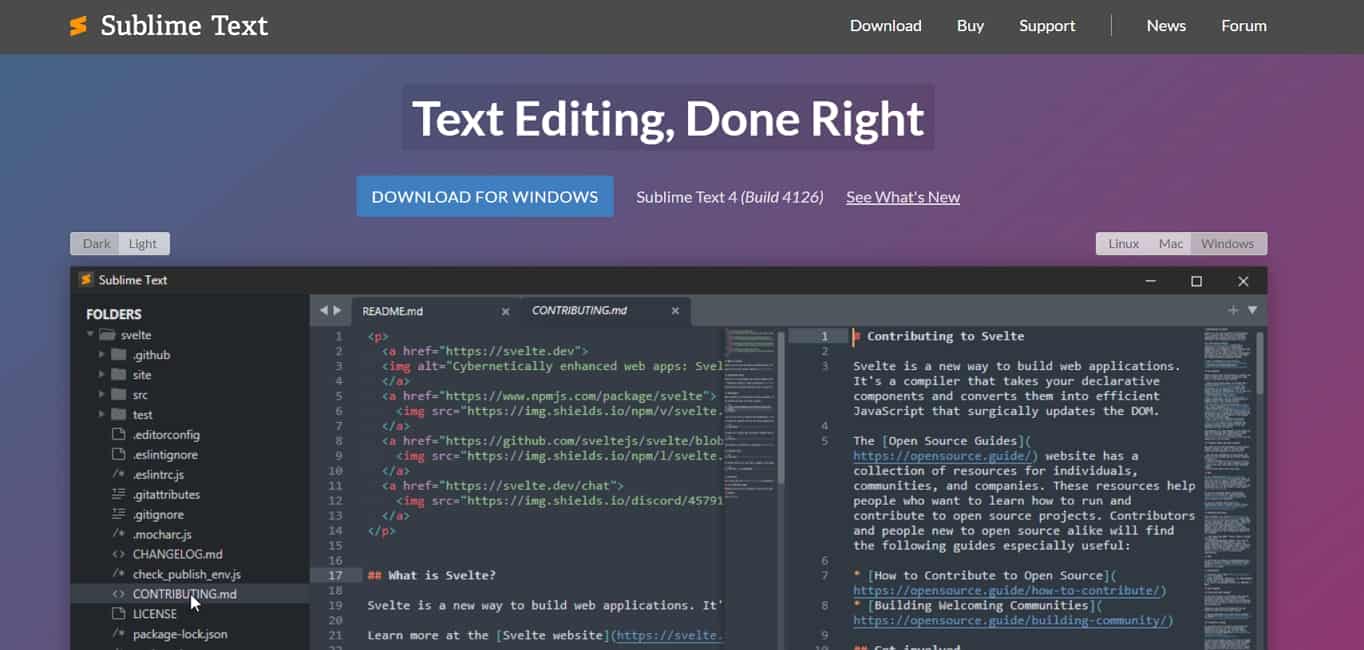
Sublime Text is a highly customizable HTML editor known for its speed and responsiveness. It launches almost instantly, even on older hardware, and handles large files without slowing down.
You can quickly search and find specific elements, it has syntax highlighting, and a split-pane UI so you can view multiple files side by side. Its “Goto Anything” feature lets you jump to any file, symbol, or line with a single shortcut.
The interface is clean and distraction-free, making it easy to focus on your code.
Platform: Windows, macOS, Linux
Price: Free to evaluate (no time limit). License is $99 for continued use.
3) Notepad++
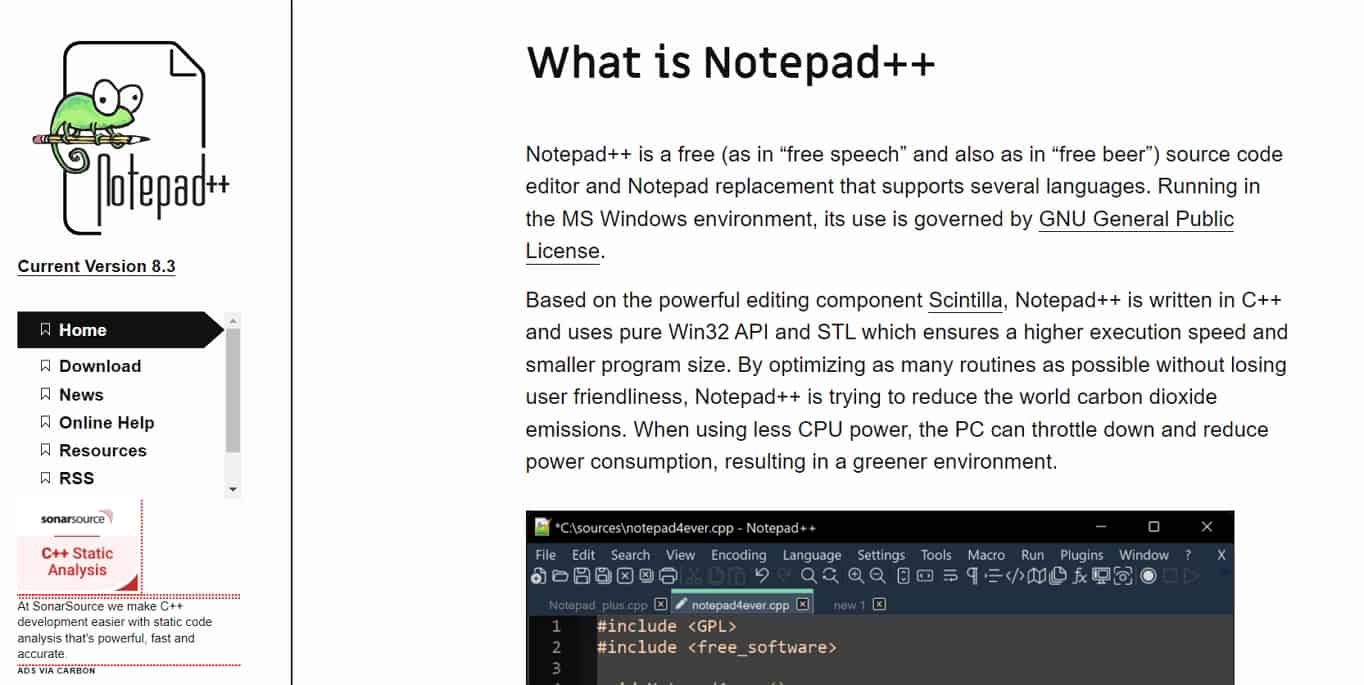
Notepad++ is a free, open-source HTML editor that’s clean and simple. It supports HTML, CSS, JavaScript, PHP, and many other programming/scripting/markup languages with syntax highlighting, code folding, and basic auto-completion.
It includes syntax highlighting, auto-completion, and a functions list for quick navigation within your file. It’s also extremely lightweight — the program launches fast and uses minimal system resources, which makes it a great choice if you’re working on an older or less powerful computer.
Notepad++ also supports FTP connections, allowing you to connect directly to server files and edit them. Additional plugins are available to extend its functionality.
If you’re looking for an HTML text editor that’s great for transitioning out of beginner-level web development, this is a strong option. It has useful advanced features without being overly complicated. It’s also great for advanced users who prefer a distraction-free UI.
Platform: Windows (can run on Linux via Wine)
Price: Free
4) Dreamweaver

Dreamweaver is a premium HTML editor from Adobe that goes far beyond the basics. It supports many web standards including HTML and CSS, and it can function as both a code editor and a WYSIWYG editor – letting you switch between code view and visual design view.
It has error underlining so it’s easier to spot and correct issues. There’s also a live preview editing area built right into the UI so you can see changes in real time without uploading files to a server.
Dreamweaver also has Git support and integrates with other Adobe Creative Cloud products, which is convenient if you already use tools like Photoshop or Illustrator.
Platform: Windows, macOS
Price: Starts at $22.99/month as part of Adobe Creative Cloud. 7-day free trial available.
5) Vim
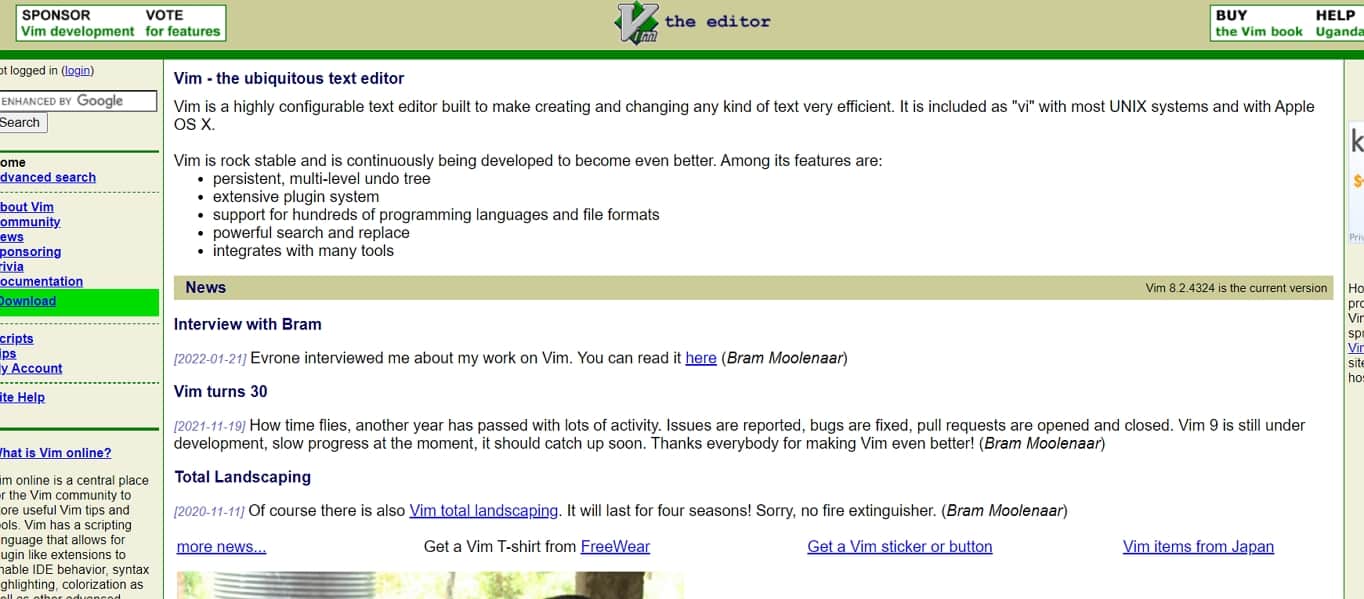
Vim is a classic and widely respected text editor that is commonly used for HTML editing. It’s free, open-source, and includes syntax highlighting with support for hundreds of programming and markup languages.
While Vim is technically a text editor, many developers use it like an IDE thanks to its powerful features, including error highlighting, advanced search and replace, and a robust undo system that allows you to reverse changes extensively.
Vim is also highly customizable. You can create your own commands, change the editor’s color scheme, and configure it to match your exact workflow.
The trade-off is that Vim has a steep learning curve. It uses keyboard-based navigation instead of mouse-driven menus, which takes time to learn but dramatically speeds up coding once mastered.
Platform: Windows, macOS, Linux, Unix
Price: Free
6) CKEditor
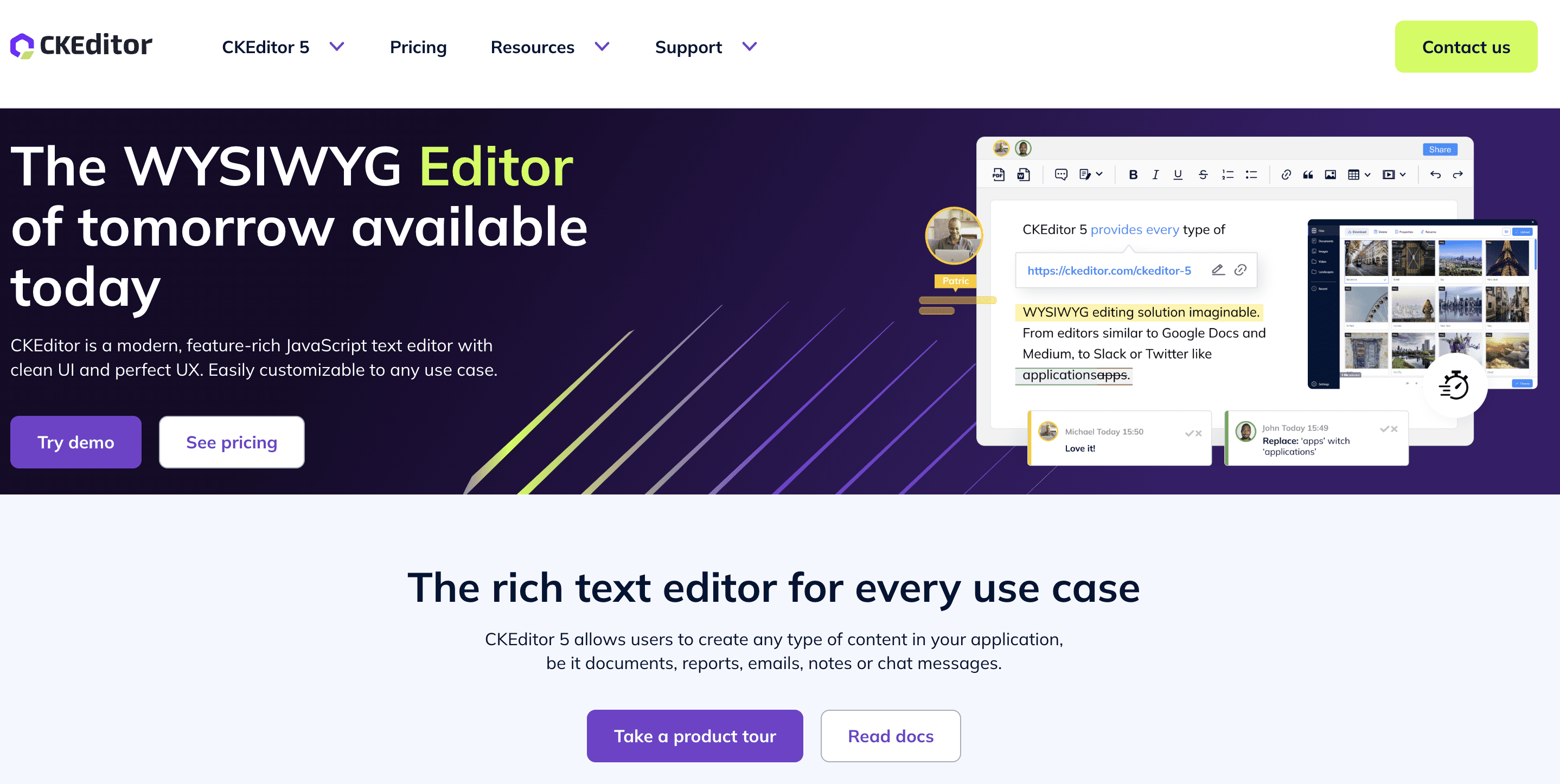
CKEditor is a well-established WYSIWYG rich text editor that can be embedded into web applications. It’s widely used for content management systems, collaborative platforms, and any project that needs a visual editing experience.
It offers multiple editing modes (classic, inline, and balloon), real-time collaboration features including comments, track changes, and revision history. CKEditor integrates with platforms like WordPress and Drupal and works with modern frameworks.
CKEditor 5 is dual-licensed. It is available under the open-source GPL 2+ license for GPL-compatible projects, or under a commercial license for proprietary use. A limited free commercial plan is also available, while advanced collaboration and premium features require a paid license.
Platform: Web-based (JavaScript)
Price: Free for open-source; premium plans available for commercial use
7) TinyMCE Editor
TinyMCE is one of the most popular WYSIWYG HTML editors and can be embedded into web applications. It’s available as a free, self-hosted open-source project and also as a cloud-hosted option.
There’s a visual editor component that works like a standard word processor with all the classic formatting options. An HTML source tab lets you view, edit, and copy the generated HTML.
TinyMCE includes a large collection of plugins covering core editing, media, tables, spell checking, and collaboration features, and offers extensive configuration options. It integrates with platforms and frameworks like React, Angular, and Vue.
It was also the editor powering WordPress’s classic editor before the block editor (Gutenberg) was introduced in WordPress 5.0.
Platform: Web-based (JavaScript), self-hosted or cloud
Price: Free (self-hosted core); premium plans available
8) CoffeeCup HTML Editor
CoffeeCup is a WYSIWYG HTML editor designed to be approachable for users with limited coding knowledge. It comes packed with design templates you can import and customize, making it faster to get started on a project.
You can split the interface to code on one side and preview the rendered page on the other. It also includes code completion, error identification, and FTP integration so you can upload directly to your server.
CoffeeCup offers a library of reusable components, which is helpful if you’re building multiple pages that share common elements like headers and footers.
Platform: Windows
Price: 30-day free trial, then $29 for a license
9) BBEdit
BBEdit is a long-standing HTML editor built exclusively for Mac. It’s trusted by software developers, web authors, and writers for its reliable text editing and code management features.
It includes syntax highlighting, code auto-completion, and powerful search-and-replace tools that can work across multiple files at once. The interface is clean and intuitive, making it easy to make quick edits or manage larger projects.
BBEdit covers all the essential needs for HTML coding and editing. If you need something straightforward and dependable on macOS, it’s an excellent choice.
Platform: macOS
Price: Free 30-day trial, then $59.99 for an individual license
10) UltraEdit
UltraEdit is a powerful, feature-rich HTML editor trusted by millions of users. It’s designed for developers, system administrators, and data analysts who need to work with large files and complex projects.
It supports files larger than 4 GB, includes spell checking, provides scripting capabilities to automate editing tasks, and offers syntax formatting for a wide range of programming languages. There’s also a built-in file comparison tool.
UltraEdit is highly customizable and works with cloud services. It’s one of the best options for advanced users who need a robust, all-purpose text editor.
Platform: Windows, macOS, Linux
Price: 7-day free trial available, then prices start from $7.91/mo
Quick Comparison Table
| Editor | Type | Platform | Price | Best For |
|---|---|---|---|---|
| Visual Studio Code | Text Editor | Windows, macOS, Linux | Free | All-around best option for most users |
| Sublime Text | Text Editor | Windows, macOS, Linux | Free to evaluate | Speed and lightweight performance |
| Notepad++ | Text Editor | Windows | Free | Simple, distraction-free coding |
| Dreamweaver | Text + WYSIWYG | Windows, macOS | Paid (subscription) | Visual design + code in one tool |
| Vim | Text Editor | Windows, macOS, Linux | Free | Power users who prefer keyboard workflows |
| CKEditor | WYSIWYG | Web-based | Free / Premium | Collaborative editing in web apps |
| TinyMCE | WYSIWYG | Web-based | Free / Premium | Embeddable visual editor for projects |
| CoffeeCup | WYSIWYG | Windows | Paid (one-time) | Beginners with minimal coding knowledge |
| BBEdit | Text Editor | macOS | Paid (one-time) | Mac users who want a reliable editor |
| UltraEdit | Text Editor | Windows, macOS, Linux | Paid (subscription) | Advanced users working with large files |
Frequently Asked Questions
Which HTML editor is best for beginners?
Visual Studio Code is the most popular choice for beginners because it’s free, runs on all major operating systems, and has a clean interface with helpful features like auto-completion and syntax highlighting. If you’d rather not write code at all, a WYSIWYG editor like CoffeeCup lets you build pages visually.
What is a WYSIWYG HTML editor?
WYSIWYG stands for “What You See Is What You Get.” A WYSIWYG HTML editor lets you create and format content visually, similar to a word processor, and generates the underlying HTML code for you. This makes it ideal for users who want to produce HTML without learning syntax.
Is Visual Studio Code good for HTML?
Yes. Visual Studio Code is one of the best free editors for HTML. It also supports CSS, JavaScript, and dozens of other programming languages through extensions. Its built-in features like IntelliSense, debugging, and Git integration make it suitable for both beginners and professionals.
Is Notepad++ good for web development?
Notepad++ is a solid choice for web development, especially on Windows. It supports direct FTP connections to web servers, lets you edit files in multiple languages, and is extremely lightweight. It’s best suited for developers who prefer a simple, no-frills editor.
What is the difference between an HTML editor and an IDE?
An HTML editor focuses on helping you write and edit code with features like syntax highlighting and auto-completion. An IDE (Integrated Development Environment) includes all of those features plus additional tools like built-in compilers, advanced debugging, project management, and terminal access. For front-end HTML and CSS work, an HTML editor is usually sufficient. For larger, more complex projects, an IDE may be the better choice. Check out our guide to the 10 Best IDE Software for more details.
Are free HTML editors good enough for professional work?
Absolutely. Editors like Visual Studio Code, Notepad++, and Vim are free and widely used by professional developers every day. Free editors often have large extension ecosystems and active communities that keep them up to date. Premium editors may offer convenience features or specialized tools, but free options are more than capable for most professional workflows.
In Conclusion
If you’re coding HTML in a basic text editor like Notepad or TextEdit, your code is much more likely to be full of errors. Using a dedicated HTML editor can vastly improve not only how you handle errors, but also streamline your workflow with features like syntax highlighting, auto-completion, and live preview.
The HTML editors listed above cover a range of needs – from free, lightweight options like Notepad++ and VS Code to premium tools like Dreamweaver and UltraEdit. No matter which one you choose, you’ll have a much better coding experience than working without one.