
Ask ChatGPT to “build me a website” and you won’t get a finished site. You’ll get a wall of text, some code, and follow-up questions. That’s not a failure; it’s just not how the tool works. Used right, ChatGPT is one of the fastest ways to get a real site online, once you know which parts of the job it actually handles.
For context: I’m not a developer and I’ve never written production code. But I’ve built site after site for my own projects and businesses, so I know the shortcuts and the dead ends. This is the no-code way I’d do it myself.
So let’s set expectations. ChatGPT won’t register your domain, host your files, or hit publish. It will plan your pages, write your copy, generate code, and fix what breaks, which is most of the slow work. Here’s how to put it to work.
How to Build a Website With ChatGPT in 5 Steps
- Step 1: Know what ChatGPT can (and can’t) do
- Step 2: Plan your structure and pages
- Step 3: Generate code, copy, and visuals
- Step 4: Build your site (WordPress, HTML, or AI builder)
- Step 5: Launch, test, and optimize
Time to plan and draft with ChatGPT: 30–60 minutes
Time to build and launch: 1–3 hours
Guide difficulty: Beginner (no coding needed)
Step 1 – What ChatGPT Can (and Can’t) Do for Website Building
It helps to be clear about the job first. ChatGPT is an assistant, not a one-click site builder, and knowing the line saves a lot of frustration.
What ChatGPT does well:
- Plans your site structure, sitemap, and page goals
- Writes first-draft copy: headlines, About pages, product descriptions, CTAs
- Generates HTML, CSS, and simple JavaScript snippets
- Suggests color palettes, font pairings, and layout ideas
- Drafts SEO titles, meta descriptions, and image alt text
- Debugs and explains code you paste back in
What it can’t do:
- Register a domain or set up hosting for you
- Upload files to a server or publish your site
- Build a reliable, full website from a single prompt (it tries, and the output usually breaks)
- Handle databases, e-commerce checkout, or server configuration
- Replace a final human review for accuracy, brand voice, and design judgment
ChatGPT speeds up the work, but you still own the decisions and the quality check, and that’s what makes a site worth visiting.
Step 2 – Plan Your Website Structure and Pages With ChatGPT
Don’t open ChatGPT and ask for “a website.” That’s too vague, and you’ll get generic mush. Tell it exactly who the site is for and what each page should do.
Try a prompt like this:
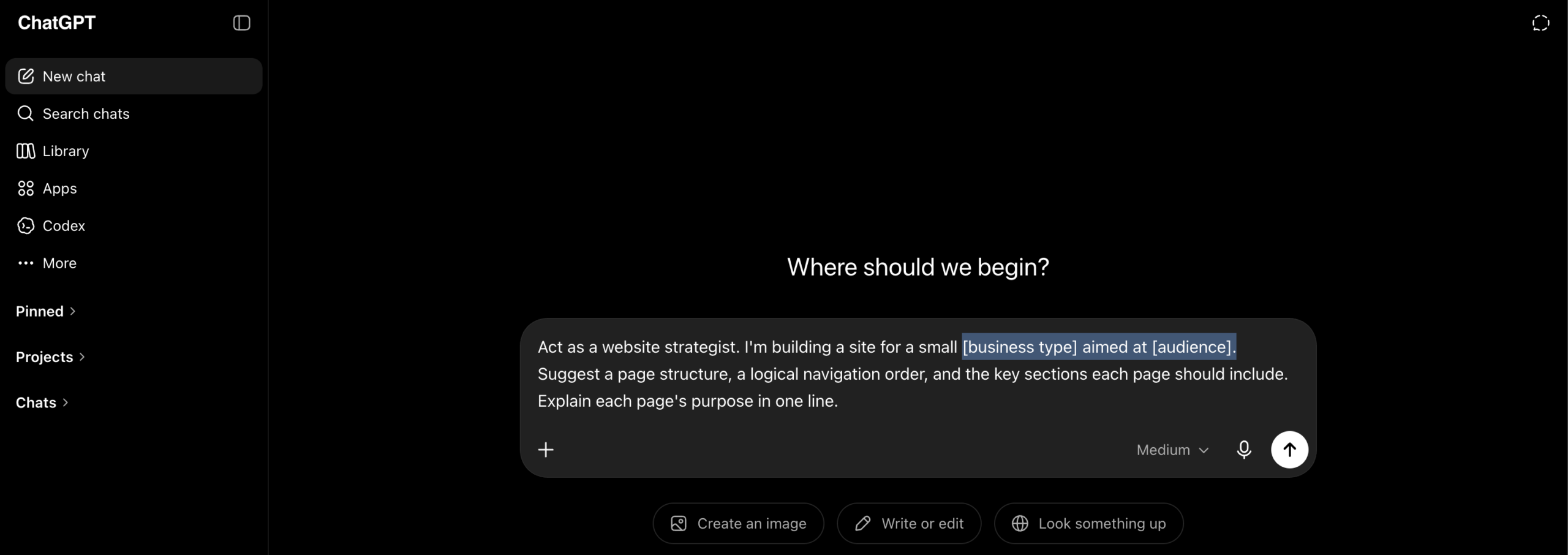
“Act as a website strategist. I’m building a site for a small [business type] aimed at [audience]. Suggest a page structure, a logical navigation order, and the key sections each page should include. Explain each page’s purpose in one line.”
ChatGPT hands back a sitemap you can refine. Push back: cut pages you don’t need, or add a booking or FAQ page if it fits. Once your structure is set, ask it to sketch the section-by-section content for your key page so you know what each block must say before you build. (Our how to make a website guide covers the full setup afterward.)
Step 3 – Generate Code, Copy, and Visuals Using ChatGPT Prompts
This is where ChatGPT earns its keep, as long as you work in small pieces.
Code. Asking for a whole site at once is the fastest way to get broken output. Request one piece at a time: HTML structure first, then CSS, then JavaScript. Be specific about frameworks and fonts.
“Generate a responsive homepage in HTML and CSS using Bootstrap 5. Use Playfair Display for headings and Lato for body. Add a nav bar (Home, Services, About, Contact), a hero with a headline and a ‘Get in touch’ button, and a footer with contact details.”
Paste the result into a free editor like VS Code or CodePen and check it in a browser. ChatGPT leaves placeholder links and the odd bug, so test and tweak; if a reply cuts off, ask it to continue. To understand the code you’re pasting, see our guide to coding a website with HTML and CSS.
See the prompt sequence I use (expands)Copy. Feed it your page goal, audience, and tone, then edit the draft to add the specifics only you know: real numbers, real customer language, real personality.
Visuals. ChatGPT can generate images with DALL·E and write alt text. For anything customer-facing, check the images fit your brand first.

Step 4 – Build Your Site: WordPress, Custom HTML, or AI Website Builder
ChatGPT gives you content and code. Now you need to put it somewhere live. Three realistic paths, depending on how much control you want.
Option 1: AI website builder (fastest, best for non-coders)
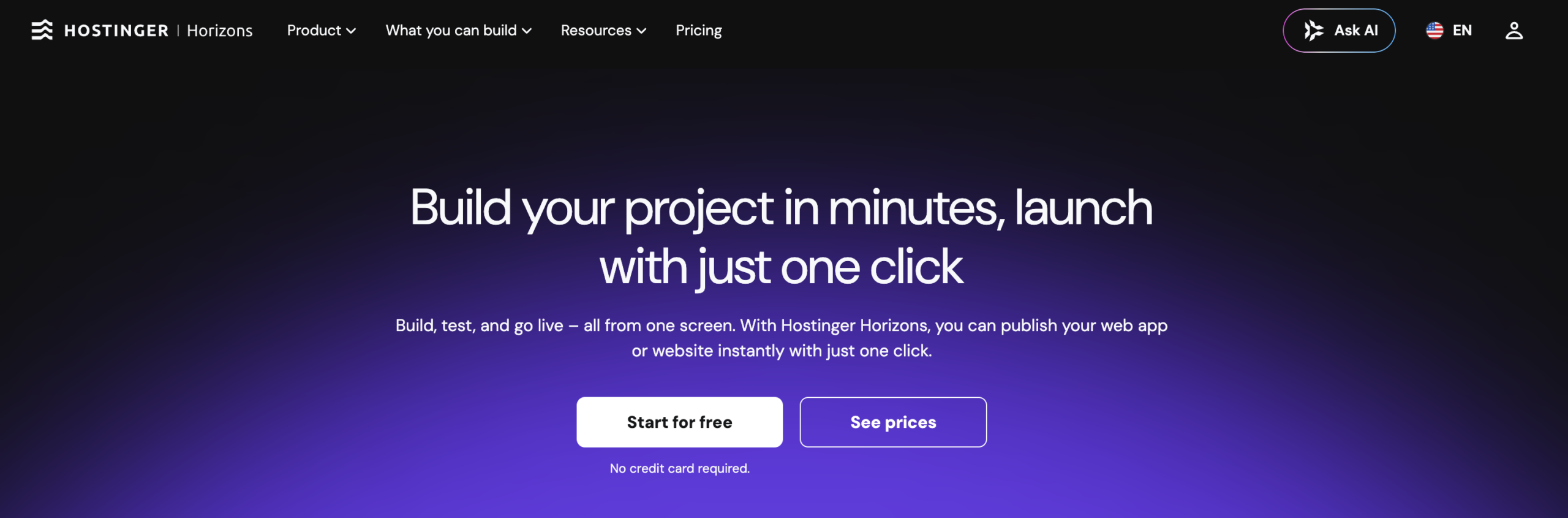
If you don’t want to touch code, this is the route I’d point most beginners to. Some AI builders now plug into ChatGPT directly: you describe the site in plain language, the builder generates a working version you refine and publish, and hosting, domain, and SSL are handled for you. (Hostinger Horizons, an app inside ChatGPT, is one current example.)
Option 2: WordPress (most flexible)
WordPress powers much of the web and gives you room to grow. You’ll need a domain name and web hosting, then a one-click WordPress install. Paste ChatGPT’s copy into the block editor, or drop its HTML into a Custom HTML block, and upload your images to the Media Library. A clean starting theme helps, here are some free WordPress themes worth a look.
Option 3: Custom HTML site (most control)
For full control, save ChatGPT’s output (homepage as index.html) and upload everything to your host via its file manager or an FTP client like FileZilla. Include every page, image, header, and footer, then load your domain to check it live.
Step 5 – Launch, Test, and Optimize Your ChatGPT-Built Website
Before you tell anyone about your site, run a quick launch check:
- Test responsiveness on mobile, tablet, and desktop. AI layouts often look fine on one and break on another.
- Replace every placeholder: images, links, and dummy text ChatGPT left behind.
- Fact-check the copy. AI can state prices, hours, or claims that aren’t true for your business.
- Confirm SSL (HTTPS) is active so visitors see a secure padlock.
- Connect Google Search Console to track how the site performs in search.
After launch, ChatGPT stays handy for blog ideas, meta descriptions, or a fix when something breaks. Keep the rule throughout: let ChatGPT draft, and let a human approve. That’s the workflow I use on my own sites, and it keeps the result yours.
P.S. Stuck on a step? Send us a message and I’ll point you in the right direction 🙂.
How to Build a Website With ChatGPT: Frequently Asked Questions
Can ChatGPT build a website for free?
Partly. The free tier can plan pages, write copy, and generate code at no cost, but a live website still needs a domain (around $10–$20/year) and hosting (around $2–$10/month). The free version also has shorter outputs and slower speeds at busy times; ChatGPT Plus handles longer jobs more reliably.
Do I need coding skills to build a website with ChatGPT?
No, and I’m proof of it. With an AI website builder or WordPress, you can build a full site without writing a line of code; ChatGPT handles the copy and the builder handles the rest. Basic HTML and CSS only become useful if you choose the custom-code route.
How long does it take to build a website using ChatGPT?
It depends on the path. An AI builder can get a simple site live in under an hour. A WordPress site with custom copy usually takes an afternoon to a couple of days. A hand-coded site takes longest, because you test and tweak each section. In every case, ChatGPT shortens the work; it doesn’t remove the review.