
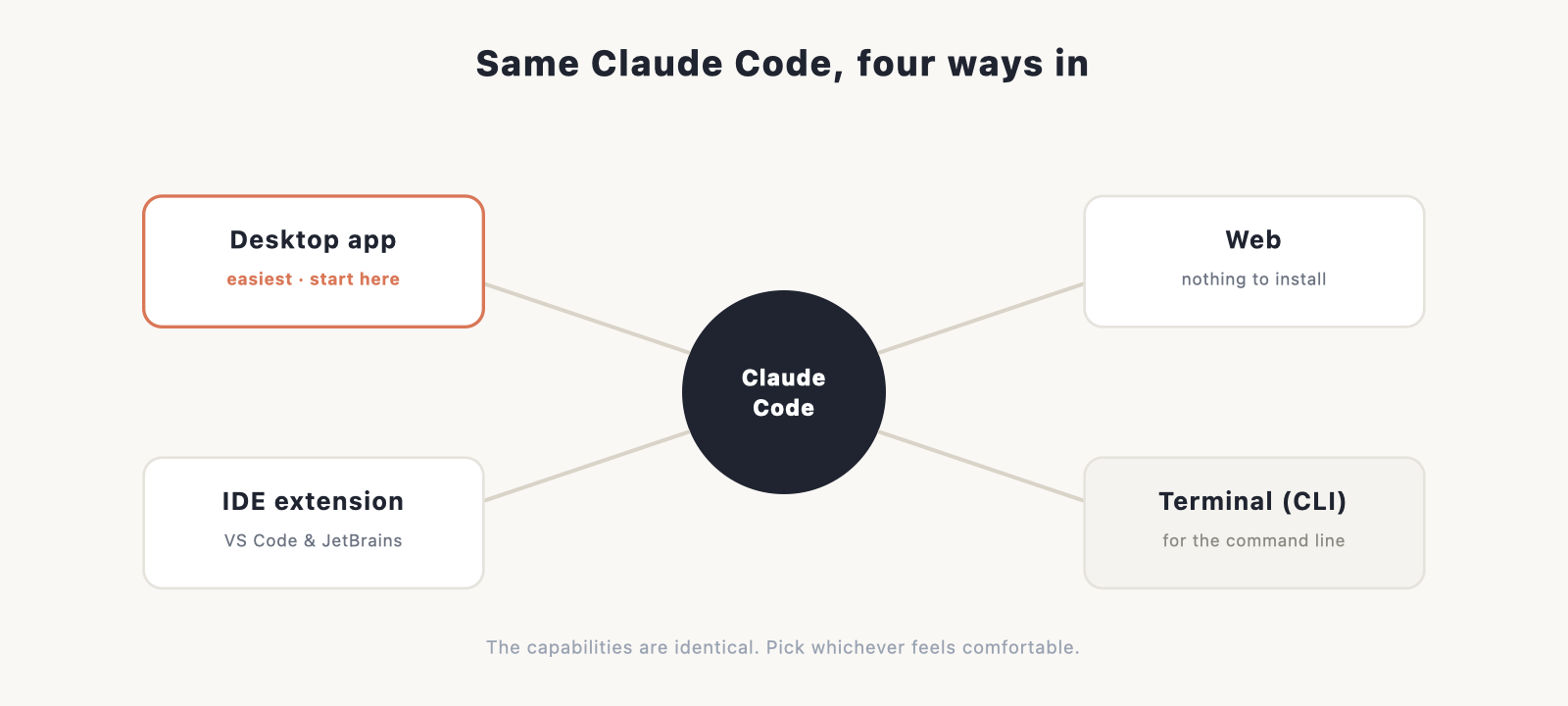
Claude Code isn’t a single app. It runs in four places: a desktop app, a web version, an extension inside your code editor, and the terminal. The capabilities are the same across all of them, so the choice is purely about what feels comfortable. This guide explains what each is best for and which to pick.
If you’re just getting set up, our install guide covers the how, and the main Claude Code guide covers the what. This page is only about picking your surface.
The short version
For most people, especially anyone who isn’t a developer, the desktop app is the right choice. It’s the friendliest, it needs no setup beyond installing it, and it does everything the other surfaces do. Reach for the others only if you have a specific reason: the web version to avoid installing anything, the editor extension if you already code in one, and the terminal if you live in the command line.
Desktop app: the easy default
The desktop app is a normal Mac or Windows application. You open it, sign in, describe what you want, and review changes through a friendly interface. No command line, nothing to configure. If you’re new to building websites, this removes the one barrier that puts people off Claude Code, the idea that you need to be comfortable in a terminal. You don’t.
Pick the app if you want the simplest possible start and you’ll work on your own machine.
Web: nothing to install
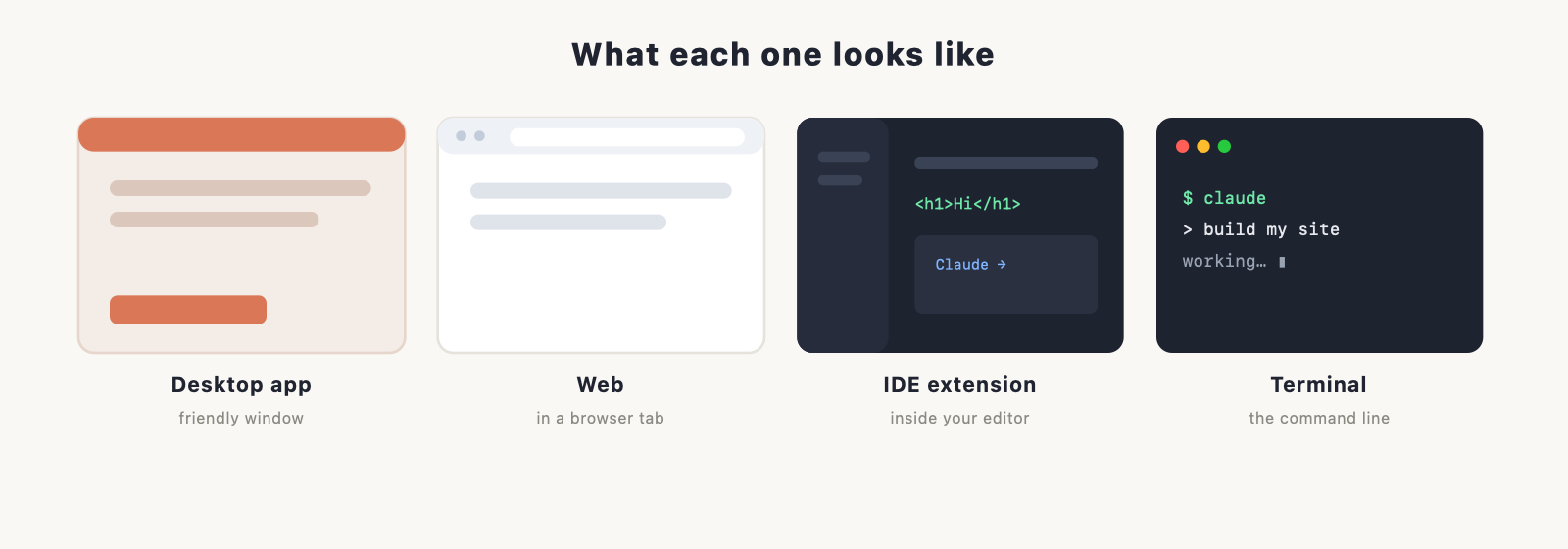
The web version runs in your browser at claude.ai/code. It works like the app, with no download at all, which makes it the fastest way to try Claude Code or to use it on a computer where you’d rather not install software. (Verify the current web address at publish.)
Pick the web version to try things quickly, or when you’re on a borrowed or locked-down machine.
IDE extension: if you already use an editor
If you write code in VS Code or a JetBrains IDE, you can run Claude Code as an extension right inside it. You stay in your editor, see your files and your code, and Claude Code works alongside you. It’s the natural choice for people who already have an editor workflow and want AI in it rather than in a separate window. New to editors? Our roundup of the best IDE software is a good place to start.
Pick the extension if an editor is already your home base.
Terminal (CLI): the power route
The terminal version is the original, and it’s still the favourite of developers who live in the command line. It’s the most keyboard-driven and scriptable surface, but it asks the most familiarity going in. It is not where a beginner needs to begin, and choosing it over the app gets you no extra capability, just a different way of working.
Pick the CLI if you’re comfortable in a terminal and prefer working there.
Side by side
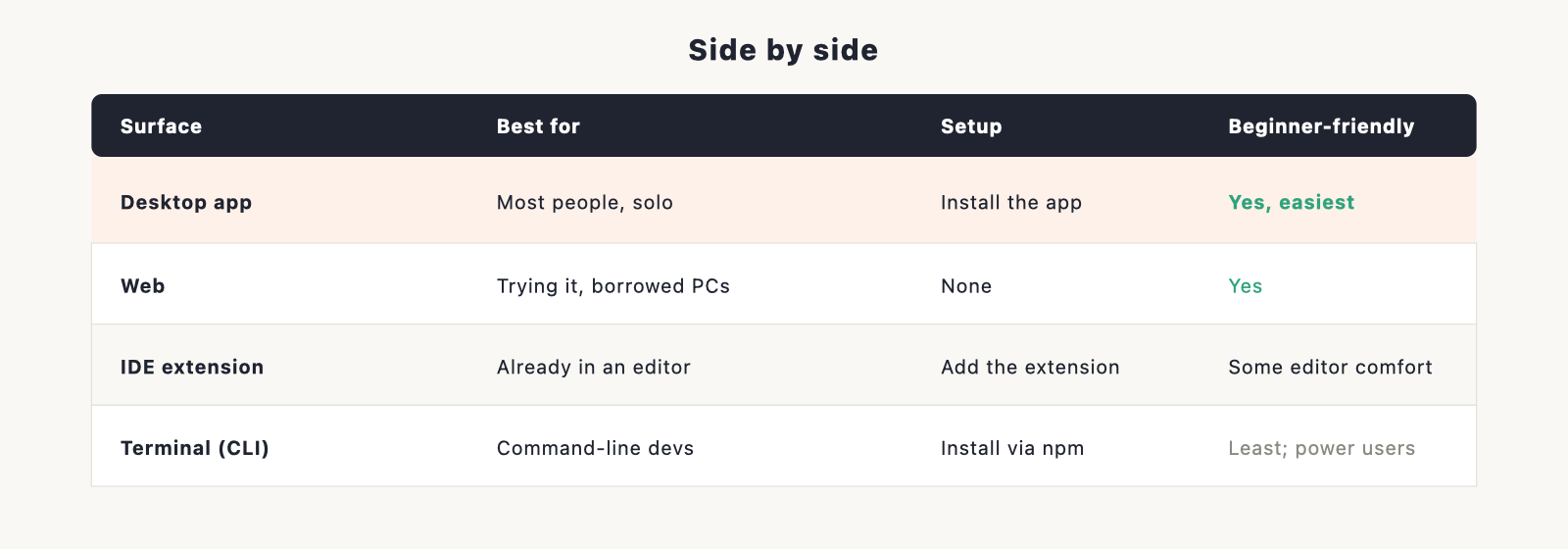
| Surface | Best for | Setup | Beginner-friendly |
|---|---|---|---|
| Desktop app | Most people, working solo | Install the app | Yes, the easiest |
| Web | Trying it, borrowed machines | None | Yes |
| IDE extension | People already in an editor | Add the extension | Some editor comfort |
| Terminal (CLI) | Command-line developers | Install via npm | Least; for power users |
Which should you pick?
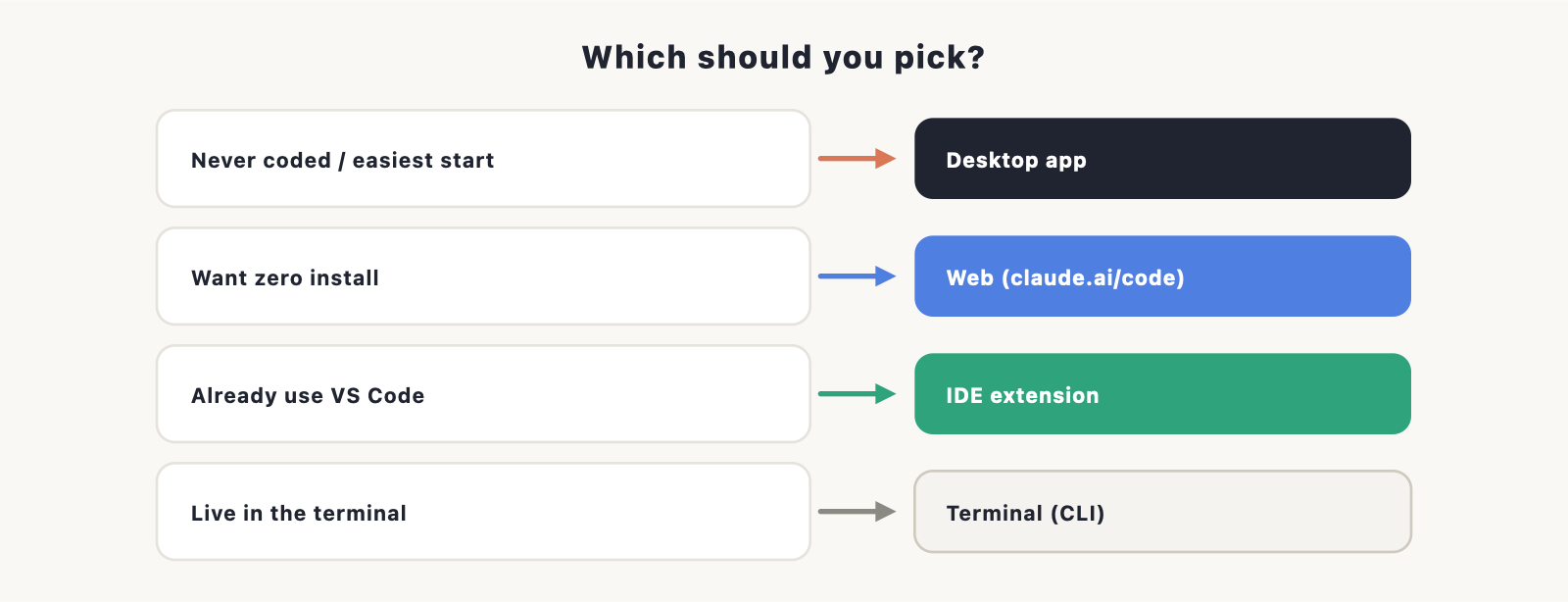
- You’ve never coded, or just want the easiest start. Desktop app.
- You don’t want to install anything. Web version.
- You already work in VS Code or a JetBrains IDE. The extension.
- You’re comfortable in the terminal and prefer it. The CLI.
You can switch any time, and your account and projects come with you. Many people start in the app and add the editor extension later as they get more hands-on. There’s no wrong first choice.
Ready to set up? The install guide walks through each route in about ten minutes, then the main guide takes you through building your first site.
Frequently asked questions
Is the desktop app as powerful as the terminal version? Yes. The capabilities are the same across all four surfaces. The difference is the interface and how you like to work, not what Claude Code can do.
Do I need to know the terminal to use Claude Code? No. The desktop app and web version need no terminal at all. The CLI is only one of four ways to use it.
Can I use Claude Code in VS Code? Yes, through an extension. It also has an extension for JetBrains IDEs. Both use the same Claude account.
Can I switch surfaces later? Any time. Your account and projects carry over, so you can start in the app and move to the editor extension or terminal whenever you want.
Which is best for a beginner? The desktop app. It’s the friendliest and needs no setup beyond installing it.