
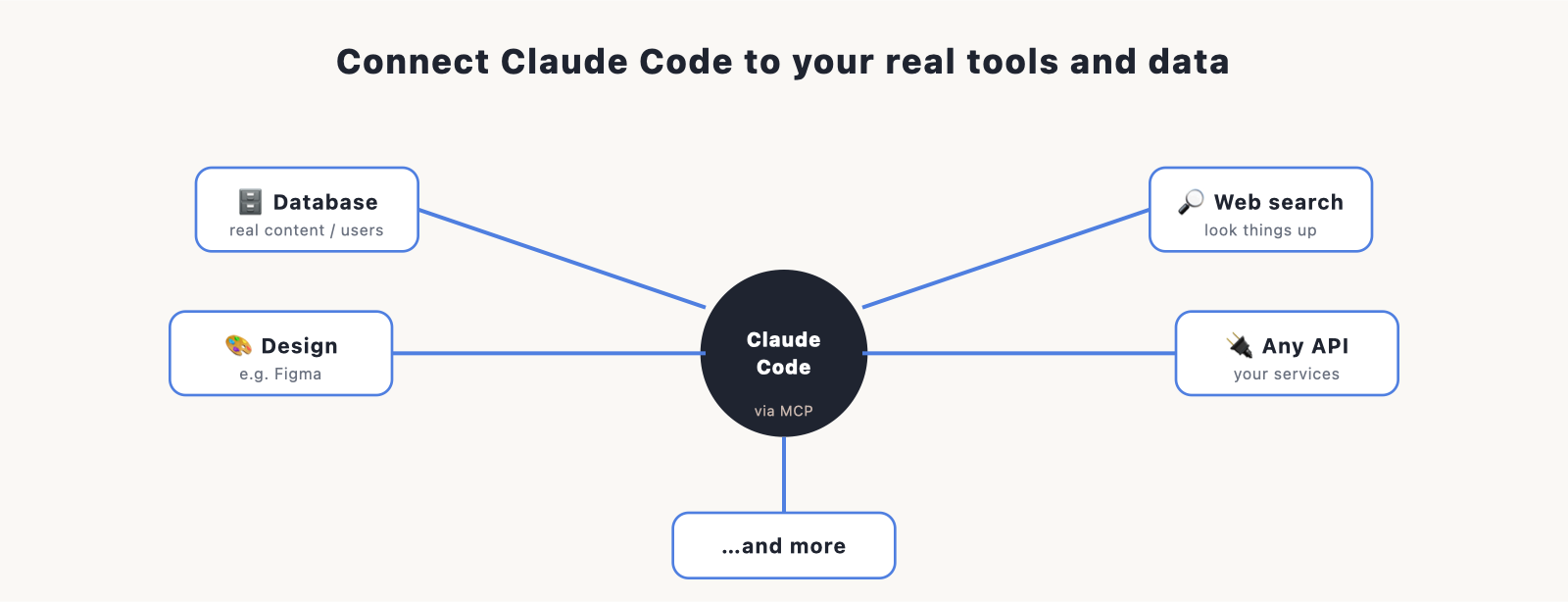
By default, Claude Code works with the files in your project. MCP is what lets it reach beyond them, to your database, your design files, a web search, or any other service you connect. It’s the difference between an assistant that only sees your code and one that can work with your real data and tools. This guide explains MCP in plain terms, how to add a server, and which ones are useful for building a website.
New here? Start with the main Claude Code guide. This page is for when you want Claude Code to do more than edit files.
What MCP is, in plain English
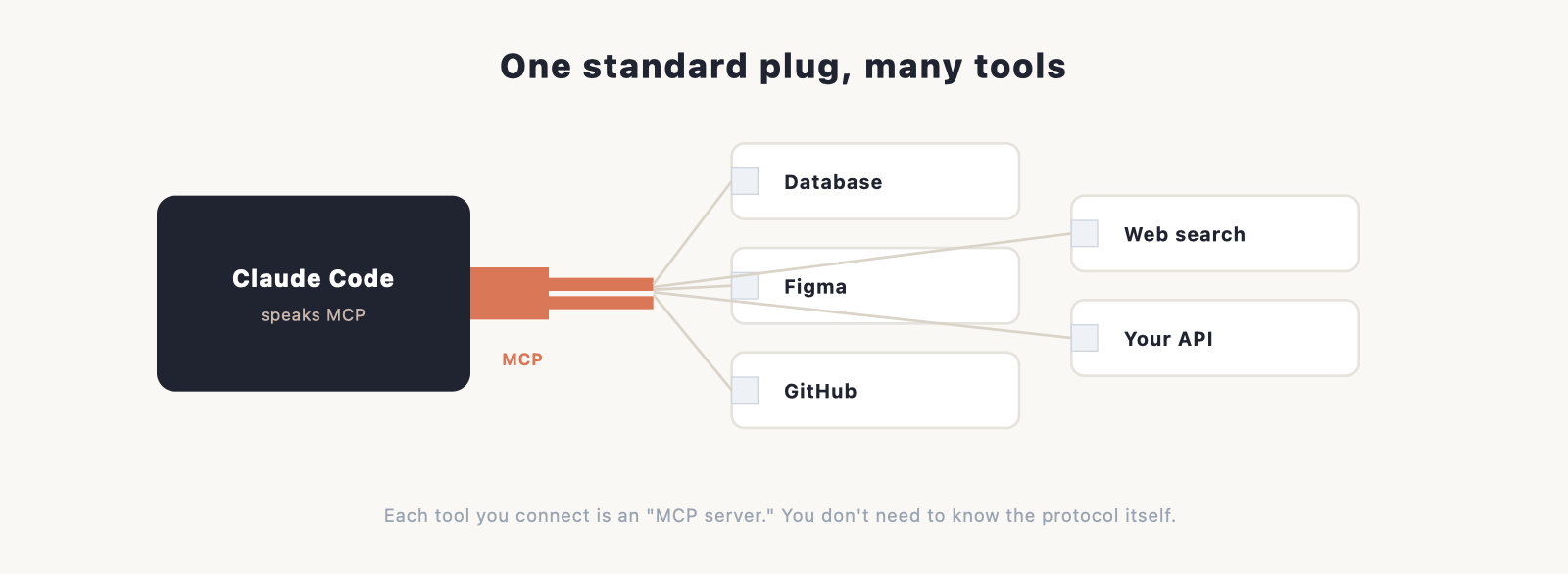
MCP stands for Model Context Protocol. The jargon hides a simple idea: it’s a standard way to plug outside tools into Claude Code. Think of it like a universal adapter. Instead of every tool needing its own custom hookup, MCP gives them all the same kind of plug, so Claude Code can talk to a database, a design app, or a web service through one common system. Each thing you connect is an “MCP server.”
You don’t need to understand the protocol itself. You just need to know that connecting one gives Claude Code a new ability.
Why connect external tools
A few concrete examples for building a website:
- A database, so Claude Code can read and write your real content instead of dummy data. This is what makes a data-driven site or app possible.
- Design tools, so it can pull in a design or assets you’ve made elsewhere.
- Web search or documentation, so it can look things up while it works.
- Your own services and APIs, so it can wire your site to whatever you already run.
For a simple static site you may never need any of this. For anything with real data behind it, MCP is what connects the dots.
How to add an MCP server
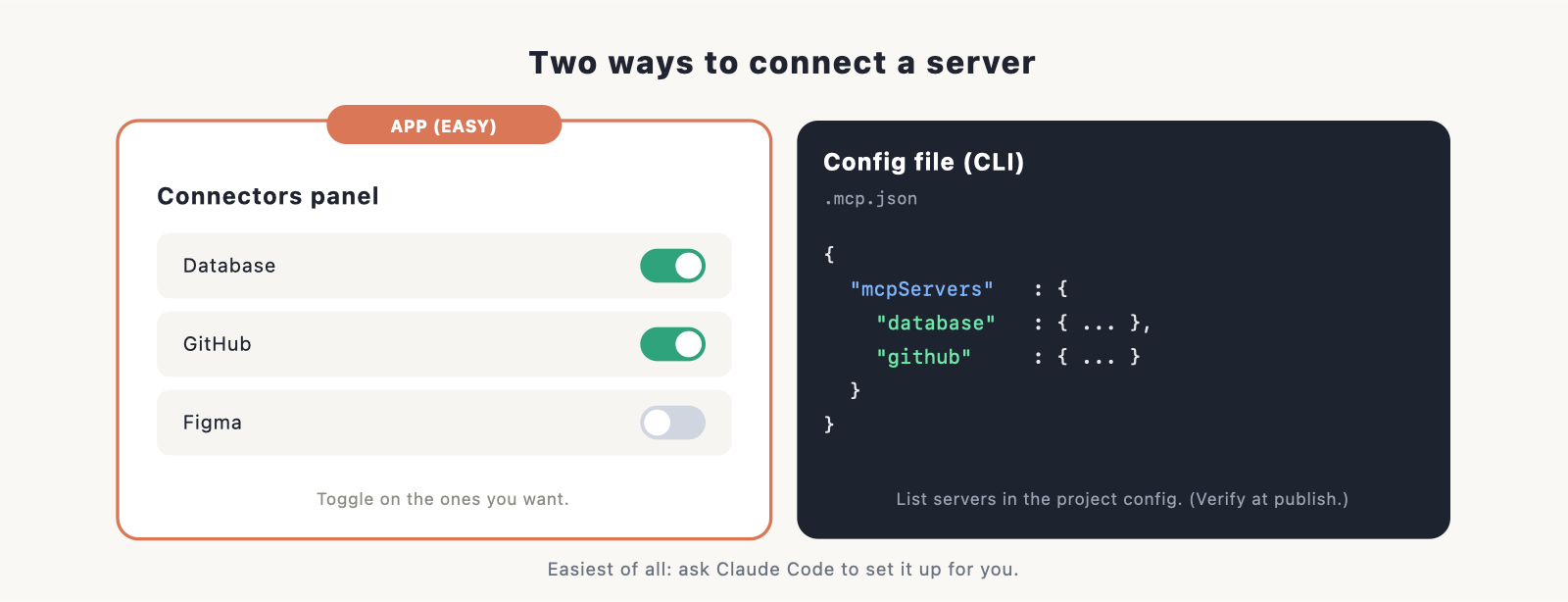
There are two common ways, depending on how you use Claude Code. (Verify the current method at publish.)
- In the desktop app, you add connections through a connectors or settings panel, then turn on the ones you want. This is the friendly route.
- In the terminal, servers are listed in a configuration file (often a project file like
.mcp.json) that tells Claude Code what to connect to.
The easiest path either way: ask Claude Code to set it up. Tell it which tool you want to connect and it can walk you through adding the server and the details it needs.
Useful MCP servers for building a website
You don’t need many. The ones most relevant to a website project:
- A database connector (for example, a Postgres or Supabase server) for real content and user data.
- A GitHub connector, so it can work with your repository directly.
- A design connector (such as Figma) to bring designs into the build.
- A web search or docs connector, so it can pull current information while building.
Start with none, and add one only when you hit a job your files alone can’t do. (Verify the current list of popular servers at publish.)
A note on security
Connecting an MCP server grants Claude Code access to whatever that server reaches, your database, an account, a service. That’s the point, but it means you should only connect servers you trust, keep any credentials they need out of your code (in environment files), and review what you’re granting before you turn it on. Treat it like giving any app access to your accounts. If a connection misbehaves, our troubleshooting guide can help.
Do you need MCP to build a website?
No, not for a basic site. A portfolio, a landing page, or a brochure site is just files, and Claude Code handles those without any connectors. MCP earns its place the moment your site needs real data, an account system, or a connection to a service you already use. Add it when you reach that point, not before. To set your project’s standing rules while you’re at it, see our guide to CLAUDE.md.
Frequently asked questions
What is MCP in Claude Code? MCP (Model Context Protocol) is a standard way to connect outside tools to Claude Code, like a universal adapter. Each connected tool is an “MCP server,” and it gives Claude Code a new ability, such as reading your database.
How do I add an MCP server? In the desktop app, through a connectors or settings panel. In the terminal, via a configuration file. The simplest way is to ask Claude Code to set it up for you. (Verify the current method at publish.)
Do I need MCP to build a website? No, not for a simple static site. It matters when your site needs real data, accounts, or a connection to a service you already run.
Is connecting an MCP server safe? It’s safe if you connect only servers you trust and keep credentials out of your code. Connecting grants access to whatever that server reaches, so review it first, like any app you give account access.
What MCP servers are useful for websites? A database connector for real content, a GitHub connector for your repository, a design connector like Figma, and a web search or docs connector. Add them only as you need them.