What is HTML
HTML (HyperText Markup Language) is the structure layer of every web page. Think of a page as a three-part stack: HTML sets the structure, CSS handles the style, and JavaScript adds the behavior. Strip away the paint and the scripting and you still have HTML holding the whole thing up, which is why it is the first thing worth learning. Every site you have ever visited, from a one-page portfolio to a giant news homepage, is HTML underneath. It is a markup language, not a programming language, so there is no logic to trip over; you are labeling content so the browser knows what each piece is.
You write HTML as elements. Most look like this: an opening tag, some content, and a closing tag, such as <p>Hello</p>. Tags can carry attributes that add information or change behavior, like <a href=”/about”>About</a>, where href is the attribute and its value points to a destination. A few elements, called void elements, hold no content and need no closing tag at all. The browser reads your markup top to bottom, builds a tree of these elements, and paints the result on screen.
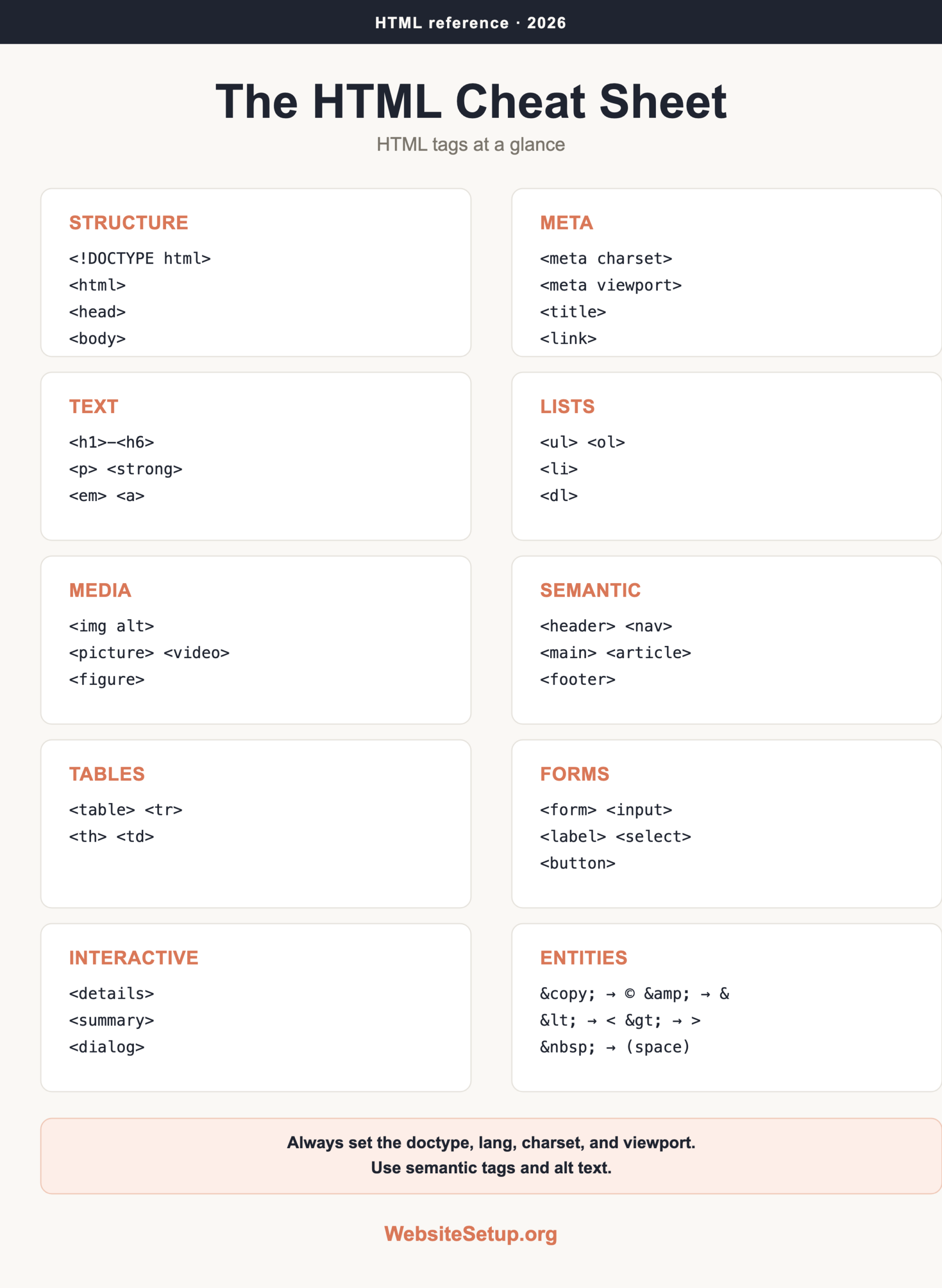
This sheet is a working reference, not a tutorial. Skim it once to see what exists, then come back and grab the exact tag you need. If you are brand new to building sites, start with our how to create a website guide, then keep this page open as you work. For the styling half of the job, our CSS cheat sheet is the natural companion to this one.

Document structure
Every HTML file follows the same bones. The doctype tells the browser to use modern standards, the <html> element wraps everything, the <head> holds metadata the reader never sees directly, and the <body> holds what shows on screen. Set the language and the character encoding early so text and screen readers behave. The four tags in the head that matter most are charset, viewport, title, and any stylesheet link; get those right and the rest of the page has a solid footing. Skip the viewport tag and your site will look tiny on a phone, so treat it as required, not optional.
| Tag | What it does | Example |
|---|---|---|
| Doctype | Declares HTML5; must be first line | <!DOCTYPE html> |
| html | Root element; set the language | <html lang="en"> |
| head | Holds metadata and links | <head>...</head> |
| meta charset | Sets text encoding to UTF-8 | <meta charset="utf-8"> |
| meta viewport | Makes the page scale on phones | <meta name="viewport" content="width=device-width, initial-scale=1"> |
| title | Tab label and search headline | <title>My Page</title> |
| body | Everything shown on screen | <body>...</body> |
| link | Attaches a stylesheet | <link rel="stylesheet" href="style.css"> |
| script | Loads or runs JavaScript | <script src="app.js"></script> |
| style | Inline CSS block | <style>p{color:red}</style> |
Text content
Text tags give words meaning and rank, not just a look. Headings run from <h1> (the most important) down to <h6>, and search engines and screen readers use them to build an outline of your page. Paragraphs wrap running text. The rest mark emphasis, quotes, code samples, and small print. The rule of thumb: reach for the tag that matches meaning, not the one that happens to look right. If you only want something bold for visual flair, that is a CSS job, not a reason to pick the wrong element.
| Tag | What it does | Example |
|---|---|---|
| h1 to h6 | Six heading levels by rank | <h1>Title</h1> |
| p | A paragraph of text | <p>Text.</p> |
| br | A line break inside text | Line one<br>Line two |
| hr | A thematic divider | <hr> |
| strong | Strong importance (bold look) | <strong>Warning</strong> |
| em | Stress emphasis (italic look) | <em>really</em> |
| b / i | Bold or italic, no added meaning | <b>label</b> <i>term</i> |
| mark | Highlighted text | <mark>found</mark> |
| small | Fine print, side comments | <small>terms</small> |
| sub / sup | Subscript and superscript | H<sub>2</sub>O x<sup>2</sup> |
| blockquote | A block-level quotation | <blockquote>Quote</blockquote> |
| q | A short inline quotation | <q>short quote</q> |
| cite | Title of a referenced work | <cite>Book</cite> |
| code | Inline code fragment | <code>let x</code> |
| pre | Preformatted text, keeps spacing | <pre> spaced</pre> |
| abbr | Abbreviation with a tooltip | <abbr title="HyperText">HT</abbr> |
Lists
Lists group related items and are one of the most common structures on the web, powering everything from navigation menus to step-by-step instructions. Use <ul> when order does not matter and <ol> when it does, like ranked results or numbered steps. Both hold <li> items, and you can nest one list inside another to build sub-points. For term-and-definition pairs, such as a glossary or a set of metadata rows, use a description list with <dl>, <dt>, and <dd>.
| Tag | What it does | Example |
|---|---|---|
| ul | Unordered (bulleted) list | <ul><li>A</li></ul> |
| ol | Ordered (numbered) list | <ol><li>First</li></ol> |
| li | A single list item | <li>Item</li> |
| dl | Description list wrapper | <dl>...</dl> |
| dt | A term being described | <dt>HTML</dt> |
| dd | The description of the term | <dd>markup language</dd> |
Links and media
Links connect pages; media brings in images, sound, and video. The <a> element is the anchor of the whole web, and its href can point to another site, a page on yours, a spot on the same page, an email address, or a phone number. Always give images real alt text that describes what they show, since that text is what screen readers announce and what appears if the image fails to load. When a link opens a new tab with target=”_blank”, add rel=”noopener” so the new page cannot tamper with the one it came from. Modern images can also lazy-load and swap sources by screen size, which keeps pages fast on small devices.
| Tag | What it does | Example |
|---|---|---|
| a | A hyperlink to a URL | <a href="url" target="_blank" rel="noopener">Go</a> |
| img | An image with alt text | <img src="x.jpg" alt="desc" loading="lazy"> |
| picture | Art-directed responsive images | <picture><source><img></picture> |
| source | A candidate file for picture/media | <source srcset="x.webp"> |
| figure | Self-contained media unit | <figure>...</figure> |
| figcaption | A caption for a figure | <figcaption>Fig 1</figcaption> |
| video | Embeds a video player | <video controls src="v.mp4"></video> |
| audio | Embeds an audio player | <audio controls src="a.mp3"></audio> |
| iframe | Embeds another page (title it) | <iframe src="url" title="Map"></iframe> |
Semantic layout (HTML5)
Semantic tags name the parts of a page so browsers, search engines, and screen readers understand the structure. A wall of nameless <div> elements, often called div soup, tells software nothing about what each block is for. Swapping in <header>, <nav>, <main>, and <footer> improves accessibility and SEO for free, and it makes your own markup far easier to read six months later. Screen reader users can jump straight to the main content or the navigation when those landmarks exist. Use <div> only when no semantic element fits.
| Tag | What it does | Example |
|---|---|---|
| header | Top banner or intro of a section | <header>...</header> |
| nav | Main navigation links | <nav>...</nav> |
| main | The primary content; one per page | <main>...</main> |
| section | A thematic grouping | <section>...</section> |
| article | A standalone piece of content | <article>...</article> |
| aside | Side content, like a sidebar | <aside>...</aside> |
| footer | Bottom info for a page or section | <footer>...</footer> |
| details | A toggle-open disclosure widget | <details>...</details> |
| summary | The visible label for details | <summary>More</summary> |
| dialog | A modal or pop-up dialog box | <dialog open>Hi</dialog> |
Tables
Tables display real tabular data, such as a schedule, a comparison, or a price grid. Do not use them for page layout; that job belongs to CSS now. Header cells use <th> with a scope attribute so screen readers can map each column or row to its values, and any cell can span multiple columns or rows with colspan and rowspan. Grouping rows into <thead>, <tbody>, and <tfoot> keeps large tables organized and lets a long body scroll under a fixed header.
| Tag | What it does | Example |
|---|---|---|
| table | Wraps the whole table | <table>...</table> |
| caption | A title for the table | <caption>Prices</caption> |
| thead / tbody / tfoot | Head, body, and footer groups | <tbody>...</tbody> |
| tr | A table row | <tr>...</tr> |
| th | A header cell with a scope | <th scope="col">Name</th> |
| td | A data cell; can span cells | <td colspan="2" rowspan="2">X</td> |
Forms
Forms collect input and send it somewhere. The <form> element sets where the data goes with action and how it travels with method. Inside it, <input> handles most fields and changes its whole behavior based on the type attribute, so type=”email” gives a keyboard tuned for addresses and free format checking, while type=”date” shows a date picker. Pair every field with a <label> tied by for and id so it is clickable and readable by assistive tech. Lean on built-in validation attributes like required, pattern, min, and max before you write a single line of script, since the browser already does that work for you.
| Tag | What it does | Example |
|---|---|---|
| form | Wraps fields; sets action + method | <form action="/x" method="post"> |
| input | A field; type sets its behavior | <input type="email" required> |
| input types | text, email, password, number, tel, url, date, checkbox, radio, file, range, color, search, hidden | <input type="date"> |
| label | Names a field; links via for | <label for="em">Email</label> |
| textarea | A multi-line text box | <textarea rows="4"></textarea> |
| select / option | A dropdown and its choices | <select><option>A</option></select> |
| button | A clickable button | <button type="submit">Send</button> |
| fieldset / legend | Groups fields with a caption | <fieldset><legend>Info</legend></fieldset> |
| validation attrs | required, placeholder, pattern, min, max | <input min="1" max="10" required> |
Global attributes and entities
Some attributes work on nearly every element. Use id for a unique hook that appears once per page, class for styling groups you reuse, and data-* to stash custom values your scripts can read later. For accessibility, aria-* attributes and role fill gaps that plain tags cannot cover, though a correct semantic tag beats a patched-on role every time; do not add a role to an element that already means the right thing. Entities let you print reserved characters as text, which matters any time you want to show a real angle bracket or ampersand instead of having the browser treat it as code.
| Item | What it does | Example |
|---|---|---|
| id | A unique element identifier | <div id="top"> |
| class | A reusable style hook | <p class="lead"> |
| style | Inline CSS on one element | <p style="color:red"> |
| title | Tooltip text on hover | <abbr title="..."> |
| data-* | Custom data for scripts | <li data-id="42"> |
| hidden | Hides an element | <div hidden> |
| contenteditable | Makes content editable in place | <div contenteditable> |
| & | Prints an ampersand | Tom & Jerry |
| < and > | Prints less-than and greater-than | 5 < 9 > 2 |
| © | Prints the copyright symbol | © 2026 |
| | A non-breaking space | 10 km |
Copy-paste templates
These four blocks cover the patterns you will reach for most: a page skeleton, a labeled form field, a responsive image, and a semantic layout. Copy one, swap the placeholder text for your own, and you are running. Notice the width and height on the image; setting them reserves space so the page does not jump around while the picture loads.
Minimal valid HTML5 skeleton
<!DOCTYPE html>
<html lang="en">
<head>
  <meta charset="utf-8">
  <meta name="viewport" content="width=device-width, initial-scale=1">
  <title>My Page</title>
</head>
<body>
  <h1>Hello</h1>
</body>
</html>
Accessible form field
<label for="email">Email</label>
<input type="email" id="email" name="email" required>
Responsive image
<img src="photo.jpg" alt="A red bike by a wall"
     loading="lazy" width="800" height="600">
Semantic page layout
<header>
<nav><a href="/">Home</a></nav>
</header>
<main>
<article>
<h1>Post title</h1>
<p>Body text.</p>
</article>
</main>
<footer><p>© 2026</p></footer>
Gotchas and common mistakes
Small habits separate clean markup from pages that break in odd ways. Run through this list before you ship.
- Always start with <!DOCTYPE html>, set lang on <html>, declare charset utf-8, and add the viewport meta tag.
- Give every image alt text. Use an empty alt=”” only for purely decorative images.
- Label every form input. A placeholder is not a label and disappears once typing starts.
- Choose semantic tags over div soup so browsers and screen readers can follow the structure.
- <b> and <i> are visual only, while <strong> and <em> carry meaning that assistive tech announces.
- Void elements (img, br, input, meta, hr, link) have no content and need no closing tag.
- HTML is not case-sensitive, but lowercase tags and attributes are the convention.
- <center>, <font>, and the bgcolor attribute are deprecated. Style with CSS instead.
- Add loading=”lazy” to below-the-fold images so they load only when needed.
- Pair rel=”noopener” with any link that uses target=”_blank”.
- Use one <h1> per page and never skip heading levels, such as jumping h2 to h4.
Next steps and download
HTML is the first of three layers. Once your structure is solid, style it with our How to code a website walkthrough, then add motion and interactivity using the JavaScript cheat sheet. Keep this reference nearby while you practice; the tags become second nature faster than you would expect.