
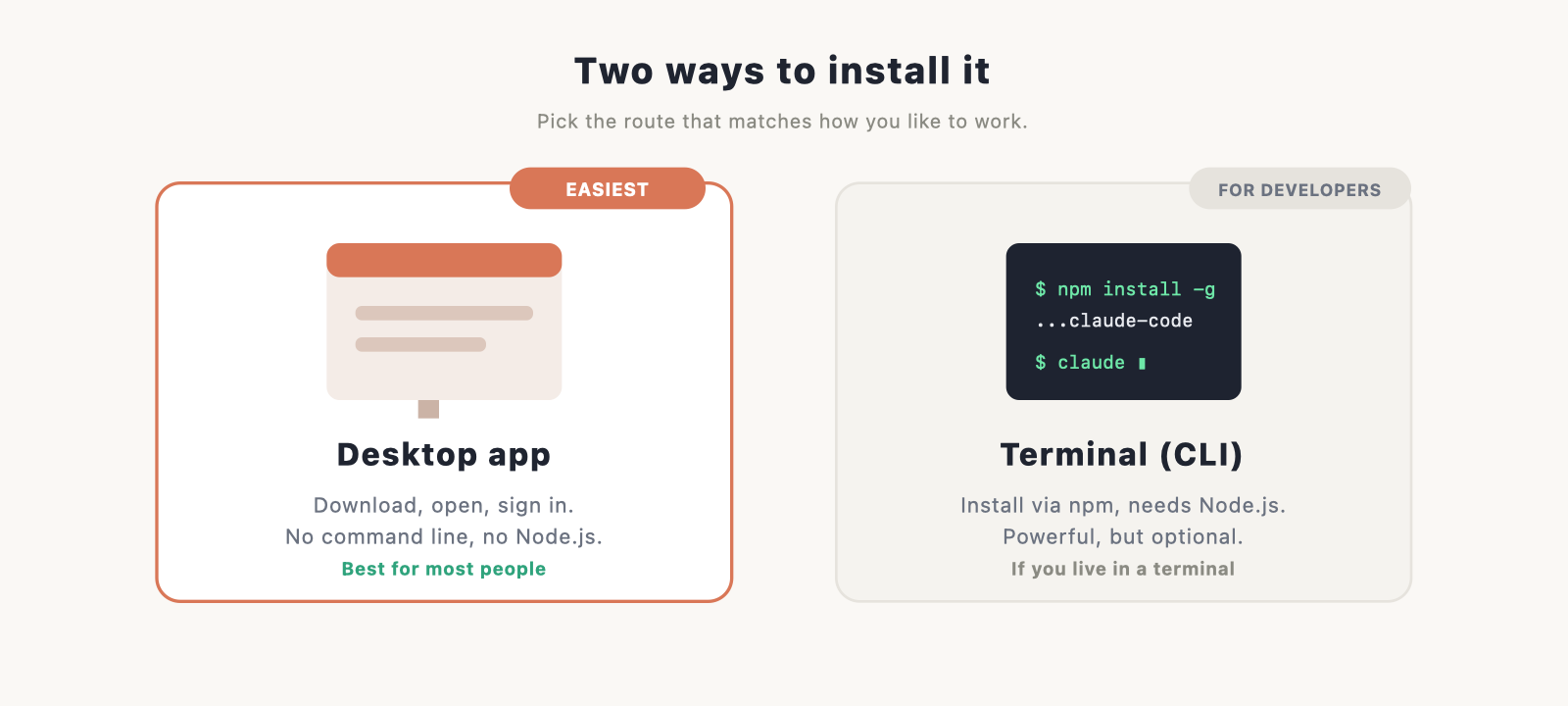
There are two ways to install Claude Code, and the right one depends on how you like to work. The desktop app is the easy route: download it, open it, sign in, done. The terminal version is the power route, popular with developers who already live in the command line. Most people should take the easy route, and this guide covers both.
If you’re not sure what Claude Code is or whether it’s right for your site, read the main guide first. This page assumes you’ve decided to install it.
Option 1: Install the desktop app (easiest)
This is the route to take if you’re not a developer. It’s a normal application, the kind you’ve installed a hundred times.
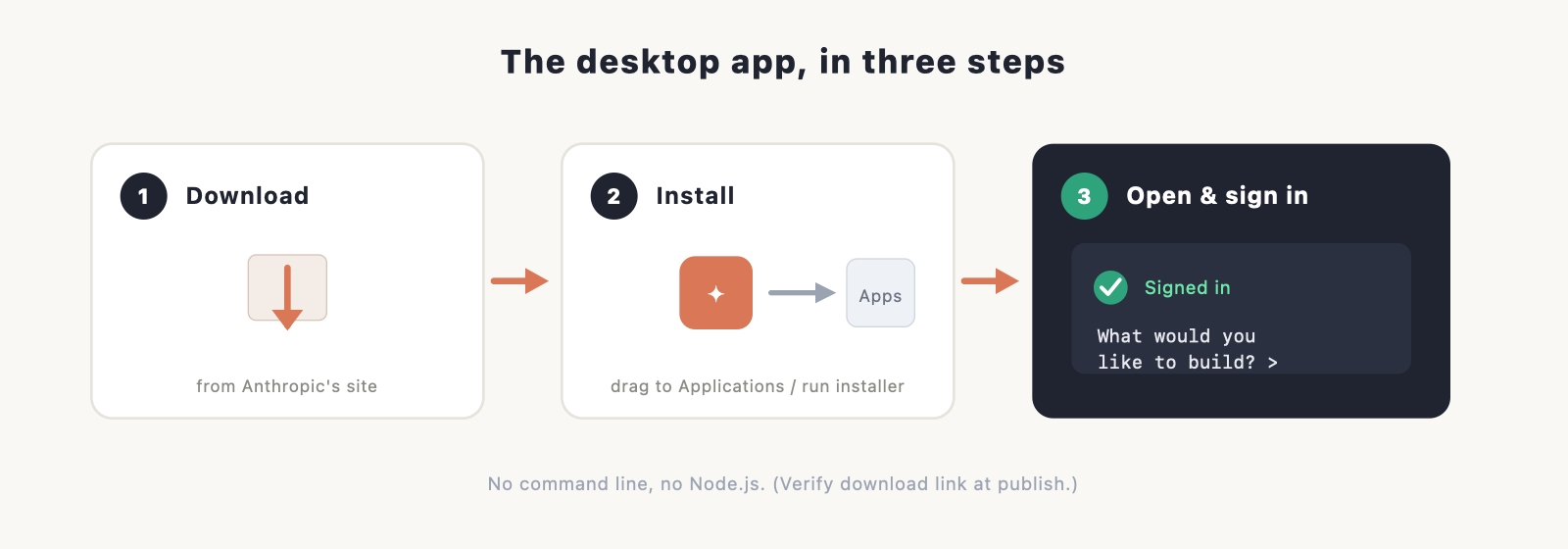
- Download the Claude Code app for your computer from Anthropic’s site. (Verify the current download link at publish.)
- Open the downloaded file and install it like any other app. On a Mac you drag it to Applications; on Windows you run the installer.
- Launch the app and sign in with your Claude account. Claude Code is included with a paid Claude plan (Pro is $20 a month, or $17 billed annually); the main guide breaks down pricing.
That’s the whole setup. No command line, and nothing else to install. You can skip straight to “Check it works” below.
Don’t want to install anything? Use the web version
If you’d rather not install software at all, open claude.ai/code in your browser and sign in. It works the same way as the app, with nothing to download. It’s the quickest way to try Claude Code before committing to an install. (Verify the current web address at publish.)
Option 2: Install the CLI (for the terminal)
Prefer to work in a terminal, or already comfortable there? Install the command-line version instead. You’ll need one thing first.
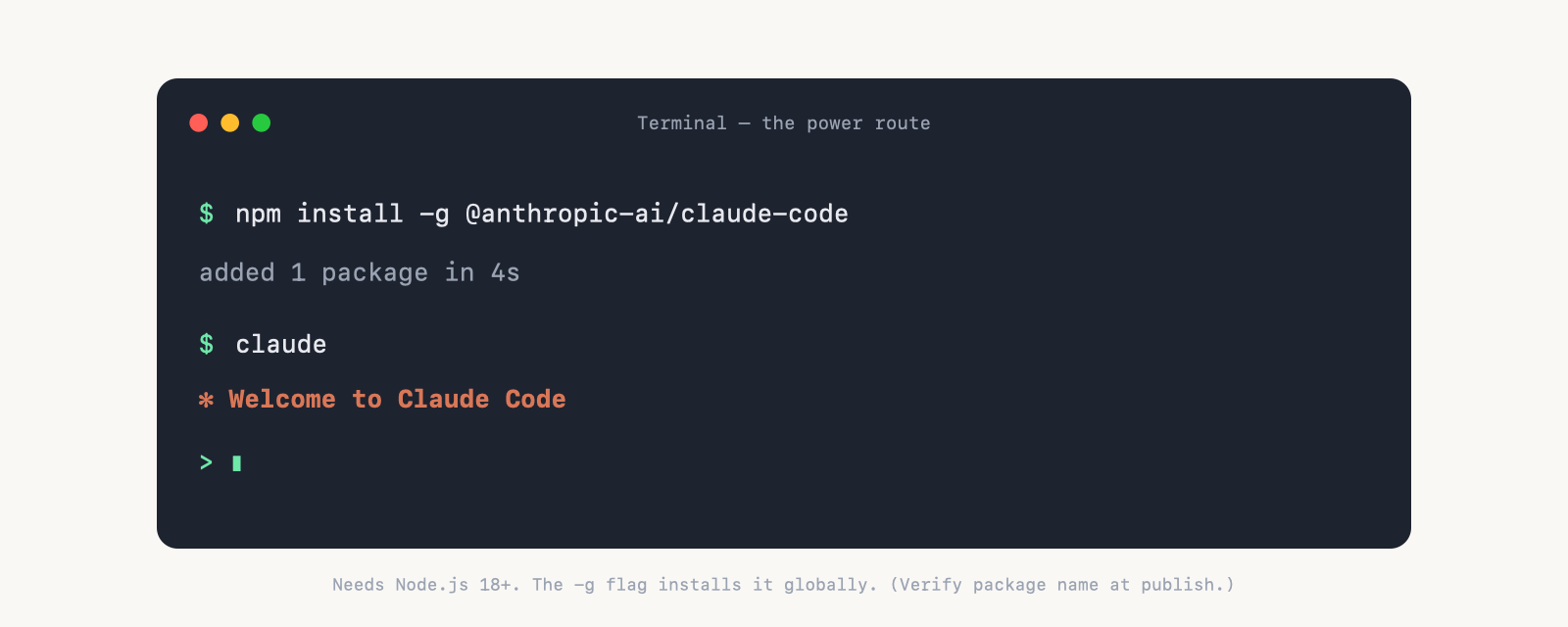
- Node.js, version 18 or newer. (Verify the current minimum at publish.) Check whether you have it by running
node --versionin your terminal. If you see a version number, you’re set. If not, download the LTS installer from the official Node.js site and run it; it adds thenpmcommand this step uses.
With Node in place, install Claude Code with a single command. (Verify the exact package name at publish.)
npm install -g @anthropic-ai/claude-code
Then start it by running claude in your terminal. The -g flag installs it globally, so you can run it from any folder.
The first time you run it, Claude Code asks you to sign in. It opens your browser, you log in to your Claude account, and you come back to the terminal once it confirms. You can authenticate with an API key here instead if you prefer. (Verify the current sign-in flow at publish.)
Add the editor extension (optional)
If you work in a code editor, you can run Claude Code inside it instead. Install the extension for VS Code or a JetBrains IDE from the editor’s extensions panel, search for Claude Code, and sign in with the same account. New to editors and want to pick one? See our roundup of the best IDE software. For help choosing between the app, the CLI, and the extension, our guide to Claude Code: app vs CLI vs IDE extension compares them.
Check it works
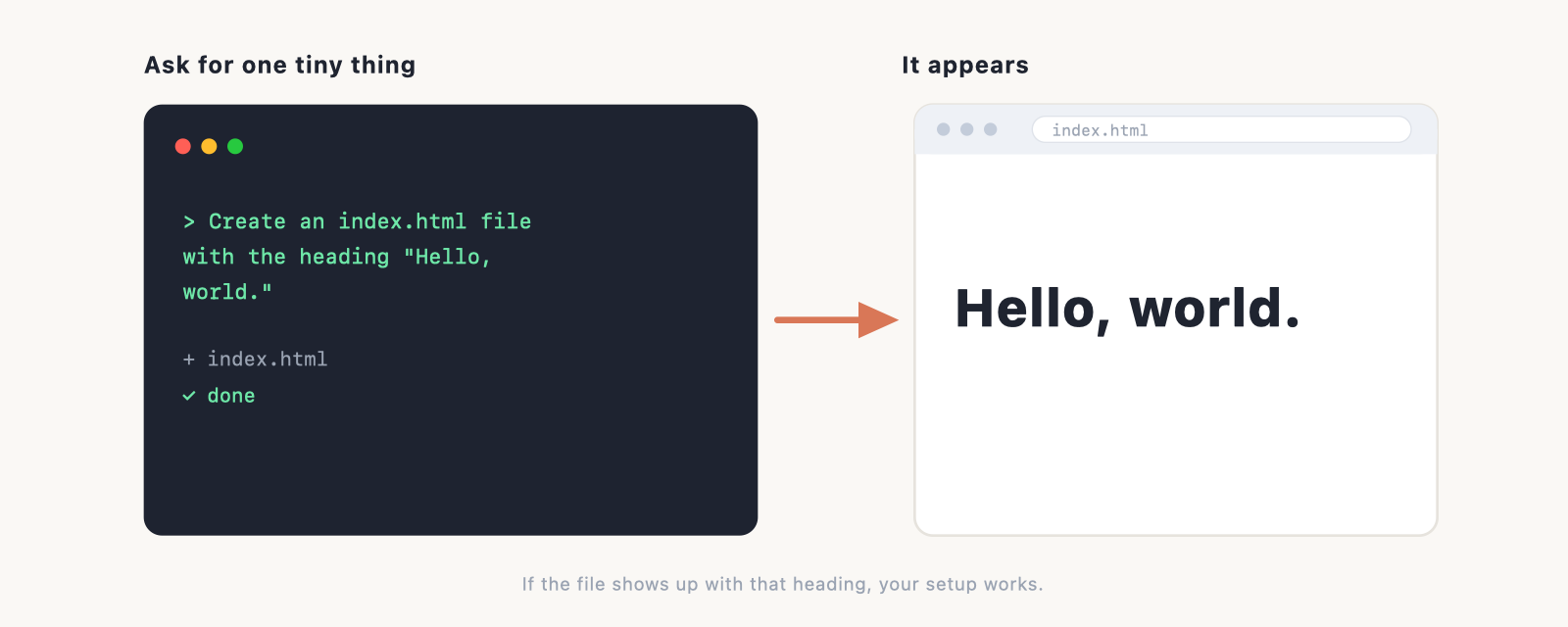
However you installed it, confirm everything’s connected with a tiny task. Open Claude Code, point it at an empty folder, and ask:
"Create an index.html file with the heading Hello, world."
If a new index.html appears with that heading inside, you’re set. You’re ready to build something real, and the main guide has the full walkthrough.
Common install problems (and how to fix them)
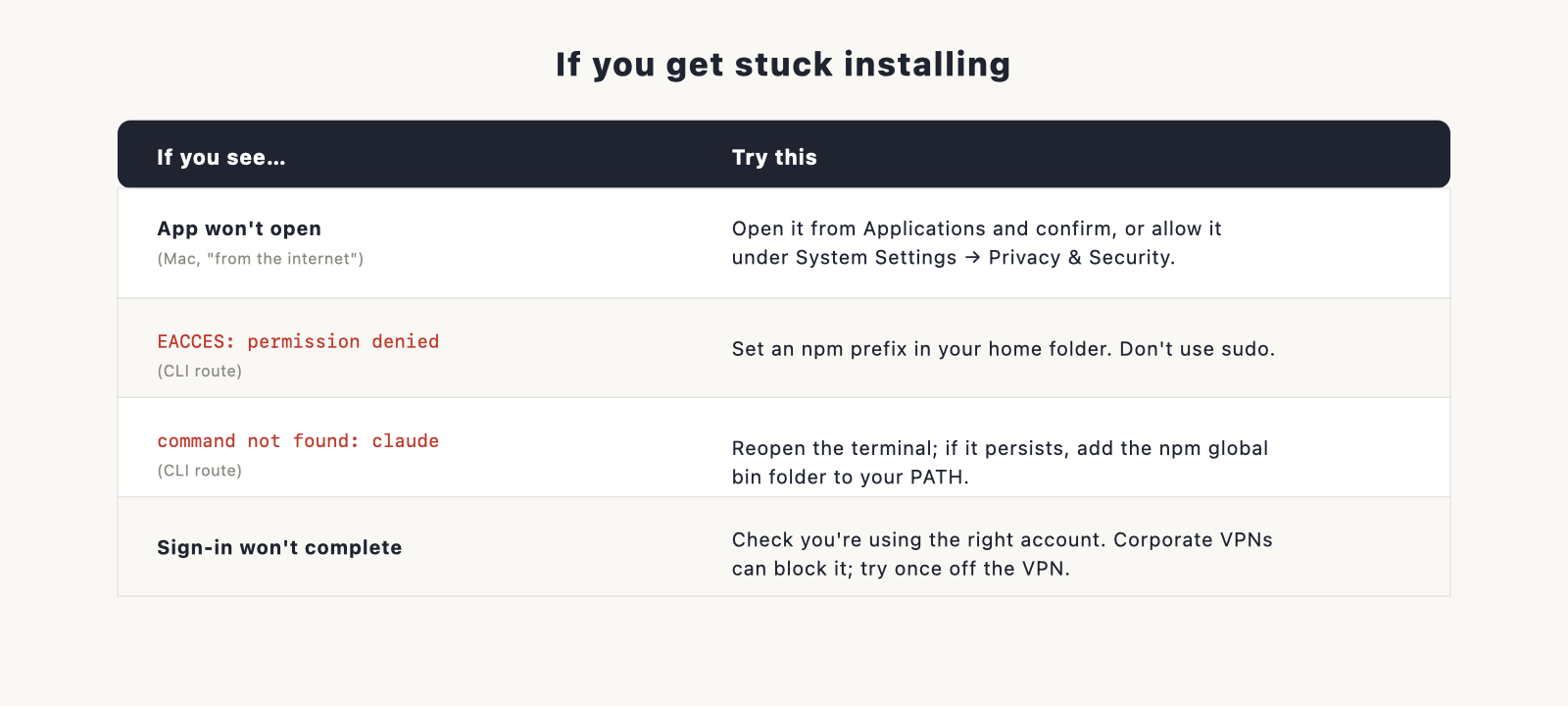
A few things trip people up, split by route.
- Desktop app won’t open on Mac. macOS may warn that the app is from the internet. Open it from your Applications folder and confirm you want to open it, or allow it in System Settings under Privacy & Security. (Verify current macOS behaviour at publish.)
- Permissions error on
npm install -g. On the terminal route, a global install can fail with anEACCESmessage. The clean fix is to set an npm prefix in your home folder so you’re not installing into a system directory. Avoidsudo; it causes more problems later. - “command not found: claude” after installing the CLI. Close and reopen your terminal. If it persists, your npm global bin folder isn’t on your PATH, which the permissions fix above also resolves.
- Sign-in won’t complete. Make sure the browser login page finished loading and that you’re signing into the right account. Corporate VPNs sometimes block the callback; try once off the VPN.
If you hit something else, our Claude Code troubleshooting guide covers the longer list.
What to do next
Setup is behind you. The fun starts with your first build. Head to the main Claude Code guide for the step-by-step, or for a focused first project, our walkthrough on building a portfolio website with Claude Code is the easiest place to start.
Frequently asked questions
What’s the easiest way to install Claude Code? The desktop app. Download it, open it, sign in. No terminal, no Node.js, nothing else to install.
Do I need Node.js? Only for the terminal (CLI) version. The desktop app and the web version don’t need it.
Can I install Claude Code on Windows? Yes. The app runs on macOS and Windows, and the CLI runs on macOS, Windows, and Linux.
Is the install free? Installing it is free. Using it needs a paid Claude plan (Pro is $20 a month, $17 billed annually, and includes Claude Code) or pay-as-you-go API access. See the pricing section of the main guide.
How do I update Claude Code later? The desktop app updates itself. For the CLI, re-run the install command to get the latest version. (Verify the current update method at publish.)