In 2026, most people building a first website should start with a website builder or an AI builder. It is the fastest route, the cheapest to begin with, and it leaves you nothing to maintain afterwards. You pick a template or describe your business in a sentence, adjust what the tool gives you, and publish, often within the same sitting. It is also where the market has moved: the top results for “how to create a website” are builders like Wix, Squarespace, and Canva, because a builder is what most people now reach for first.
That said, a builder is not the only way, and it is not right for everyone. This guide compares the five sensible routes side by side, then walks you through building a real site with a builder step by step, since that is the path most first-timers should take. WordPress, hiring a professional, and the newer AI coding tools each get their place too, so by the end you will know which one fits what you are trying to build and roughly what it will cost. Whether you want to make a website in an afternoon or build a website you will grow for years, there is a route here that fits.
- The 5 ways to build a website in 2026
- How to build a website with a website builder, step by step
- Prefer full control? Use WordPress
- What hiring a professional really costs
- What a website costs in 2026
- Frequently asked questions
Not sure what kind of site you need first? It is worth skimming 20 types of websites with examples before you settle on a tool.
The 5 ways to build a website in 2026
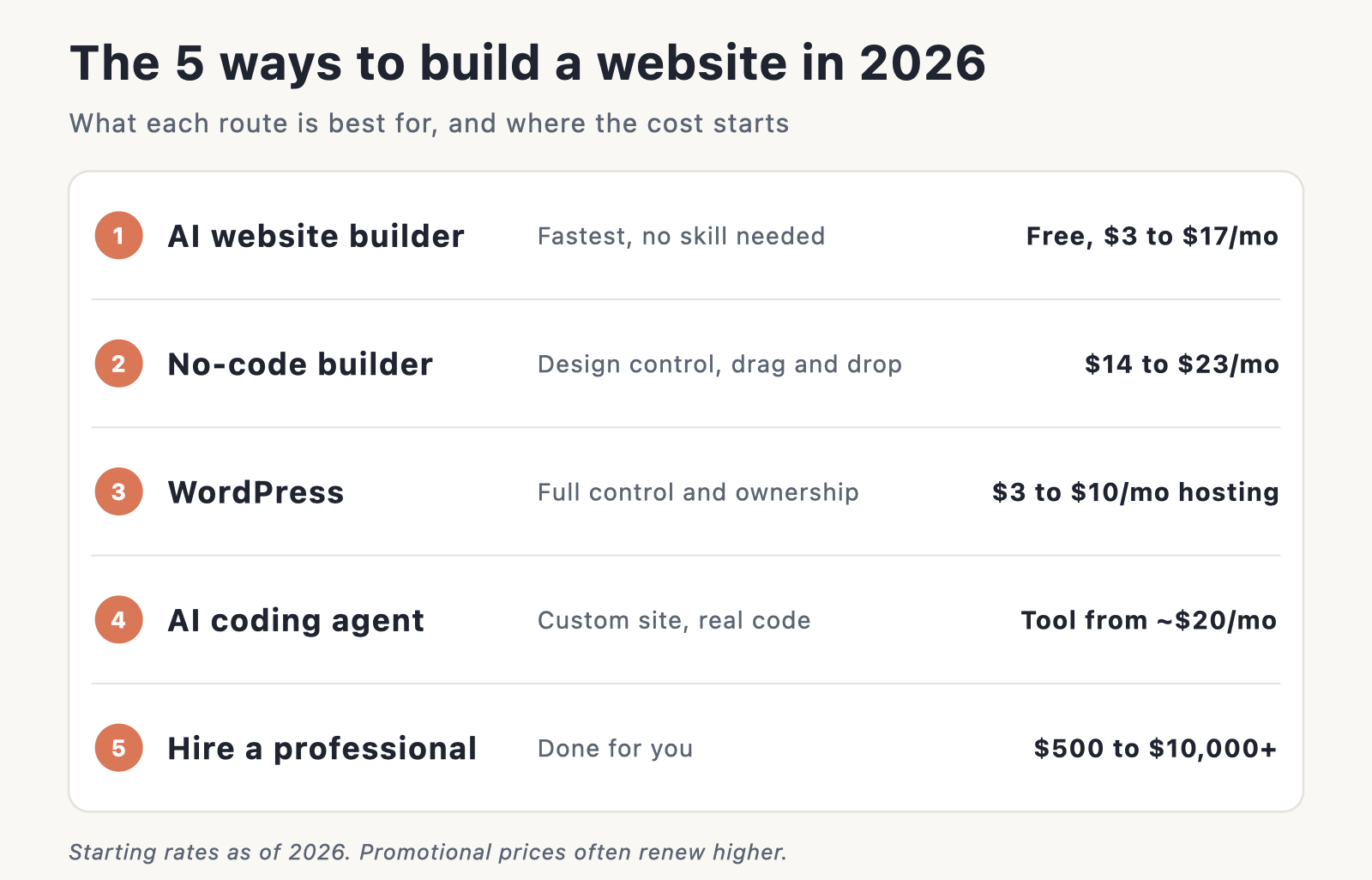
There are dozens of tools but only five real routes, and every tool is a version of one of them. Here they are side by side, graded on the things that actually decide the choice. Find the row that sounds like you, then read that route’s paragraph below.
| Route | How it works | Time to launch | Cost per year | Skill needed | Control | Best for |
|---|---|---|---|---|---|---|
| AI website builder | Describe your business, AI generates the whole site | Under an hour to a day | Free, or about $3 to $17/mo | None | Limited to the builder | A presentable site, fast, with no learning |
| No-code builder | Pick a template, drag blocks into place | A day to a week | About $14 to $23/mo | Low | Medium, inside the template | A polished brochure, portfolio, or store |
| WordPress | Install the software, add a theme and plugins | A weekend and up | About $3 to $10/mo hosting | Low to medium | Full, you own it | Content-heavy sites you plan to grow |
| AI coding agent | Describe it, the AI writes real code you deploy | Hours to days | Tool from about $20/mo, plus hosting | Medium | Full, it is real code | Custom sites you want to own outright |
| Hire a professional | Brief a freelancer or agency, they build it | Weeks | About $500 to $10,000 and up | None | Depends on the handover | When you have budget and no time |
AI website builders. You describe the site you want (“a one-page site for my dog-walking business, with a booking form and a gallery”) and the AI generates a styled, working site in one go, with copy, images, and layout all filled in. Hosting and a domain option come bundled into the plan, so you tweak the result and publish, often within the same sitting. There is usually a free tier that puts your site on a branded subdomain with the builder’s ads, or roughly $3 to $17 a month for a custom domain and no branding (prices as of 2026, and often promotional annual rates that renew higher). Wix, Hostinger, Squarespace, and Durable all work this way. The speed is the real draw, since you can go from nothing to something you would show a customer inside an hour. The trade-off is that the AI, not you, made most of the layout decisions, and moving the site elsewhere later is not straightforward.
No-code drag-and-drop builders. This is what most people picture when they hear “website builder”: you choose a template and drag sections, text, images, and buttons into place, styling them by clicking rather than coding. Hosting and a domain are bundled, and you add extra features like booking, a store, or a newsletter from an app store. Expect roughly $14 to $23 a month, with design control that is very good, better than an AI builder, but still bounded by the template system you work inside. Wix, Squarespace, and Webflow lead here, with Webflow giving near-developer control at the cost of a steeper learning curve. Pick this when the look matters and you want to steer it yourself without touching code. Our guide to the best website builder tools goes deeper.
WordPress and self-hosted CMS. The traditional, old-school way to build a site, and still the engine behind a large share of the web. You get hosting and a domain, install WordPress in one click, choose a theme for the look, add plugins for the features you want, and build your pages. Hosting runs about $3 to $10 a month, plus any optional paid themes or plugins. The skill needed is low to medium, a bit more than a builder asks, and page builders like Elementor make the design step feel much like a no-code builder. What you get for that extra effort is full control and full ownership: the files and database are yours, so you can move hosts or hand the project to a developer whenever you like. It is the route to choose when you want ownership and room to grow rather than the quickest launch.
AI coding agents (vibe coding). You describe what you want in plain language and the agent writes real code in normal frameworks like Next.js or Astro, which you then review and deploy to a host of your choice. The tool starts at about $20 a month, and hosting is often free to begin with on a starter tier such as Vercel or Netlify. It asks for a medium level of comfort, mostly around deploying the result and sanity-checking what it built, and in return you get full control over genuine, ownable code with no platform rent on the site itself. Claude Code, Cursor, Lovable, and Bolt are the names to know, and the desktop apps have lowered the barrier a long way from the terminal-only tools of a couple of years ago. The catch worth flagging: usage is metered, so a long, heavy building session can run up token costs beyond the headline subscription, and it is not the route for a non-technical beginner who just wants a simple brochure site. We cover this route in depth in our Claude Code guides, including how it stacks up against Lovable.
Hire a professional. You brief a freelancer or an agency, and they build the site for you, most often on WordPress. Reckon on weeks rather than days, and a cost of anywhere from a few hundred to several thousand pounds up front, plus an ongoing arrangement for maintenance and changes. You manage the brief and review the work, so how much control you end up with depends entirely on what they hand over. Ask at the start whether the files, the logins, and the ability to run it yourself come with the job. Not ideal on a tight budget, or if you want to learn to run the thing yourself rather than depend on someone else for every edit. If you want the fully generated approach instead, our roundup of the best AI website builders compares the current picks.
How to build a website with a website builder, step by step
This is the fastest way to make a website, and the route we recommend for most beginners. You can go from nothing to a live site in an afternoon, with no code and nothing to maintain afterwards. The steps below use Wix as the example, but they work much the same on Squarespace, Hostinger, and other builders.
Step 1: Sign up and choose how to start
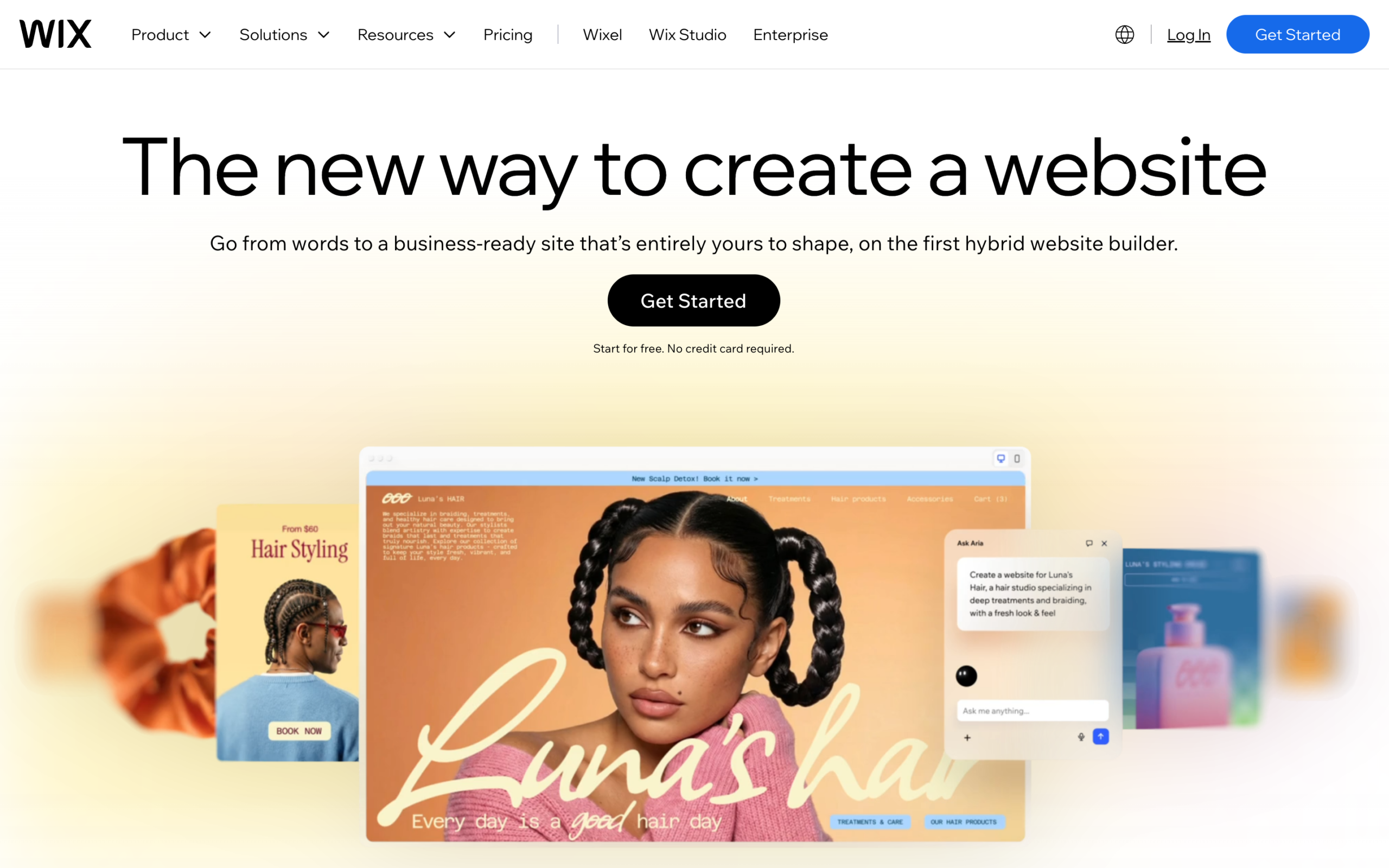
Create a free account to get in and have a look around. You do not need to pay anything or enter card details to build the site, only to publish it on your own domain later, so there is no risk in signing up and trying it. Wix will ask a few short questions about what kind of site you are building and what it is called, then offer you two ways forward: start from a template, or let its AI generate a first draft from a short description of your business. Both land you in the same editor in the end, so the choice is about how much of the first draft you want done for you.
Before you go further, it helps to have a rough plan in your head: what the site is for, which pages it needs (Home, About, Contact, and whatever your project actually requires), and the name you want to use. Five minutes of thought here saves a lot of rearranging later. Start on the free tier while you experiment, but plan to move to a paid plan before you launch for real. A free plan puts you on a branded subdomain with the builder’s ads, which is fine for a trial but not for a business. A paid plan, usually about $3 to $17 a month, gives you a custom domain and removes the branding (prices as of 2026, often promotional rates that renew higher).
Step 2: Start from a template, or let AI build it
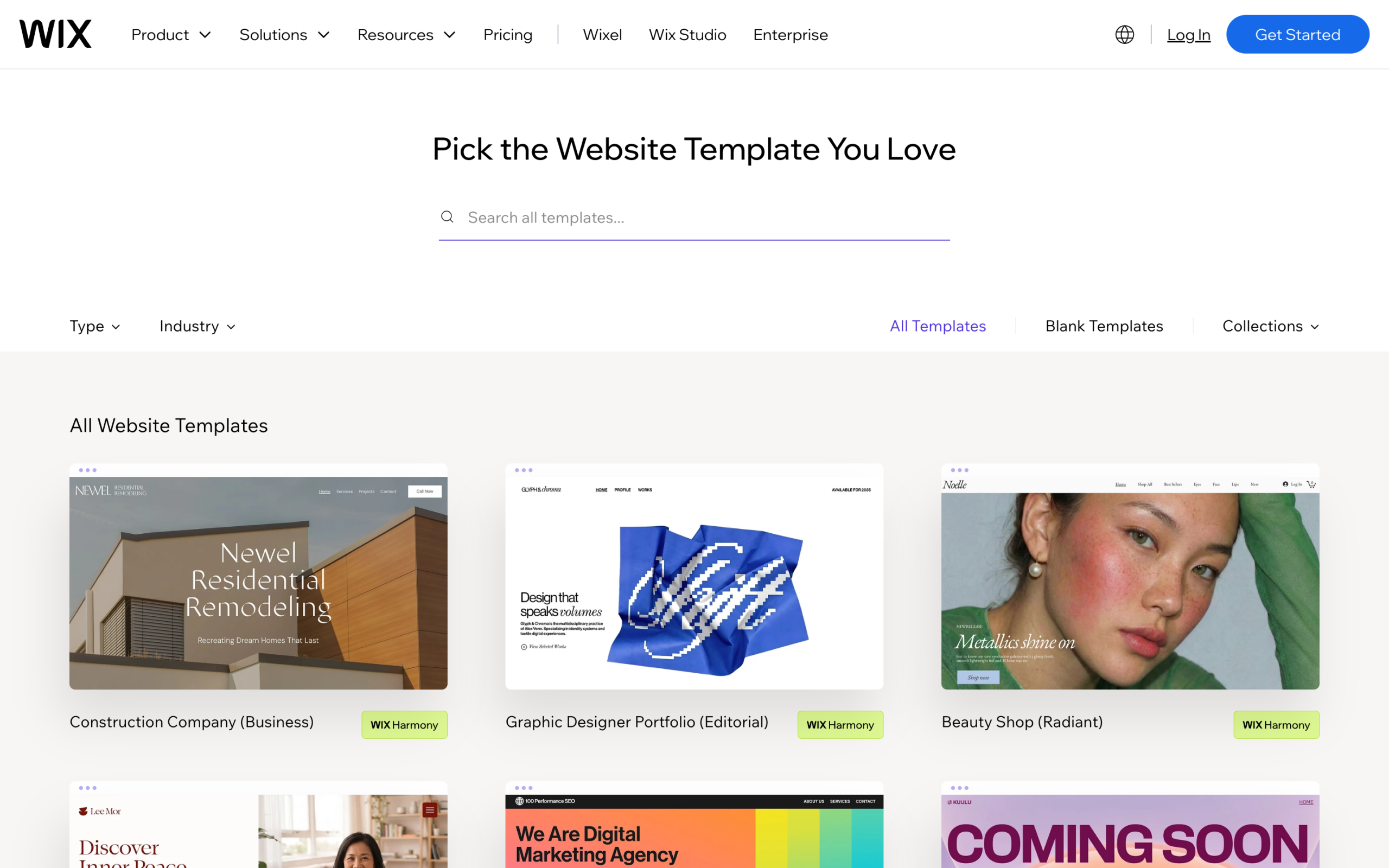
If you choose the template route, browse the library and pick a layout close to what you want. Templates are grouped by type, so a restaurant, a portfolio, an online shop, and a service business each have designs built around their needs, with the right sections already in place. Look past the demo photos and stock text, which you will replace anyway, and judge each template on its structure: does it have room for the pages and sections you planned, and does the overall style feel right for your brand. Do not agonise over the choice, since almost everything can be changed once you are in the editor. Pick something in the right shape and refine it later.
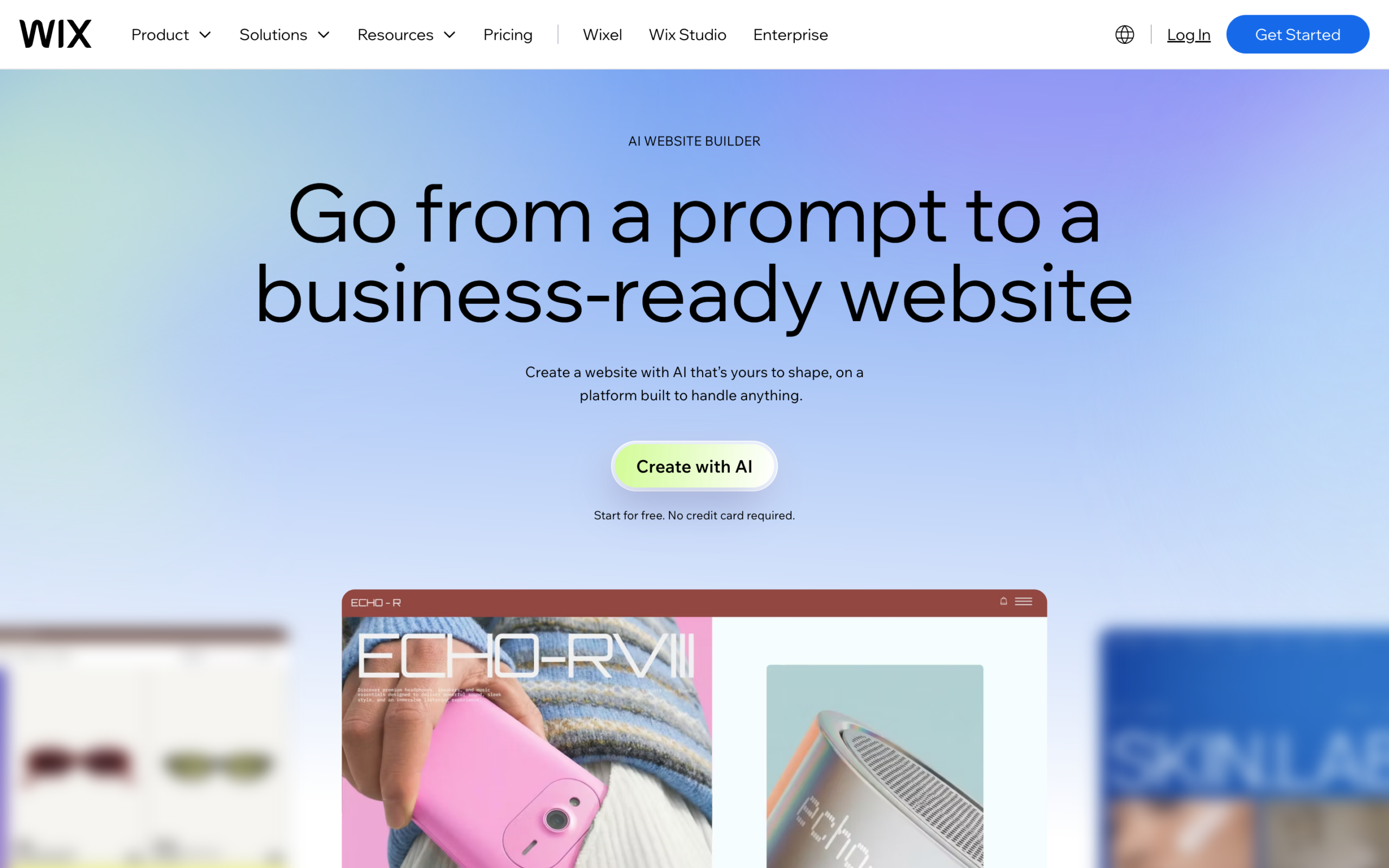
The AI route is faster still, and it is the option that has grown the most over the past couple of years. You describe your business in a sentence or two, answer a couple of follow-up questions about your name, your goals, and the pages you need, and the builder generates a full first draft with layout, copy, colours, and placeholder images already in place. It is a strong starting point rather than a finished site, so treat the generated text as a draft to edit rather than publish as-is. Read every line, correct anything the AI guessed wrong about your business, and replace the generic filler with real detail. The layout it produces is usually the more useful part, since it gives you a sensible structure to build on while you rewrite the words in your own voice.
Step 3: Customise it in the drag-and-drop editor
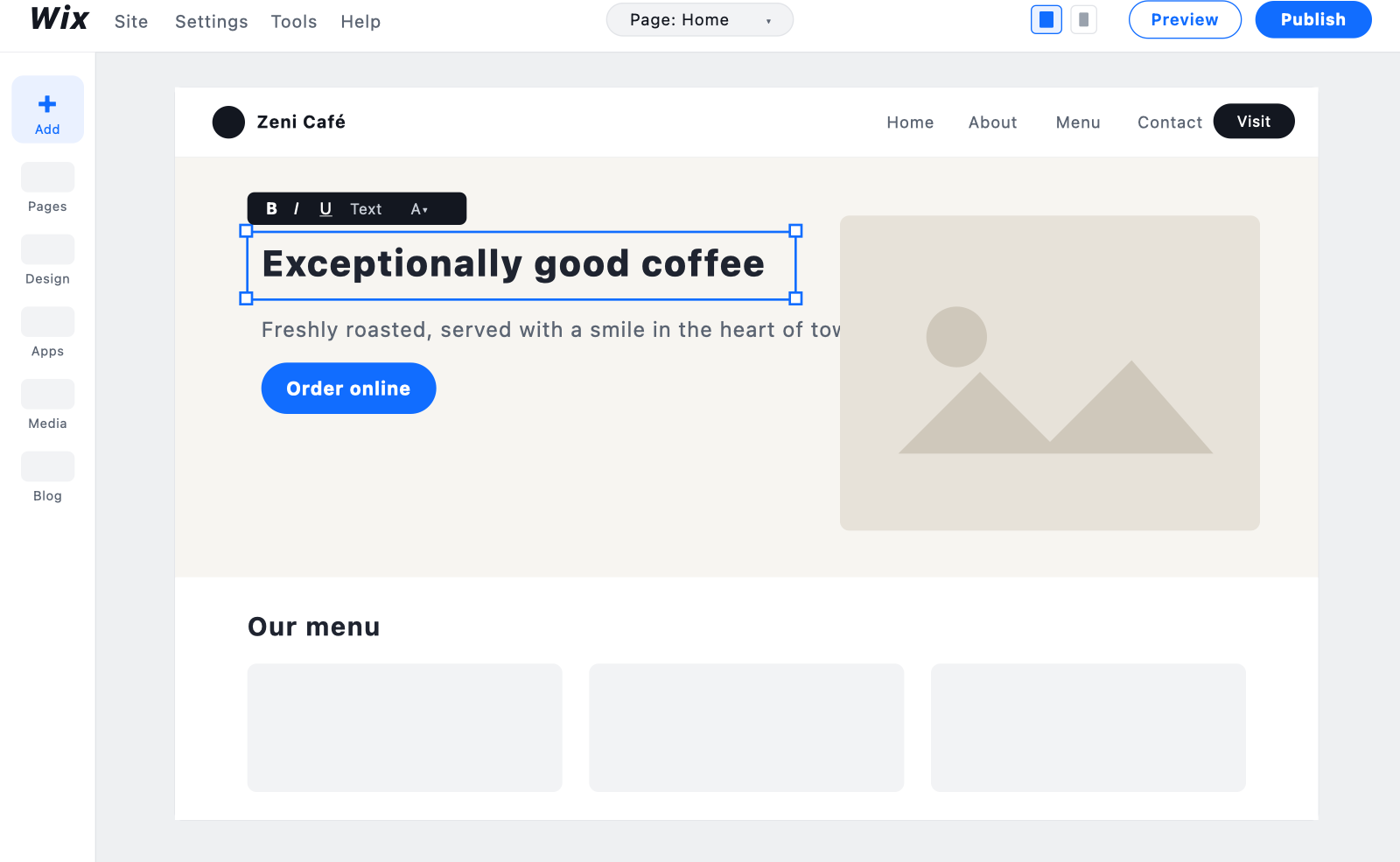
However you started, you now land in the editor, and this is where the site becomes yours. Click any element to edit it, drag sections around, and change colours, fonts, and spacing from the side panels. Swap the placeholder images for your own, drop in your logo, and set a colour palette that matches your brand. The editor shows you the site exactly as visitors will see it, so there is no guesswork and no code to write.
A few small things make a big difference to how finished the result looks. Stick to two or three colours and one or two fonts, since a consistent palette reads as professional far more than a busy one does. Use good images: your own photos where you have them, and free stock libraries built into the builder where you do not. Keep each section short and get to the point, because visitors skim. Check the mobile view as you go, since the builder keeps a separate phone layout, and a site that looks tidy on a laptop can need a little tidying on a phone where most of your visitors will actually see it.
Step 4: Add your pages and your content
Most sites need a small handful of pages: Home, About, Contact, and whatever your project calls for, such as Services, a shop, or a blog. Add them from the pages menu, then set up a clear navigation menu so visitors can move around, keeping it to five or so items so the important pages are easy to find. With the structure in place, write the real content. This is the step that takes the most time on any route, and it is the one that decides whether the site works. If you used AI to draft the copy, edit it for accuracy, add your own examples and details, and make sure it sounds like you rather than a template, because search engines and readers alike reward pages a real person clearly stood behind rather than thin, generic filler.
While you are here, cover the basics that beginners most often skip. Give each page a clear title and a short description so search engines and answer engines can understand it, add a contact form so people can actually reach you, and write descriptive alt text on your images, which helps both accessibility and search. Add extra features, such as booking, a newsletter signup, or a full store, from the builder’s app market when you need them, rather than loading up on tools you will not use.
Step 5: Connect your domain and publish
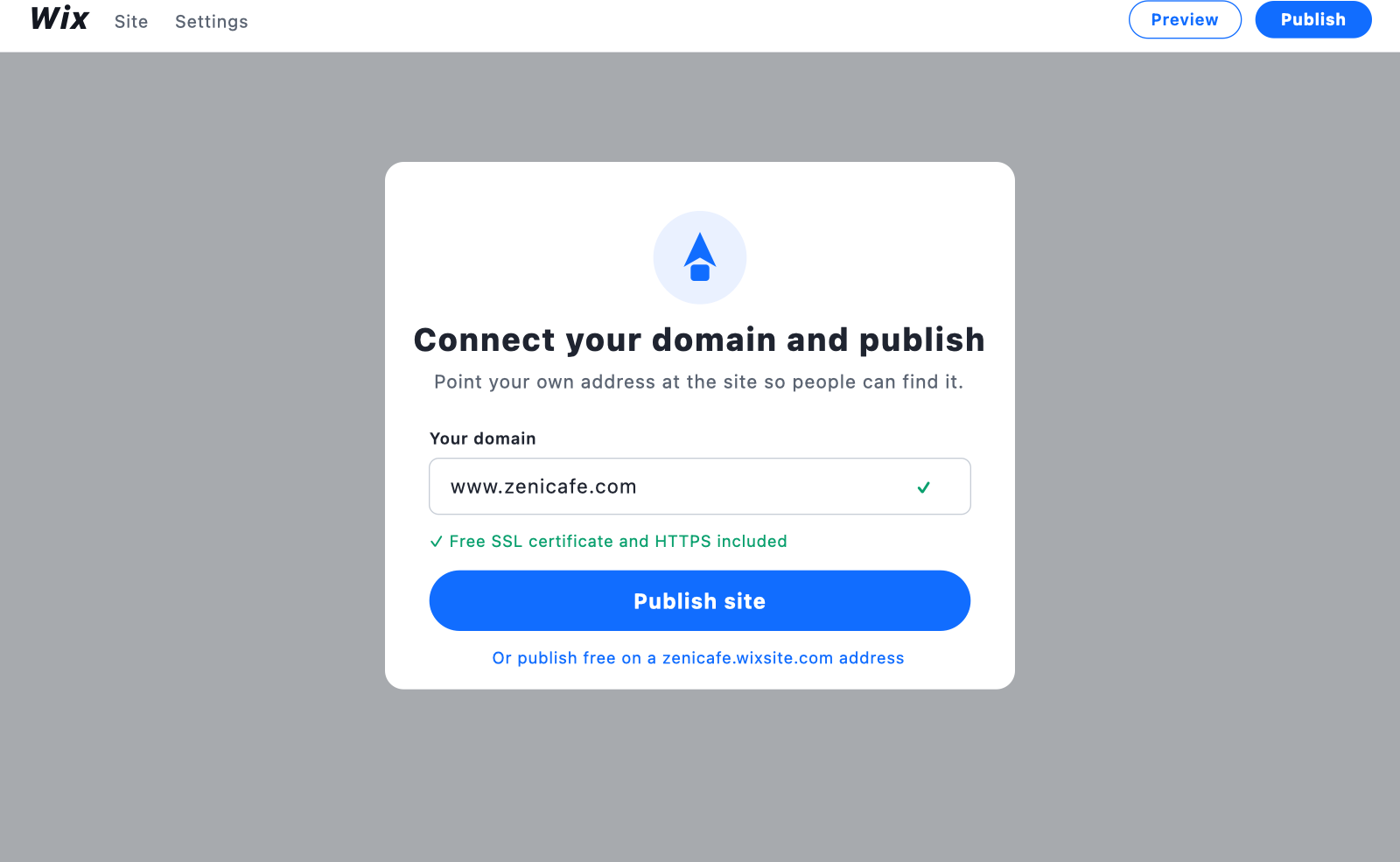
When the site looks right, connect a custom domain (yoursite.com) from the settings, either by registering a new one through the builder, often free for the first year on a paid plan, or pointing one you already own. A custom domain matters more than it seems: a free subdomain like yoursite.wixsite.com reads as amateur and quietly costs you trust, so this is the one upgrade worth making before you go public. Then hit publish. The builder handles hosting, SSL, and updates for you, so once the site is live there is almost nothing to maintain.
Before you share the link, run a quick check: open the site on your phone, click through every page and link, submit the contact form to make sure it reaches you, and confirm the padlock shows in the browser bar. Connect Google Search Console and submit the site so it starts getting indexed, since visibility now runs through AI Overviews and answer engines as well as classic search. After that, publishing again is instant: you can keep editing and republishing whenever you like, and changes go live in seconds.
For a business site, a portfolio, or a small shop, this is the shortest path to something you would be happy to show a customer. Try Wix for the classic builder, or Hostinger for an AI builder with hosting included.
Prefer full control? Use WordPress
WordPress is the traditional, most hands-on route. It asks for more setup than a builder does, and you look after your own updates, backups, and security. In exchange you own everything outright: the files and the database are yours, so you can switch hosts or hand the project to a developer without anything breaking, and there are no escalating per-feature or per-sale platform fees as the site grows. With more than 60,000 free plugins and the door open to custom code, it can grow into almost anything, which is why it still powers a large share of the web.
That makes it the better fit for content-heavy sites, larger projects, and anything you plan to keep and grow for years. The broad strokes are the same as a builder, just with a few more moving parts: you buy hosting and a domain, run a one-click install, choose a theme, add a handful of plugins for search, security, backups, and forms, then build your pages in the block editor and go live. It costs about $3 to $10 a month in hosting to start, needs no coding thanks to those one-click installs and visual page builders like Elementor, and can still be up and running in an afternoon. If that sounds like your project, follow our full guide to how to make a website with WordPress for the complete step-by-step walkthrough.
What hiring a professional really costs
If you would rather pay someone than build it yourself, go in with your eyes open, because this is the route where people get the biggest surprises. The first thing to understand is that a web developer and a web designer are usually two different people with two different skills. A designer decides how the site looks, the layout, the colours, the feel. A developer builds that design into a working site. Plenty of freelancers do only one of the two, so if you hire a developer expecting a finished, good-looking site, you will often need the design done first and handed over before development can even begin. Budget for both, and expect to manage the handover between them.
For a proper custom site, built to your own design rather than dropped onto a template, budget $10,000 and up. That is not a scare figure, it is what serious design plus development costs once you are paying two skilled professionals for real work. Both designers and developers sit on roughly the same rate scale, commonly $20 to $100 an hour depending on experience and location. The problem with hourly billing is that you can almost never verify the hours, so an open-ended hourly deal quietly puts all the risk on you. Agree a fixed project fee instead. Pin down the pages, the features, and what “finished” means up front, then pay one agreed price for the delivered result rather than feeding a meter you cannot read.
At the other end of the market you will see people and small agencies offering a “complete website for your business” for around $500. It looks like a bargain, and once in a while it is fine, but read the arrangement closely, because the low price is usually the hook. Every time you want a change afterwards, a new page, a price update, a swapped photo, they charge you again, and those fees stack up quickly. Worse, in a lot of these deals they keep ownership and control: the files, the hosting, the logins, and sometimes the domain sit with them, not you. Before you sign anything, ask three questions: do I own the files and the domain, do I get the logins, and can I edit and run the site myself. If any answer is no, you are renting a site you do not control, and that is rarely worth it.
The honest summary: hiring someone makes sense when you have the budget and no time to build it yourself, but treat it like commissioning any professional work. Scope the design and the development separately, agree a fixed fee rather than an hourly rate, and make full ownership of the files, domain, and logins a written condition of the deal. Get all of that clear up front and the route works well. Skip it and you can end up paying more for less, tied to someone else for every small change.
What a website costs in 2026
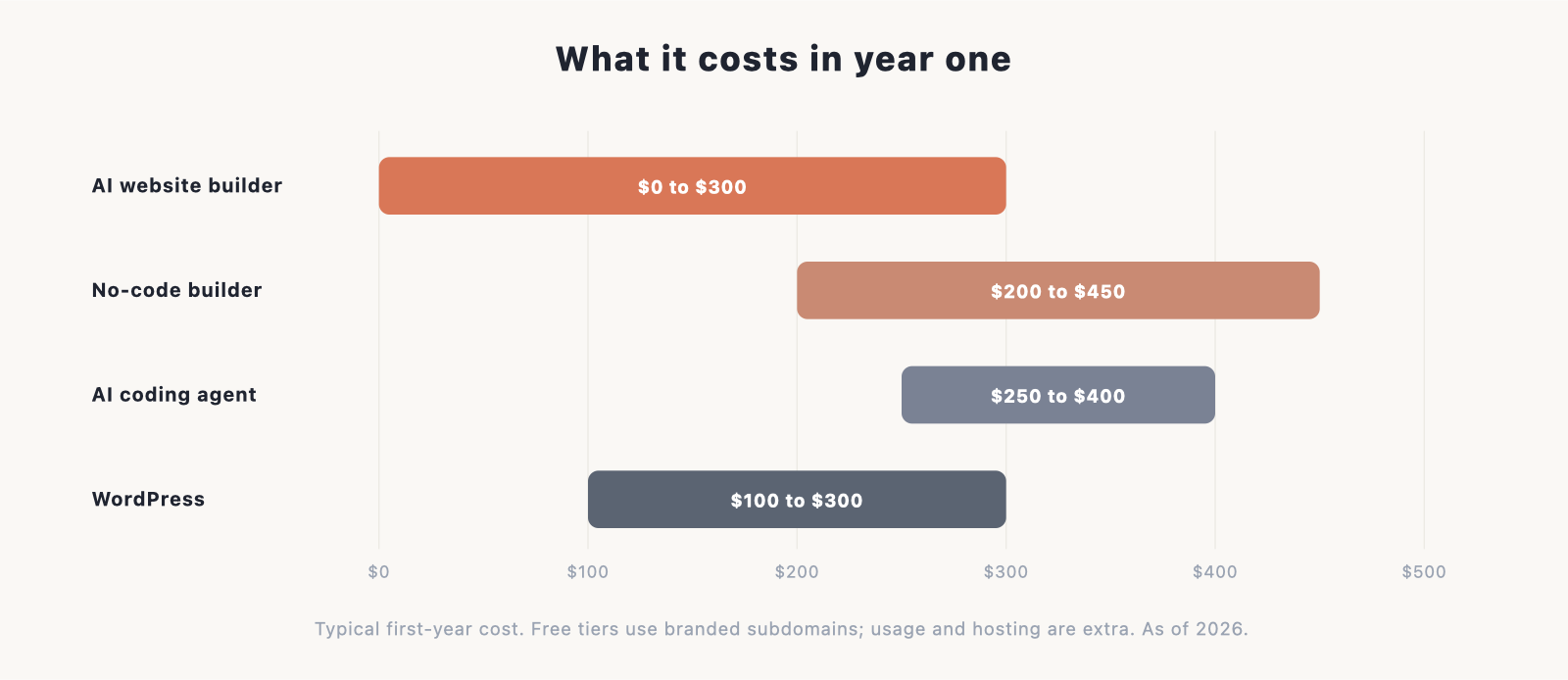
Headline prices hide the real number. Here is a realistic first-year cost for a typical small site on each route, with the gotcha that catches people out. Figures are as of 2026 and are often promotional annual rates that renew higher, so confirm current pricing before you commit.
| Route | Typical year-one cost | Where the hidden cost hides |
|---|---|---|
| AI website builder | $0 to about $300 | Free tier uses a branded subdomain; a custom domain and no ads needs a paid plan; AI image and copy credits meter separately. |
| No-code builder | About $200 to $450 | Flat plan plus domain; ecommerce adds per-sale processing fees; leaving means rebuilding. |
| WordPress | About $100 to $300 | Hosting from about $2.78/mo plus a domain; premium theme or plugins; your time on maintenance. |
| AI coding agent | About $250 to $400 | Tool subscription around $20/mo; hosting often free to start; heavy building burns metered tokens. |
| Hire a professional | $500 to $10,000 and up | Cheap $500 builds often keep ownership and bill you for every later change; a proper design-plus-development job starts around $10,000, plus ongoing maintenance. |
Can you do it for free? Up to a point, yes. Every AI and no-code builder has a free tier, and the WordPress software itself is free and open-source, so the building can cost nothing. The catch is that a free builder plan puts your site on a branded subdomain like yoursite.wixsite.com with the platform’s ads, and holds back a custom domain and other features. For a hobby page or a quick test, that is fine. For anything you want people to take seriously, a cheap paid plan of roughly $3 a month plus a domain of about $12 to $15 a year buys your own address, no ads, and the ability to publish properly, which is usually the best-value upgrade you will make. For a fuller breakdown across every route, see how much a website costs.
Frequently asked questions
Do I need coding skills?
No. AI builders, no-code builders, and WordPress are all point-and-click, and even AI coding agents let you describe what you want in plain English rather than writing code yourself. Coding only becomes relevant if you later want deep, custom changes, and even then it is optional.
Which is best for beginners?
A website builder or an AI website builder. They are the lowest-effort way to get online: pick a template or describe your business, customise it, and publish, with hosting and updates handled for you. WordPress is the more traditional route, worth learning when you want full control and ownership, but for a first site most beginners are better off with a builder.
How long does it take to build a website?
An AI builder can produce a presentable site in under an hour. A builder or WordPress site is live in an afternoon once you are set up. Hiring a pro takes weeks. In every case the build is quick, and writing good content is what actually takes the time.
Can AI build my whole website?
Yes. AI site builders produce complete brochure sites, and AI coding agents produce full custom sites in real code. The difference is how much control and ownership you keep. AI handles the building, but you still decide what you want, edit the content, and review the result before it goes live.
Can I move to WordPress later?
You can, though it usually means rebuilding rather than exporting, since builders and WordPress are different systems. Your content, images, and text carry over, but the design and layout are recreated. If you already expect to want full ownership and room to grow, it is often easier to start on WordPress from the beginning.