
A portfolio is the perfect first thing to build with Claude Code. It’s small enough to finish in an afternoon, it’s a single page you can keep polishing, and the result is a real site you own outright, not a template with someone else’s branding in the footer. This guide takes you from an empty folder to a live portfolio, with the exact prompts to use along the way.
New to Claude Code? Read the main guide for the big picture, and make sure it’s installed before you start. If you just want a portfolio up fast and don’t care about owning the code, a builder might suit you better; our guide to making an online portfolio covers those routes.
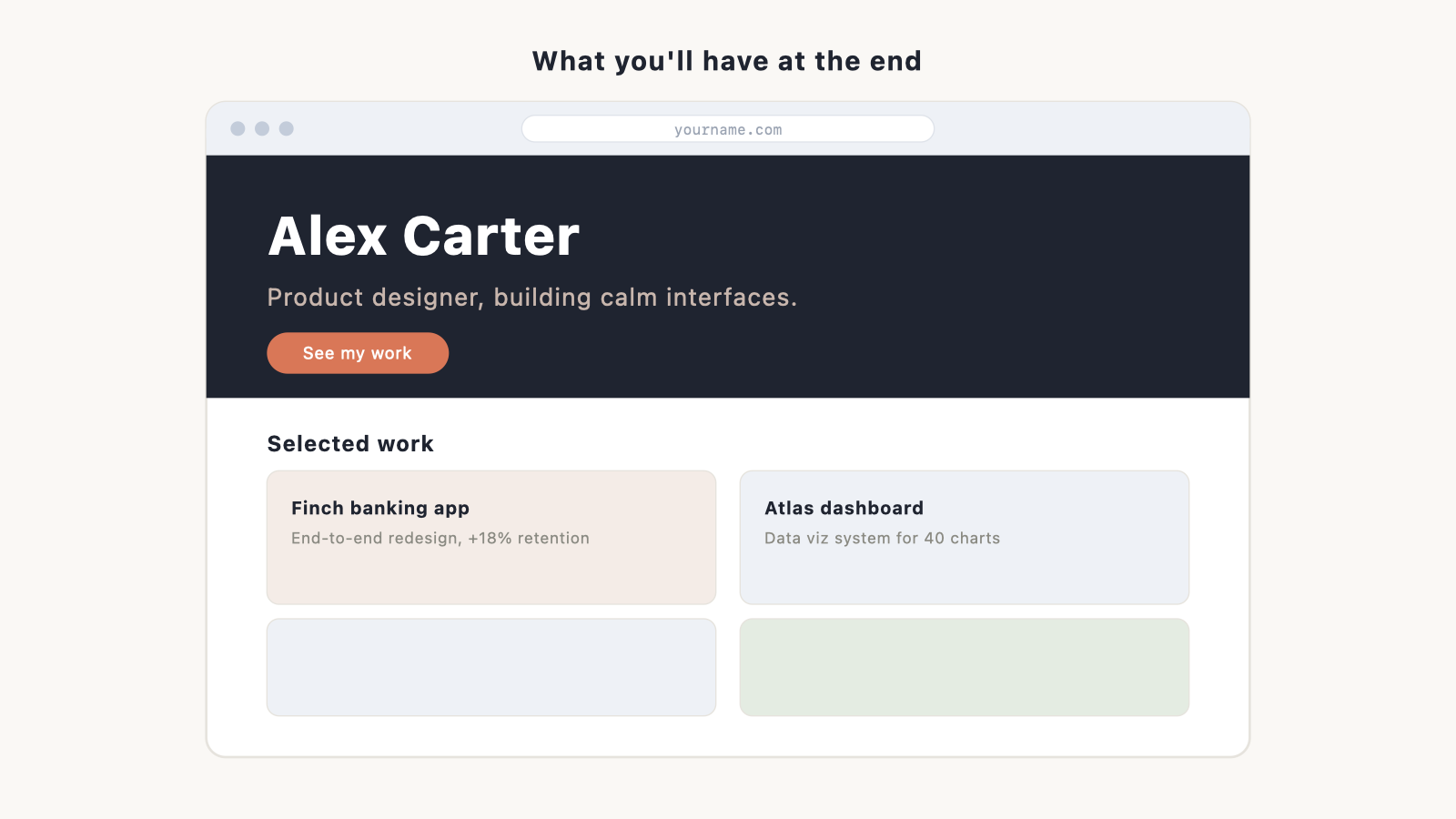
What you’ll build, and what you need
By the end you’ll have a one-page portfolio with a hero, a projects or work grid, a short about section, and a way to get in touch. It’ll be responsive, live on the web, and yours to edit forever.
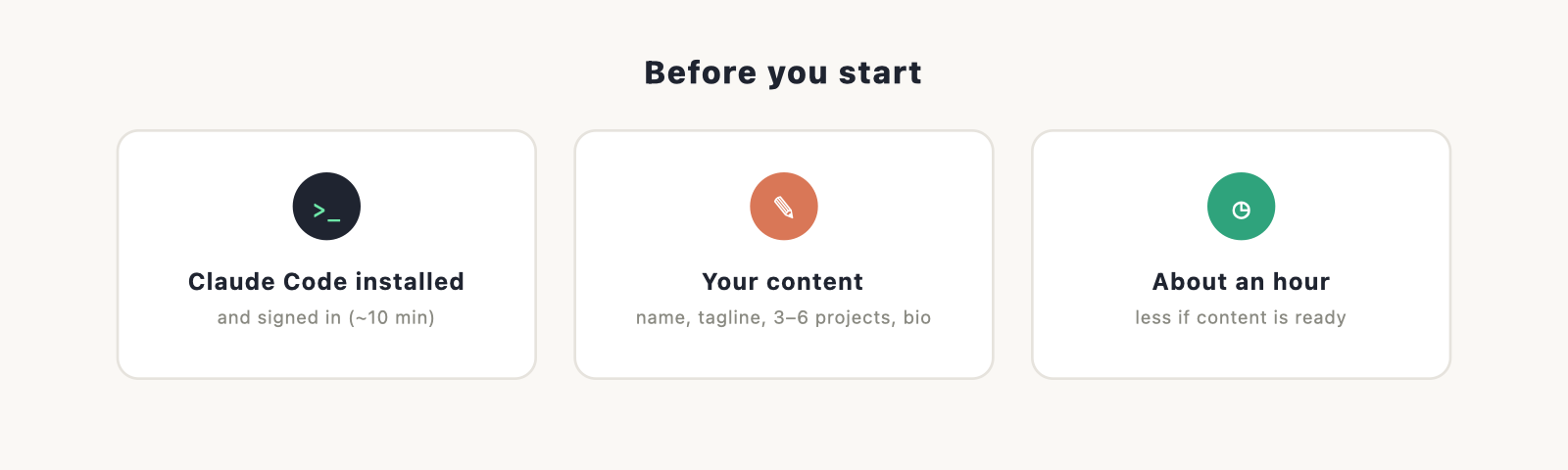
Before you start, have these ready:
- Claude Code installed and signed in. The install guide takes about ten minutes.
- Your content. A name and one-line tagline, three to six projects (title, one sentence, a link or image each), a short bio, and a contact method. Gathering this first saves a lot of back-and-forth later.
- About an hour. Less if your content is ready.
Step 1: Plan it before you prompt
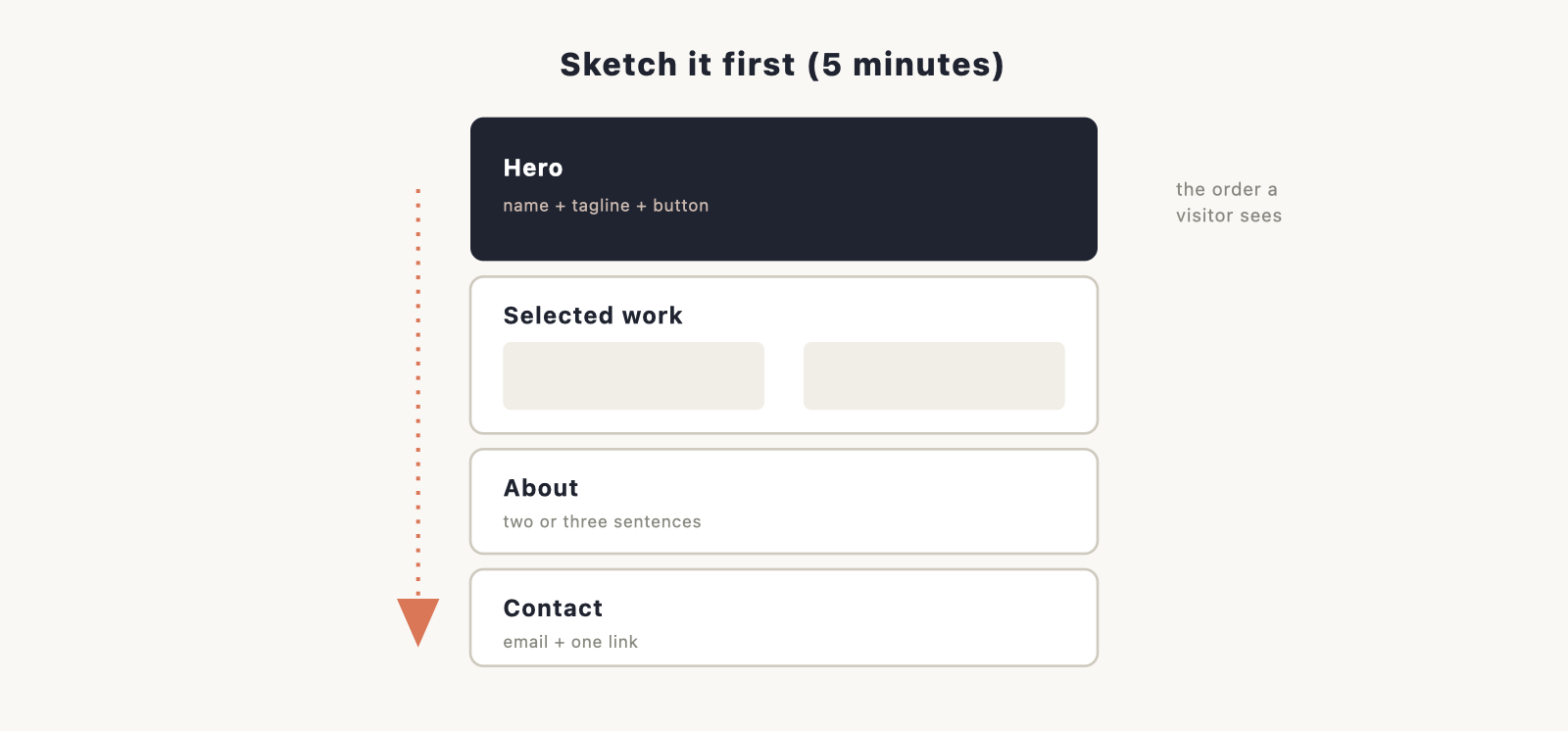
The biggest mistake is opening Claude Code and typing “build me a portfolio.” You’ll get something generic. Spend five minutes deciding what yours actually needs.
Sketch the sections in the order a visitor should see them. For most people that’s: hero, selected work, about, contact. Decide what each project entry shows. Pick a rough look you like, since “clean and minimal” and “bold and colourful” lead to very different sites. If you want a starting point for the visual direction, browse our website design ideas and pick a colour scheme before you prompt.
A plan this simple is enough. You’re not writing a spec, just deciding what to ask for.
Step 2: Write the first prompt
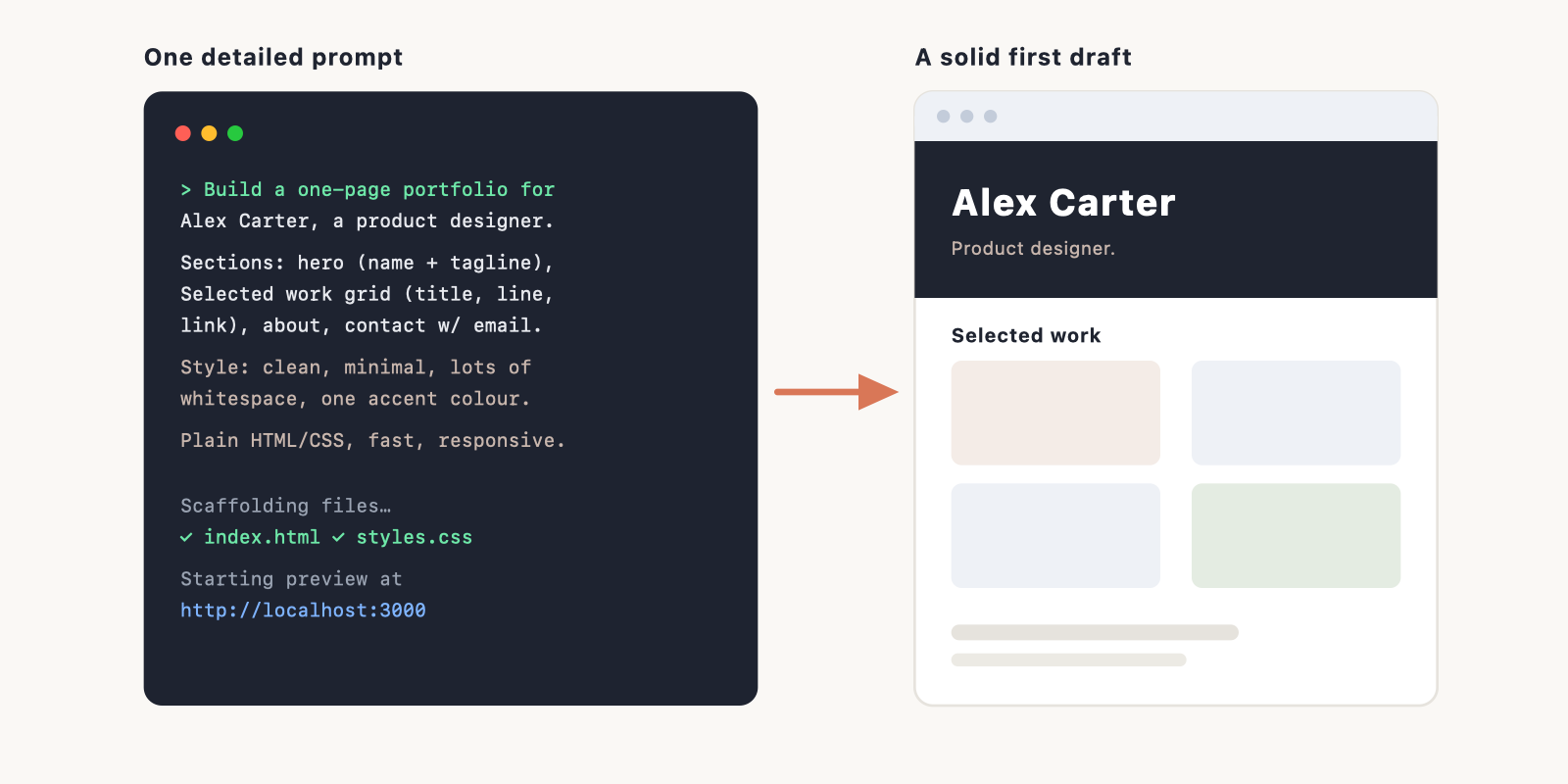
Make an empty folder, open Claude Code in it, and describe the whole site in one go. Specifics matter more than length. Here’s a prompt that produces a solid first draft:
Claude Code will scaffold the files and build the first version. Ask it to start a local preview so you can see it in your browser before changing anything.
Step 3: Refine it section by section
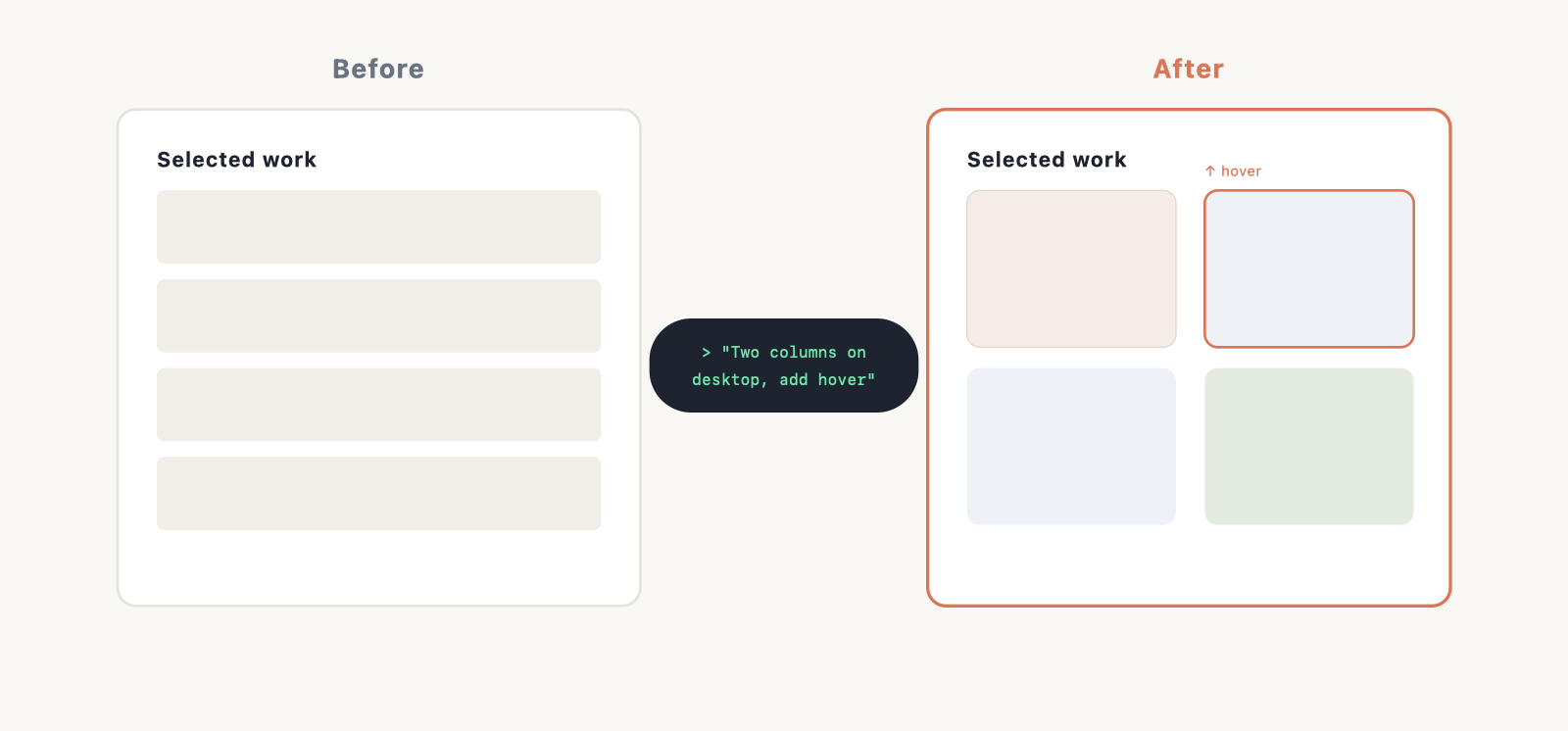
Now the easy part. Look at the draft and fix one thing at a time, in plain English. Small, specific requests work best:
- “Make the hero full-height with the text vertically centred.”
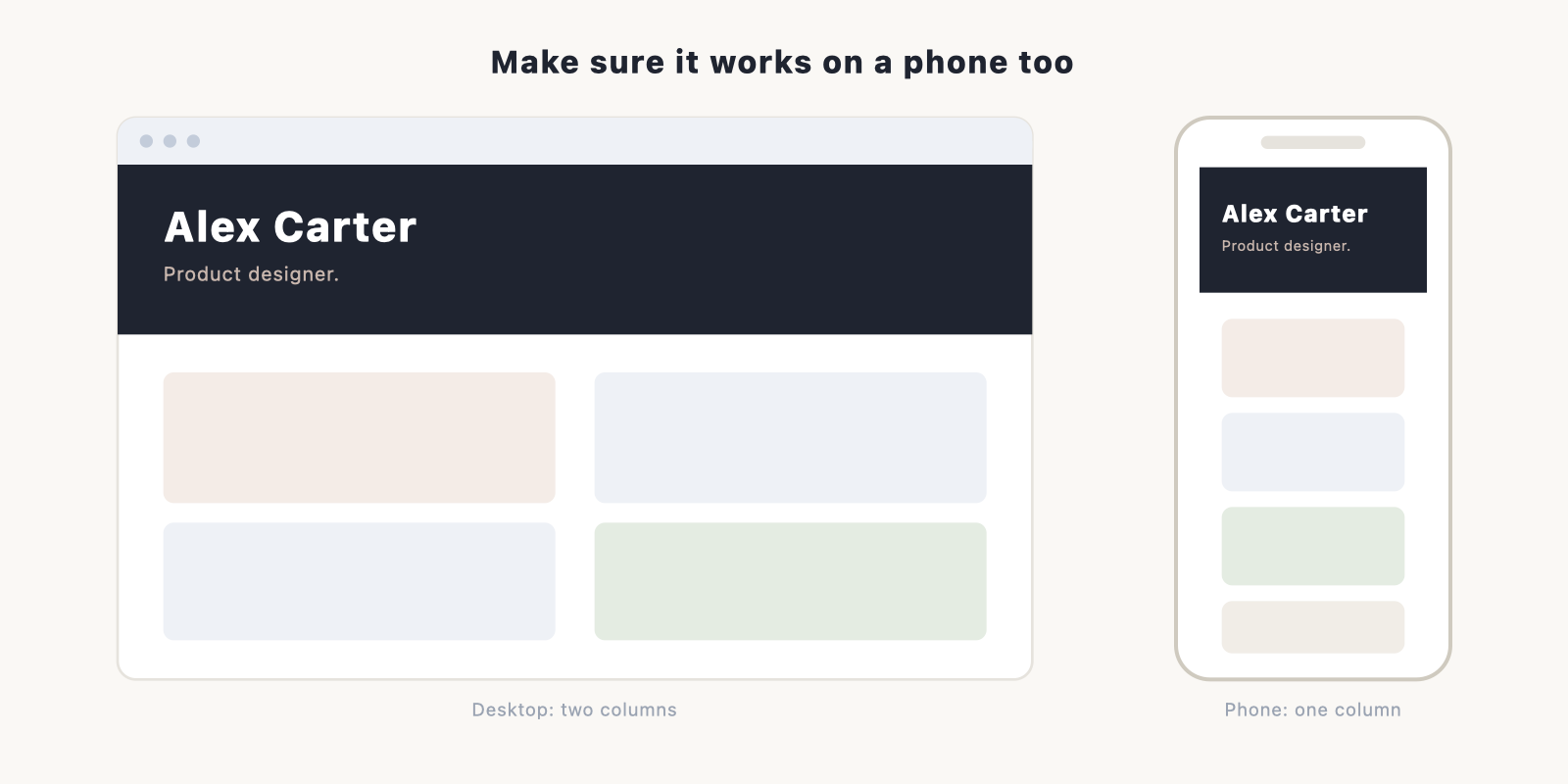
- “The work grid should be two columns on desktop and one on mobile.”
- “Add a subtle hover effect to each project card.”
- “Move the contact section into the footer and add a LinkedIn link.”
Each request is a small change you can see immediately and undo if you don’t like it. Keep going until the structure feels right. Don’t worry about perfect colours or copy yet; that comes next.
Step 4: Make it look the way you want
With the structure set, turn to the styling. This is where a portfolio goes from “fine” to “yours.”
Ask for changes in the language you’d use to a designer: “use a warmer off-white background,” “make the headings bigger and bolder,” “add more breathing room between sections,” “use a single coral accent on links and buttons.” If you want type that loads fast and looks right everywhere, our guide to web-safe fonts is worth a look before you pick.
Then check it on a phone. Resize your browser narrow, or open the preview on your phone, and tell Claude Code to fix anything that breaks: “the hero text is too big on mobile,” “stack the nav into a menu under 600px.” Getting this right is what separates a real site from a desktop-only mockup.
Step 5: Drop in your real content
If you used placeholder text and boxes, replace them now. Hand Claude Code your actual projects and bio and let it slot everything in: “replace the three sample projects with these,” then paste your real titles, descriptions, and links. Do the same for your about text and contact details. Swap the placeholder image boxes for your real images when you have them.
Read every line once it’s in. This is your name on the internet, so the copy should sound like you, not like filler.
Step 6: Put it online
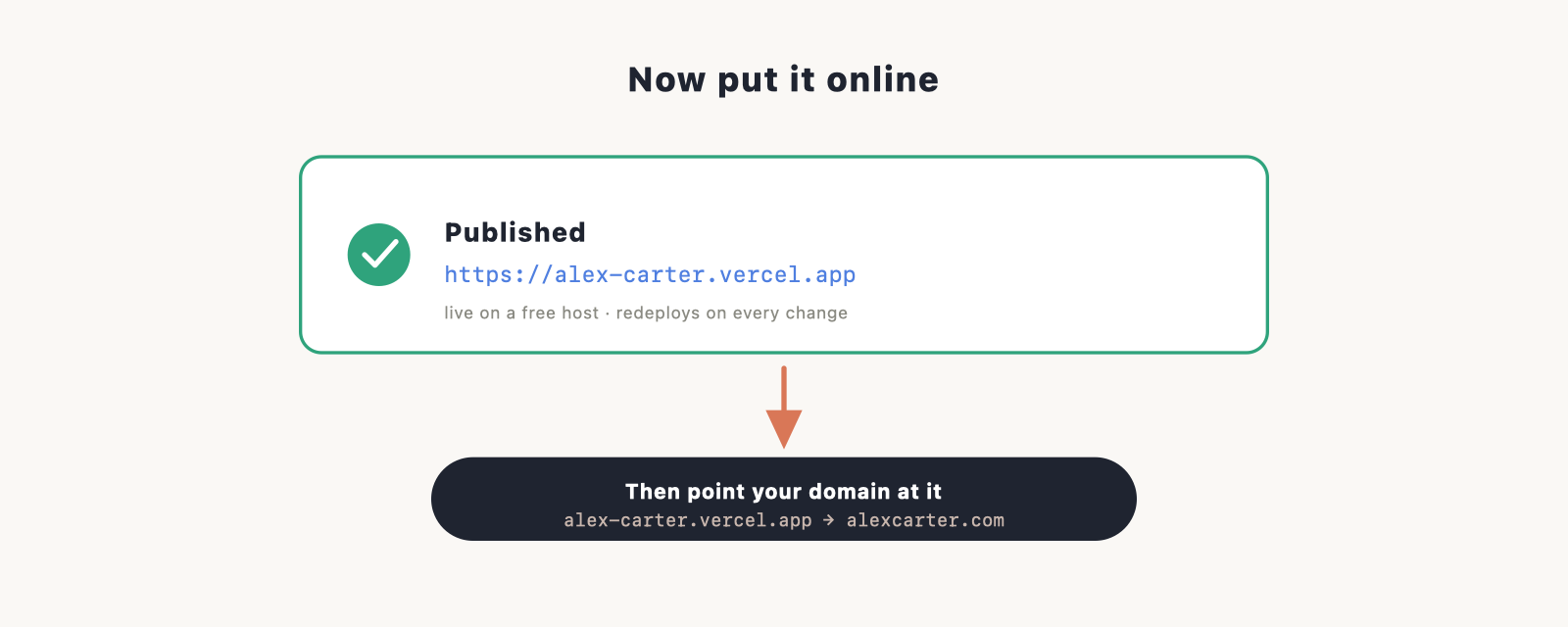
A portfolio nobody can visit isn’t doing its job. To publish, you push the site to a free host like Vercel or Netlify, and Claude Code can walk you through it from the terminal. The full process is in our guide to deploying a Claude Code website.
Once it’s live on a default address, point your own domain at it so it’s yourname.com instead of a random subdomain. While you’re at it, set up a matching email with create a custom domain email. If you still need a domain, our guide on choosing a domain name helps.
Step 7: Before you share it
Two quick checks before you put the link in your bio. Run through our website launch checklist so nothing obvious is missing, and confirm it loads fast using how to speed up your website. A portfolio that takes five seconds to load loses the visitor before they see your work.
Tips for a portfolio that actually lands
- Lead with the work, not a long bio. People scan; show them something good in the first screen.
- Three strong projects beat eight mediocre ones. Cut the filler.
- Every project should answer “what was it, what did you do, what was the result.”
- Make your contact method impossible to miss.
- Keep it fast and simple. A plain, quick site says more than a slow, flashy one.
When you’re ready to bring people to it, our guide on increasing website traffic covers the next step.
Frequently asked questions
Do I need to know how to code to build a portfolio with Claude Code? No. You describe what you want in plain English and review the changes. The only real requirement is having Claude Code installed.
How long does it take? About an hour for a clean one-page portfolio, assuming your content is ready. Styling tweaks can stretch that as long as you enjoy fiddling.
Can I update it later? Yes, any time. It’s your codebase. Open Claude Code in the folder and ask for the change, then redeploy.
Will it work on phones? It can, if you ask. Tell Claude Code to make it responsive and test it at a narrow width, as in Step 4.
Is this better than a portfolio builder? It’s better if you want to own the site outright instead of renting it from a builder, and you’re fine spending a bit more time. If you want the absolute fastest route, compare builders in making an online portfolio.